
The LG C6 OLED performs excellently right from the start. These adjustments enhance its performance even further.
The LG C6 OLED ranks among the top mid-range OLED TVs available today. After a month of daily testing and usage, it’s evident that straight out of the box, there’s potential for better picture quality.
The positive aspect is that enhancing the TV's performance doesn't necessitate professional calibration or extensive menu navigation. A few simple tweaks can enhance cinematic quality, improve shadow details, smooth motion, and even enhance the sound quality of the built-in speakers. Below are the specific settings I’ve utilized during my experience with the LG C6.
Begin with the correct picture mode
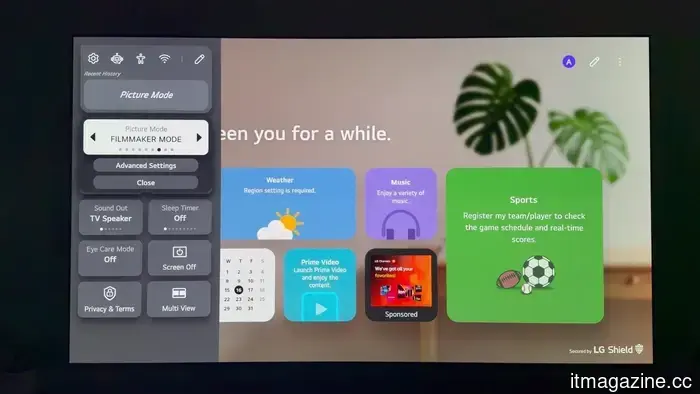
The C6 features various picture presets, but for movie or TV show viewing, Filmmaker Mode is by far my top choice. It disables unnecessary processing and aligns the content closely with the filmmakers' vision, making it the go-to mode during my tests.
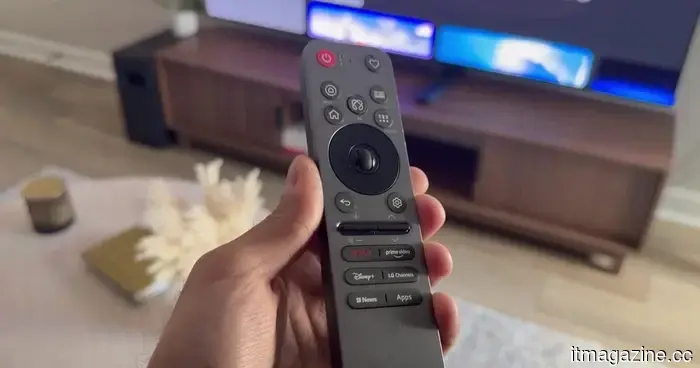
Switching to this mode is quick and easy. Just press the Settings button on the remote, access the Quick Menu, go to Picture Mode, and choose Filmmaker Mode.
While this mode is great, it may not be the best for every situation. If you usually watch during daylight or find Filmmaker Mode too dim, I suggest either Cinema or Cinema Home. Both options maintain excellent color accuracy and contrast while providing a brightness boost, especially useful in well-lit rooms.
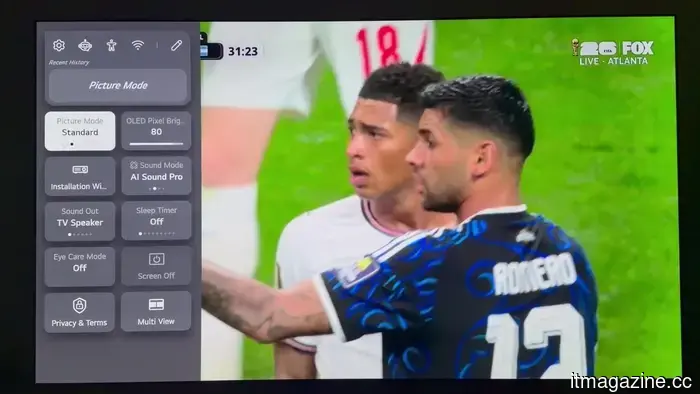
For sports viewing, however, Standard mode with its slightly cooler color temperature is ideal for live broadcasts and also increases perceived brightness, making it my preferred choice for daytime sports and viewing.
Activate Filmmaker Mode Ambient Light
If you opt for Filmmaker Mode, you should also enable the Filmmaker Mode Ambient Light feature. This setting automatically adjusts the TV's brightness according to the room’s lighting. During the day, it brightens the image, while in darker rooms, it dims the display for a more comfortable viewing experience, eliminating the need for manual adjustments.
You can find it under All Settings > Picture > Brightness > Filmmaker Mode Ambient Light.
Keep in mind, however, that this feature only functions with Filmmaker Mode while using HDR and Dolby Vision content, so it won’t affect every picture mode or source.
Adjust raised blacks and enhance shadow detail
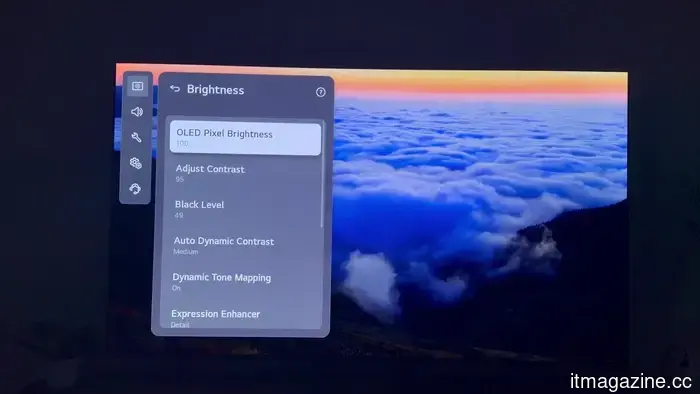
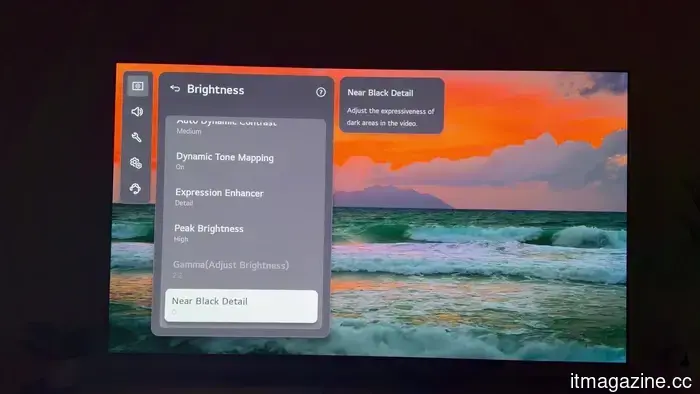
A significant improvement I noticed during my testing stemmed from three minor adjustments to the brightness settings.
In darker scenes, the black areas sometimes appeared slightly elevated, creating a grayish look instead of true black. Although this wasn't a consistent issue across all content, these modifications consistently resulted in a richer and more natural picture.
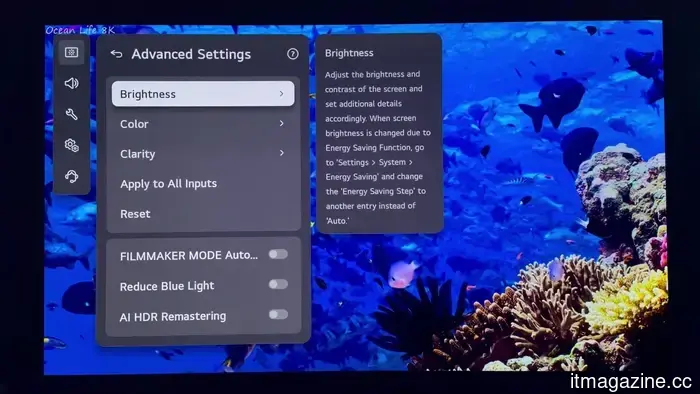
To access these controls, go to All Settings > Picture > Advanced Settings > Brightness.
The first adjustment involves Contrast, which I lowered from its default to 95. This small change helped diminish overly bright highlights without losing overall image impact.
Next, return one menu and decrease Black Level from 50 to 49. While this may seem trivial, reducing it by one point significantly lessened the lifted black effect in darker scenes.
Lastly, adjust Near Black Detail from its default of 0 to -1; this change enhanced the depth and natural look of darker scenes by emphasizing richer black tones.
Picture settings are subjective, so feel free to experiment. The key is to avoid drastic changes. Instead of making large adjustments, consider shifting a setting by one or two points at a time. Small adjustments like -1, +1, or +2 can lead to noticeable enhancements without disrupting the overall image.
Enhance motion without the soap opera effect
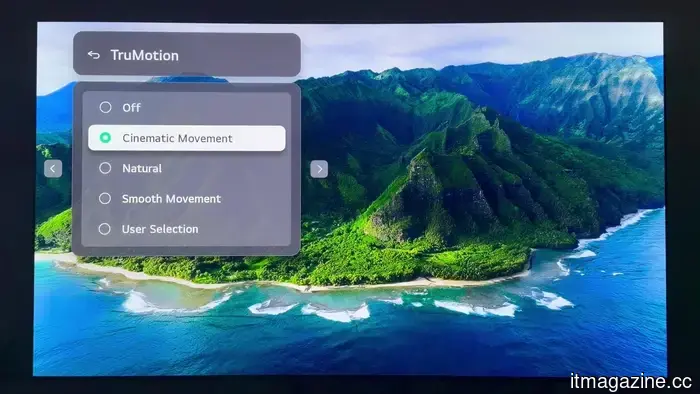
Motion handling is an area where LG OLED TVs typically require minor adjustments, and luckily, it only takes a minute to alter.
Navigate to All Settings > Picture > Advanced Settings > Clarity > TruMotion and set it to Cinematic Movement. This adjustment resulted in noticeably smoother motion in my tests while avoiding the artificial soap opera effect many viewers dislike.
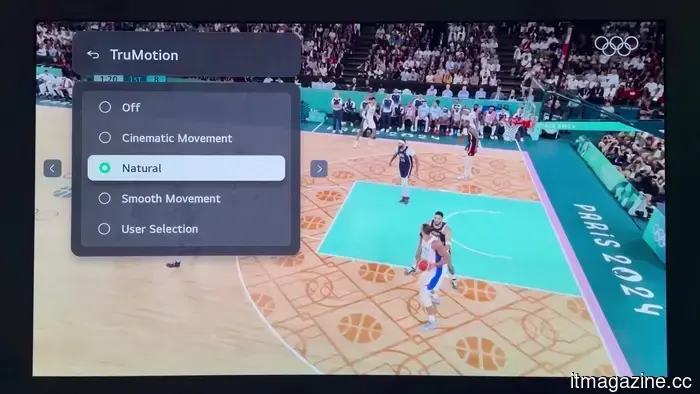
If your focus is on sports, Cinematic Movement still performs well, but I tend to switch to Natural mode. This option keeps fast-paced action smooth and free from distracting artifacts, such as ghosting of a basketball or hockey puck. It’s a minor change but significantly improved the clarity of live sports during my experience with the TV.
Enhance built-in audio
LG streamlined some sound presets in webOS this year, which unfortunately meant losing one of my favorites: Cinema sound mode.
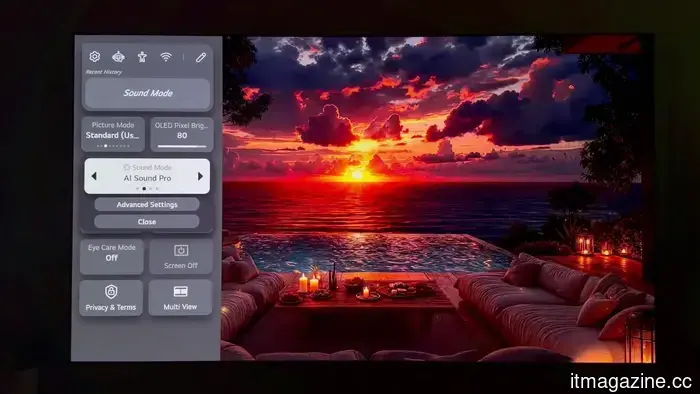
Fortunately, a strong alternative remains. AI Sound Pro consistently provided excellent dialogue clarity, richer sound, and a wider soundstage during testing, making it the preset I favored.
Access it by opening the Quick Menu, selecting Sound Mode, and choosing AI Sound Pro.
For anyone relying on the TV’s built-in speakers rather than an external soundbar or home theater system, this is the recommended sound mode.
Final thoughts
These are the settings I’ve adopted after a month of testing the LG C6 OLED. They’re not overly complicated, but collectively they significantly enhance the viewing experience, improving picture accuracy, shadow detail, motion smoothness, and sound quality.
These suggestions aren't exclusive to the LG C6; many
Other articles
 What Characteristics Should You Seek in an AI-Enhanced Laptop or Copilot+ PC?
Laptops equipped with AI and Copilot+ PCs are gaining importance as the usage of laptops has evolved considerably in recent years. Current workflows are centered on multitasking, collaborating in the cloud, video conferencing, streaming, and utilizing productivity tools that are consistently in use throughout the day. The majority of professionals now rely on laptops for more than just word processing and […]
What Characteristics Should You Seek in an AI-Enhanced Laptop or Copilot+ PC?
Laptops equipped with AI and Copilot+ PCs are gaining importance as the usage of laptops has evolved considerably in recent years. Current workflows are centered on multitasking, collaborating in the cloud, video conferencing, streaming, and utilizing productivity tools that are consistently in use throughout the day. The majority of professionals now rely on laptops for more than just word processing and […]
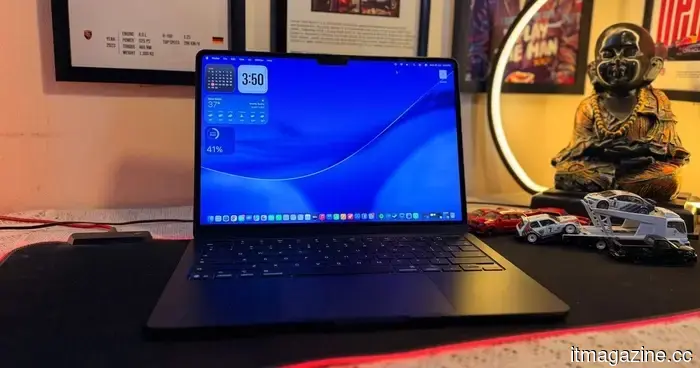 The MacBook Air and iMac are the next devices set to feature OLED technology from Apple.
According to reports, Apple is working on OLED versions of the MacBook Air and iMac, but both of these models are expected to launch significantly later than the first OLED MacBook Pro.
The MacBook Air and iMac are the next devices set to feature OLED technology from Apple.
According to reports, Apple is working on OLED versions of the MacBook Air and iMac, but both of these models are expected to launch significantly later than the first OLED MacBook Pro.
 Google has simplified the process of transitioning from iPhone to Android with the release of Android 17.
Android 17 has launched an enhanced migration tool that transfers significantly more data from iPhones than in the past. Wired transfers can now include passwords, passkeys, eSIM, Google Accounts, and additional items.
Google has simplified the process of transitioning from iPhone to Android with the release of Android 17.
Android 17 has launched an enhanced migration tool that transfers significantly more data from iPhones than in the past. Wired transfers can now include passwords, passkeys, eSIM, Google Accounts, and additional items.
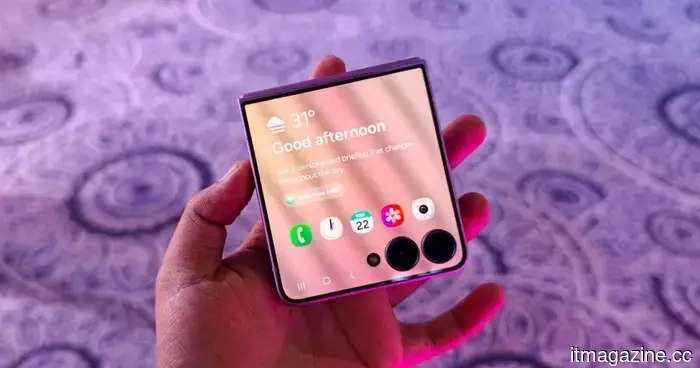 Samsung simplifies the process of running multiple applications on the cover screen of the Galaxy Z Flip 8.
Samsung enhanced the Z Flip 8's cover display by introducing a native app drawer that accommodates 16 apps right from the start, tackling years of user dissatisfaction with its previously restricted widget-only capabilities.
Samsung simplifies the process of running multiple applications on the cover screen of the Galaxy Z Flip 8.
Samsung enhanced the Z Flip 8's cover display by introducing a native app drawer that accommodates 16 apps right from the start, tackling years of user dissatisfaction with its previously restricted widget-only capabilities.
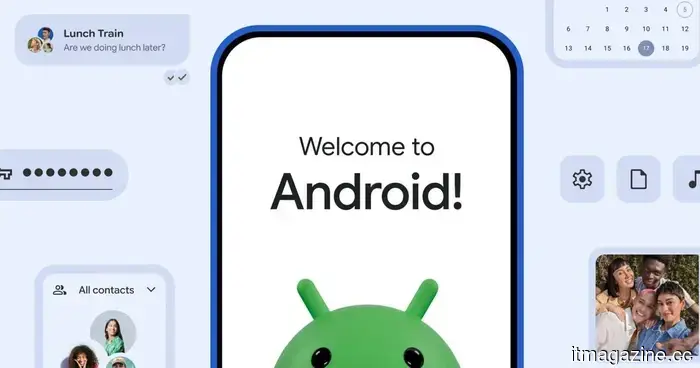 Google has simplified the process of transitioning from iPhone to Android with Android 17.
Android 17 has launched an enhanced migration tool that transfers significantly more data from iPhones than previously. Wired transfers can now include passwords, passkeys, eSIM, Google Accounts, and additional data.
Google has simplified the process of transitioning from iPhone to Android with Android 17.
Android 17 has launched an enhanced migration tool that transfers significantly more data from iPhones than previously. Wired transfers can now include passwords, passkeys, eSIM, Google Accounts, and additional data.
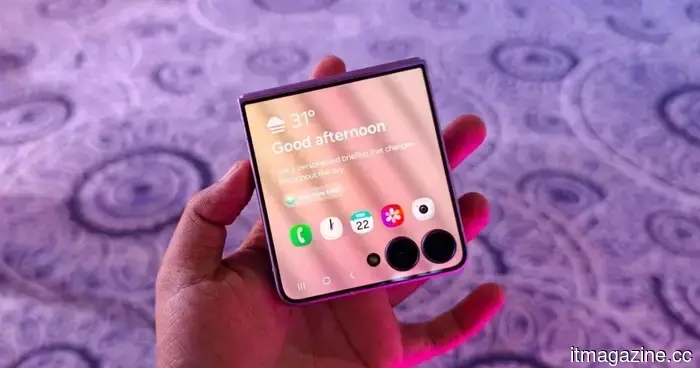 Samsung simplifies the process of using multiple apps on the cover screen of the Galaxy Z Flip 8.
Samsung enhanced the Z Flip 8's cover screen by introducing a native app drawer that accommodates 16 apps from the start, resolving years of user dissatisfaction with the previous widget-only feature.
Samsung simplifies the process of using multiple apps on the cover screen of the Galaxy Z Flip 8.
Samsung enhanced the Z Flip 8's cover screen by introducing a native app drawer that accommodates 16 apps from the start, resolving years of user dissatisfaction with the previous widget-only feature.
The LG C6 OLED performs excellently right from the start. These adjustments enhance its performance even further.
The LG C6 OLED offers an outstanding experience right from the start, but some easy modifications can enhance it further. After a month of testing, I consistently return to these picture, motion, and sound settings, along with the adjustments that clearly improved the overall viewing experience.