
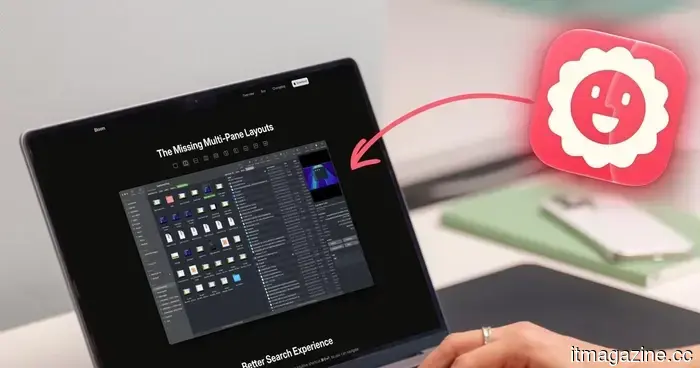
I didn't notice how much Finder was hindering my productivity until I made the switch to Bloom.
I have been using Finder ever since I got my Mac, and for a long time, I didn't really think much about it. You simply open a window, browse through folders, drag a file to the right place, and continue with your day. That's how it works, right?
However, it shouldn't be that way. Continuously opening new windows to transfer a file from one folder to another, waiting for searches that comb through my entire drive when I only need results from a specific folder, and repeatedly resizing columns because they never retain their width (this particular issue is especially frustrating) shouldn't be considered normal.
On their own, these issues don't seem like a big deal. But when accumulated over months and years of daily use, they lead to a lot of wasted clicks. Even so, I hadn't actively sought a solution because, honestly, I wasn't even aware there was a problem. That was until I found Bloom, which changed everything for me. It has become one of my favorite Mac utilities, so let's discuss it.
The introduction of multiple panes transformed my workflow.
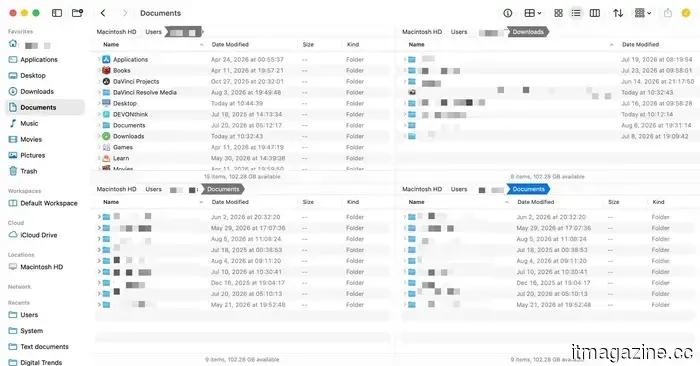
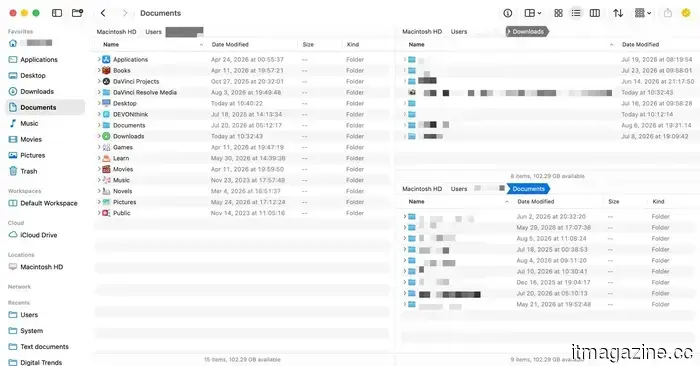
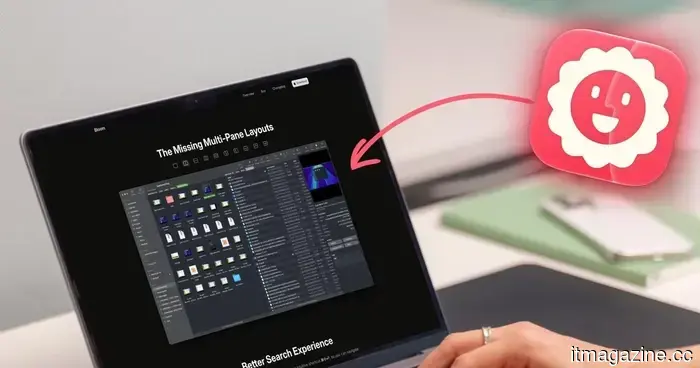
The first feature that captured my attention was Bloom's multi-pane layout. Rather than managing separate Finder windows to transfer files, Bloom allows you to divide a single window into several panes. You can choose from up to 12 different configurations and set any of them as your default layout.
My preferred setup features three panes: a larger one on the left and two smaller ones stacked on the right. The three main folders I access regularly are the main directory, the Downloads folder, and the Documents folder. I keep the main directory visible in the left pane, while the smaller right pane displays the other two folders. Whenever I want to transfer a file between these three, I can drag and drop without opening a new window.
Moreover, you can save these pane arrangements as Workspaces. I have several saved for different tasks in my routine, so when I sit down to work, I can quickly access the appropriate workspace from the toolbar or via a keyboard shortcut, with everything exactly where I left it.
A floating window that stays with you
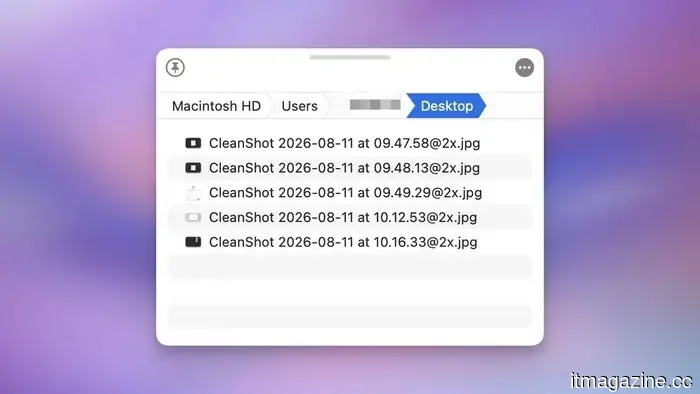
One of my favorite features of Bloom is called the Portal, a small window that can float above any app you’re using. Think of it as a shelf for files you frequently need while working on something else. I use it all the time when I need to transfer files into another app without losing my place or interrupting my focus on the task at hand.
Search functions that finally make sense
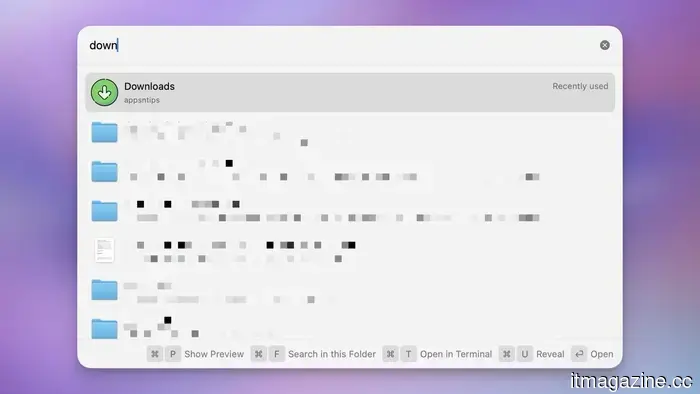
The standout feature that saves me the most time in Bloom is its search functionality. I can use a universal shortcut, enter a folder name, and jump straight to it from any location. It is significantly better than the Go to Folder feature in Finder.
Another aspect I appreciate about Bloom is that, by default, it searches within the folder rather than my entire Mac directory. By pressing Command-F, instead of searching my entire drive as Finder does by default—a process that is both unnecessary and lengthy—Bloom searches only the folder I'm currently in.
The little enhancements I didn't realize I needed
In addition to its major features, Bloom is packed with small conveniences that save time. It allows me to view contents of zip files and other archives without needing to extract them first and even lets me partially extract files.
The columns automatically resize themselves, eliminating the annoyance of having to adjust them each time a filename is too long. This has been my biggest grievance with Finder, and I'm so relieved that I no longer have to deal with it.
There’s a menu bar app for quick access to favorites, folders, and workspaces, along with built-in image editing tools and a shortcut to open your current folder in Terminal.
Additionally, there’s Footprints, which keeps a log of every file operation, so if you delete something accidentally or a batch rename goes awry, you can undo it. Finally, it includes a regex-powered rename tool, a genuinely useful improvement over Finder's basic option.
Should you consider making the switch?
Bloom is a straightforward app that can seamlessly integrate into your workflow and enhance your experience. It looks and feels familiar enough for immediate use. However, it also offers surprising depth for those willing to explore.
If you manage even a moderate number of files on your Mac, I believe you'll notice the difference within a day. If you've ever found Finder to be frustrating or inadequate, I highly recommend purchasing this app. I've been using it for about a month, and I can't imagine going back to Finder on my Mac.

Other articles
 Amazon's $5 million effort against Mamdani's delivery bill serves as a strong case for its approval.
New York's Delivery Protection Act would require Amazon to hire the couriers who currently display its logo. The company's own subcontracting approach strongly supports this requirement.
Amazon's $5 million effort against Mamdani's delivery bill serves as a strong case for its approval.
New York's Delivery Protection Act would require Amazon to hire the couriers who currently display its logo. The company's own subcontracting approach strongly supports this requirement.
 I didn't recognize how much Finder was hindering my progress until I made the switch to Bloom.
Finder never troubled me until I discovered Bloom. The multi-pane designs, a floating Portal, and more intelligent search features made me aware of how much time I was passively wasting each day.
I didn't recognize how much Finder was hindering my progress until I made the switch to Bloom.
Finder never troubled me until I discovered Bloom. The multi-pane designs, a floating Portal, and more intelligent search features made me aware of how much time I was passively wasting each day.
 I came across a peculiar MelGeek lighting feature and transformed my keyboard into a Tetris game.
I found out that the MelGeek MADE68 Ultra V2 is capable of transforming standard GIFs into RGB lighting effects, so I decided to create a 30-second loop of Tetris for it.
I came across a peculiar MelGeek lighting feature and transformed my keyboard into a Tetris game.
I found out that the MelGeek MADE68 Ultra V2 is capable of transforming standard GIFs into RGB lighting effects, so I decided to create a 30-second loop of Tetris for it.
 I found a strange MelGeek lighting function and transformed my keyboard into Tetris.
I found that the MelGeek MADE68 Ultra V2 can transform regular GIFs into RGB lighting effects, so I went ahead and created a 30-second Tetris loop for it.
I found a strange MelGeek lighting function and transformed my keyboard into Tetris.
I found that the MelGeek MADE68 Ultra V2 can transform regular GIFs into RGB lighting effects, so I went ahead and created a 30-second Tetris loop for it.
 Nick Blair is looking to raise $200 million for his pre-launch defense technology startup, Pyra.
Nick Blair, the son of former UK Prime Minister Tony Blair, is looking to raise approximately $200 million for Pyra, a defense-tech startup based in London that is yet to launch, as funding for military technology in Europe reaches unprecedented levels.
Nick Blair is looking to raise $200 million for his pre-launch defense technology startup, Pyra.
Nick Blair, the son of former UK Prime Minister Tony Blair, is looking to raise approximately $200 million for Pyra, a defense-tech startup based in London that is yet to launch, as funding for military technology in Europe reaches unprecedented levels.
 Amkor is considering a stake sale of over $1 billion in its Chinese chip division.
Amkor Technology is considering selling a stake in its chip packaging division in China, valuing the unit between $1 billion to $1.5 billion, as it shifts its focus and investment towards Nvidia and Arizona.
Amkor is considering a stake sale of over $1 billion in its Chinese chip division.
Amkor Technology is considering selling a stake in its chip packaging division in China, valuing the unit between $1 billion to $1.5 billion, as it shifts its focus and investment towards Nvidia and Arizona.
I didn't notice how much Finder was hindering my productivity until I made the switch to Bloom.
Finder never caused me any trouble until I started using Bloom. The multi-pane layouts, a floating Portal, and more efficient search made me recognize how much time I had been quietly wasting each day.