
7 Tips for Apple Notes to Enhance Your Note-Taking Experience
Over the years, Apple has transformed Apple Notes into one of the top note-taking applications for the iPhone. However, many users only utilize the app as a storage space for information and do not maximize its potential. Today, I'll share seven of my favorite tips for Apple Notes that will enhance your note-taking experience.
Switch between recently opened notes
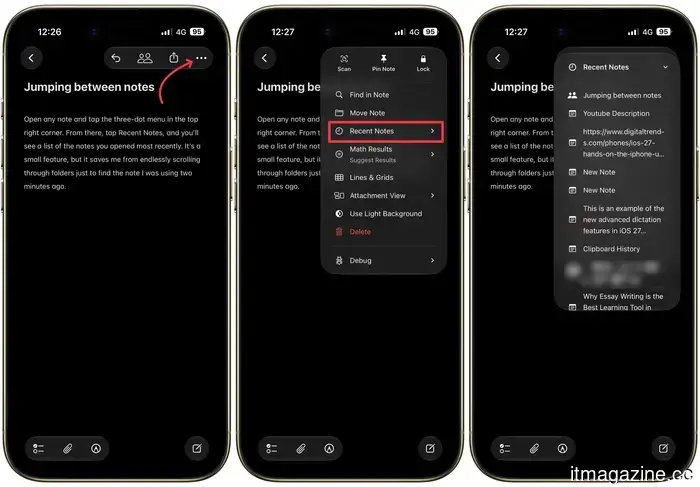
I often switch between draft articles, shopping lists, and random thoughts. Before discovering this shortcut, moving between notes was quite frustrating. Open any note and tap the three-dot menu located in the upper right corner.
From there, select Recent Notes, and you'll see a list of your most recently accessed notes. This small feature saves me from endlessly scrolling through folders to locate a note I was using just moments ago.
Highlight your favorite text
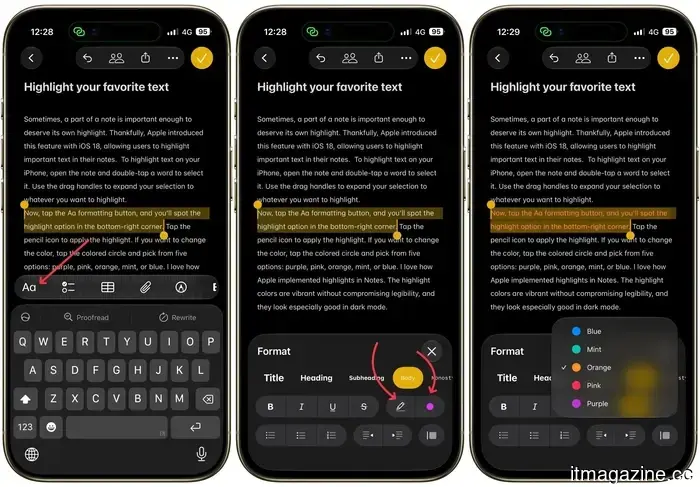
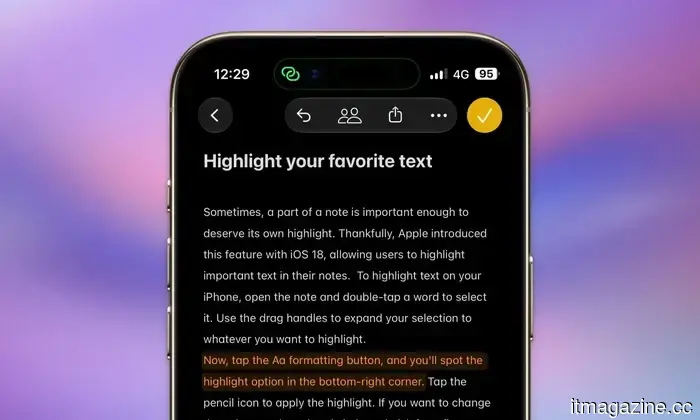
Sometimes, sections of a note are significant enough to warrant their own highlight. Apple added this feature with iOS 18, allowing users to highlight essential text within their notes. To highlight text on your iPhone, open the note and double-tap a word to select it. Use the drag handles to expand your selection to whatever you wish to highlight.
Now, tap the Aa formatting button, and you'll find the highlight option in the lower-right corner. Click the pencil icon to apply the highlight. If you want to change the color, tap the colored circle and choose from five options: purple, pink, orange, mint, or blue. I appreciate how Apple has implemented highlights in Notes. The highlight colors are vibrant yet maintain readability, and they look particularly nice in dark mode.
Capture quick notes in seconds
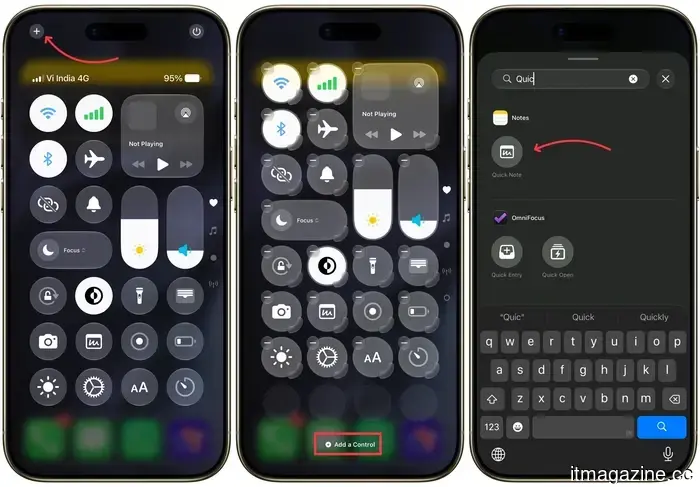
When inspiration hits, the last thing you want is to struggle with the Notes app to jot it down. Quick Note addresses this issue perfectly. To use this feature, you first need to add it to your Control Center. Swipe down from the top right of your screen to access it, tap the plus icon, then tap Add a Control. Search for Quick Note and add it to your Control Center.
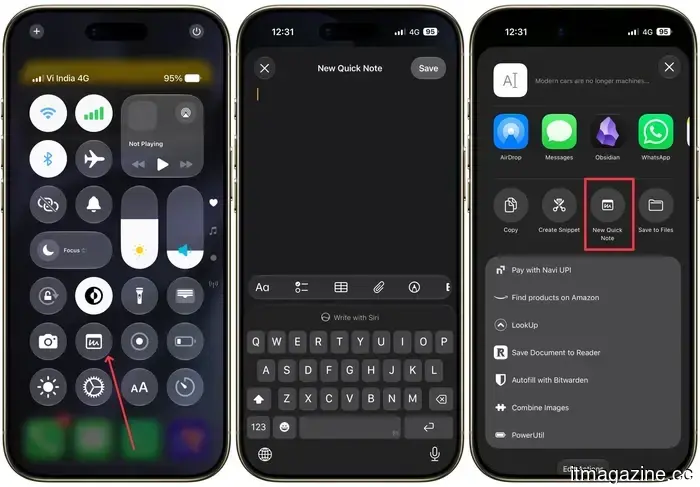
Afterward, swiping down from the top right corner will give you immediate access to the Quick Note icon, which looks like a small box with a scribble. Write your note, tap Save, and it will go directly into the Notes app. You can even create a Quick Note from within another app. For instance, if you're reading an article in the Arc Search browser and want to save a link or snippet of text, just tap the Share icon and select Add to Quick Note.
Lock sensitive notes with a password
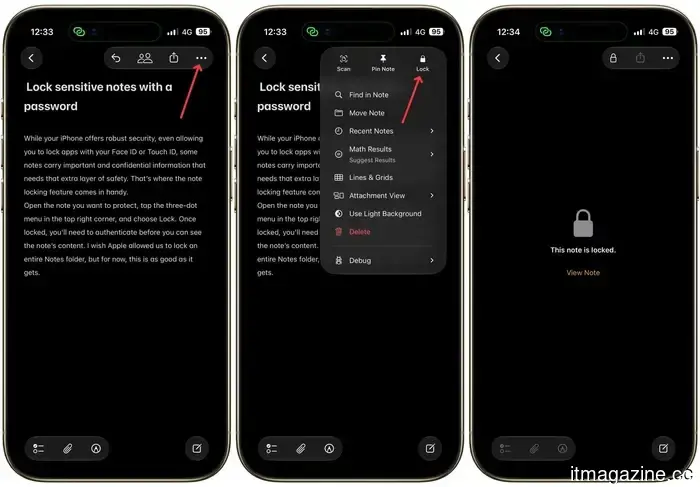
While your iPhone provides strong security, allowing you to lock apps with Face ID or Touch ID, some notes contain crucial and confidential information that requires extra protection. This is where the note locking feature proves useful.
Open the note you wish to secure, tap the three-dot menu in the upper right corner, and select Lock. Once locked, you'll need to authenticate in order to view the content of the note. I wish Apple would allow us to lock an entire folder of Notes, but for now, this is the best option available.
Find all your attachments in one place
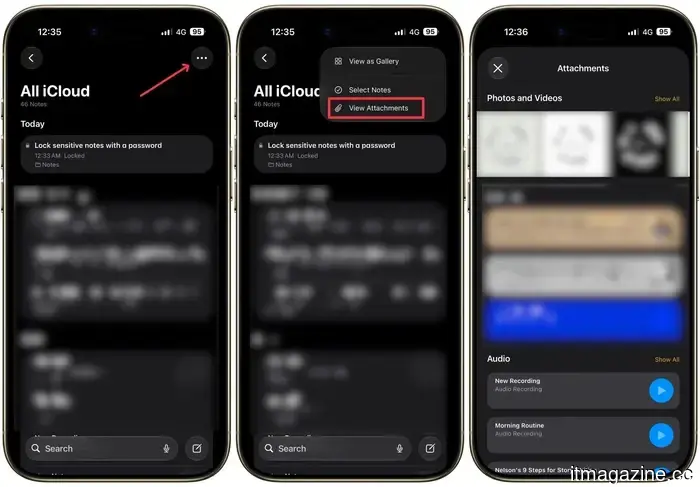
There are times when you know you've saved a document in Notes but can't recall the note title. To save you from the hassle of opening each note individually in search of that document, tap the three-dot menu and select View Attachments. This will display every photo, scan, audio recording, and document you've saved across all your notes in one scrollable window. This feature has saved me multiple times from having to sift through numerous notes to find a single screenshot.
Organize notes with tags and smart folders
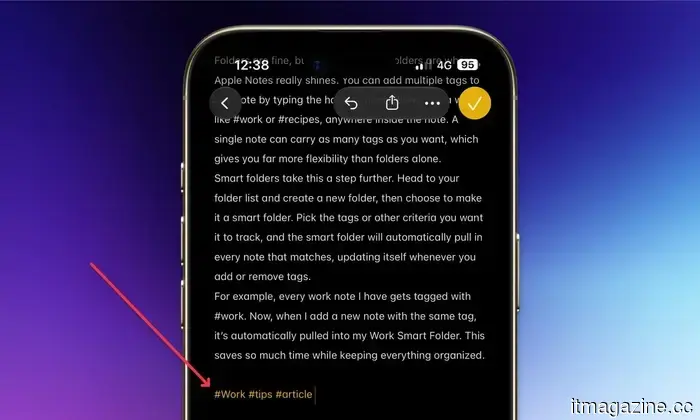
I enjoy organizing my notes using tags. You can add multiple tags to any note by typing the hash symbol followed by a word, such as #work or #recipes, anywhere within the note. A single note can have as many tags as you like, offering more flexibility than folders alone.
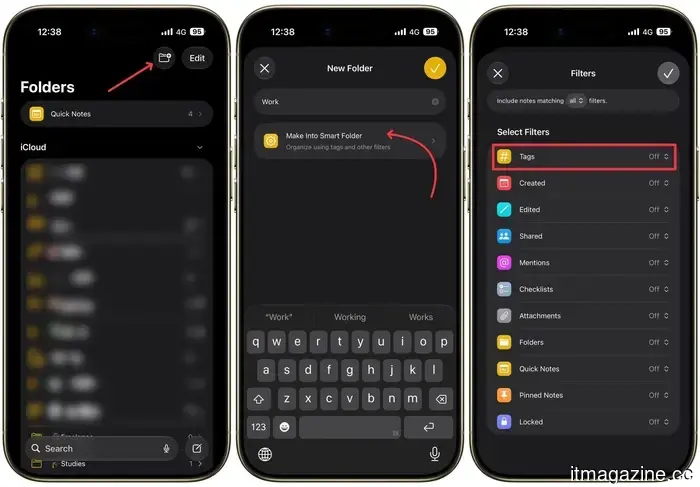
Smart folders enhance this functionality. Go to your folder list, create a new folder, and select the option to make it a smart folder. Choose the tags or criteria you want it to track, and the smart folder will automatically include every corresponding note, updating itself whenever you add or remove tags.
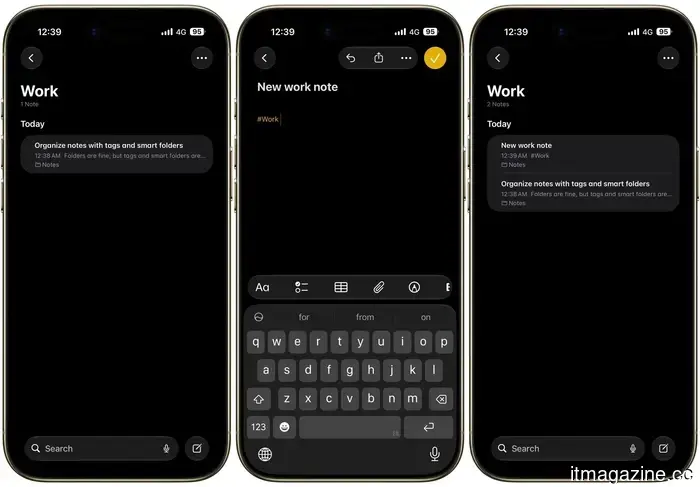
For example, every work-related note I create is tagged with #work. So, when I add a new note with that tag, it's automatically included in my Work Smart Folder. This saves a lot of time while keeping everything organized.
Link notes to build your own table of contents
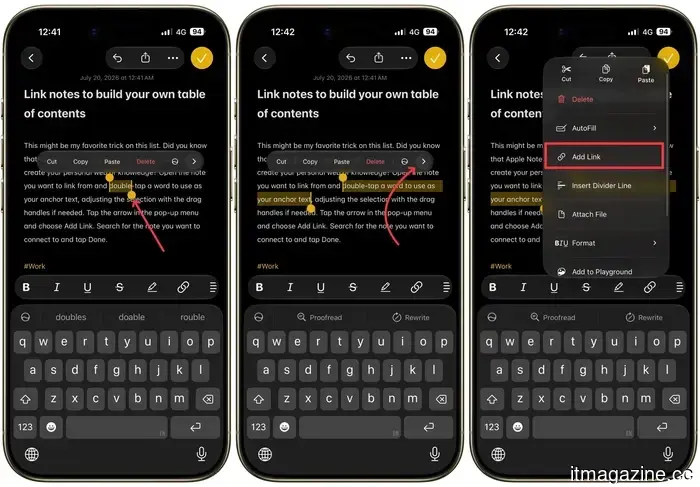
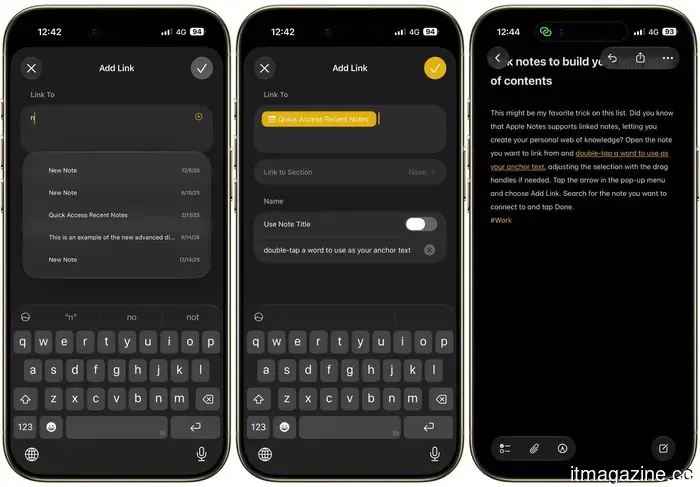
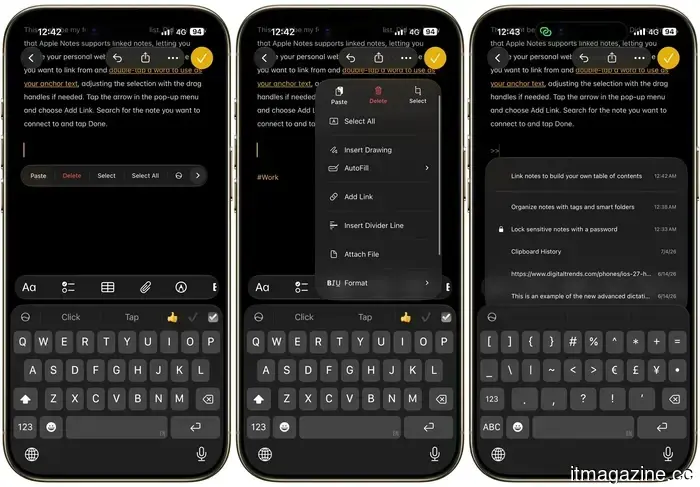
This might be my favorite tip on this list. Did you know that Apple Notes allows you to create linked notes, enabling you to construct your personal web of knowledge? Open the note you want to link from and double-tap a word to select it as your anchor text, adjusting the selection with the drag handles as needed.
Tap the arrow in the pop-up menu and choose Add Link. Search for the note you wish to connect to and tap Done.
If you prefer to add a link without anchor text, long-press where
Other articles
 A lesser-known iPhone browser discreetly resolves my greatest issue with Google Search.
Quiche Browser had already captured my attention with its extensive customization options. Now, with the default feature of eliminating AI summaries from search results, it has firmly convinced me.
A lesser-known iPhone browser discreetly resolves my greatest issue with Google Search.
Quiche Browser had already captured my attention with its extensive customization options. Now, with the default feature of eliminating AI summaries from search results, it has firmly convinced me.
 This bug in the Android lock screen allows anyone to send texts via Gemini without needing to enter your PIN.
A recently found Gemini vulnerability allows anyone to bypass your Android PIN, enabling them to send SMS and WhatsApp messages from a locked device.
This bug in the Android lock screen allows anyone to send texts via Gemini without needing to enter your PIN.
A recently found Gemini vulnerability allows anyone to bypass your Android PIN, enabling them to send SMS and WhatsApp messages from a locked device.
 Decart's Lucy 2.5 introduces new live video effects, but the true champion is physical AI.
Decart's Lucy 2.5 delivers real-time visual effects to live video, enabling everything from explosions to virtual try-ons. However, the more significant narrative revolves around how its enhanced physics engine boosts Oasis 3 world model simulations for robotics and autonomous vehicles.
Decart's Lucy 2.5 introduces new live video effects, but the true champion is physical AI.
Decart's Lucy 2.5 delivers real-time visual effects to live video, enabling everything from explosions to virtual try-ons. However, the more significant narrative revolves around how its enhanced physics engine boosts Oasis 3 world model simulations for robotics and autonomous vehicles.
 Zhongji Innolight is targeting an $8 billion initial public offering in Hong Kong.
Zhongji Innolight, a producer of AI data center optics, is assessing interest for an $8 billion listing in Hong Kong, the largest in the city since Alibaba's in 2019.
Zhongji Innolight is targeting an $8 billion initial public offering in Hong Kong.
Zhongji Innolight, a producer of AI data center optics, is assessing interest for an $8 billion listing in Hong Kong, the largest in the city since Alibaba's in 2019.
 The software update for your next car might turn out to be its greatest security threat.
Experts indicate that over-the-air updates for vehicles are revolutionizing the automotive sector but are also giving rise to new cybersecurity and national security threats that governments must address.
The software update for your next car might turn out to be its greatest security threat.
Experts indicate that over-the-air updates for vehicles are revolutionizing the automotive sector but are also giving rise to new cybersecurity and national security threats that governments must address.
 Your future AR glasses may finally eliminate the strange appearance of the real world.
Researchers have created a new augmented reality display technology that enhances visibility in the real world while ensuring that virtual objects appear realistic, thereby making future smart glasses safer and more functional.
Your future AR glasses may finally eliminate the strange appearance of the real world.
Researchers have created a new augmented reality display technology that enhances visibility in the real world while ensuring that virtual objects appear realistic, thereby making future smart glasses safer and more functional.
7 Tips for Apple Notes to Enhance Your Note-Taking Experience
From highlighted text to password-protected notes, here are seven Apple Notes tips hidden in menus you may have overlooked numerous times.