
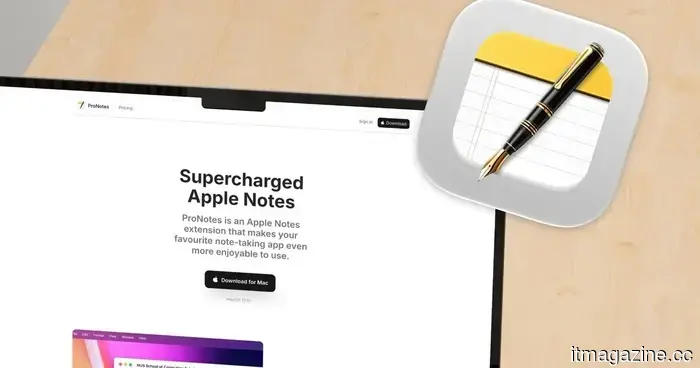
I discovered a solution for the features that Apple Notes has lacked for years.
Apple Notes is one of my preferred note-taking applications. It’s free, comes preinstalled on all my Apple devices, and offers a robust set of features such as shared notes, locked notes, the ability to attach various file types, and note linking, among others. For most users, that’s sufficient to meet their needs.
Nonetheless, there are a few features that I hope Apple will eventually incorporate into Notes. I continuously check for new features with each iOS and macOS update, but so far, I've been disappointed. Until Apple decides to enhance Notes, I discovered a free extension called ProNotes that integrates most of these missing features into the app. Here’s a rundown of what it has to offer.
A formatting bar at your fingertips
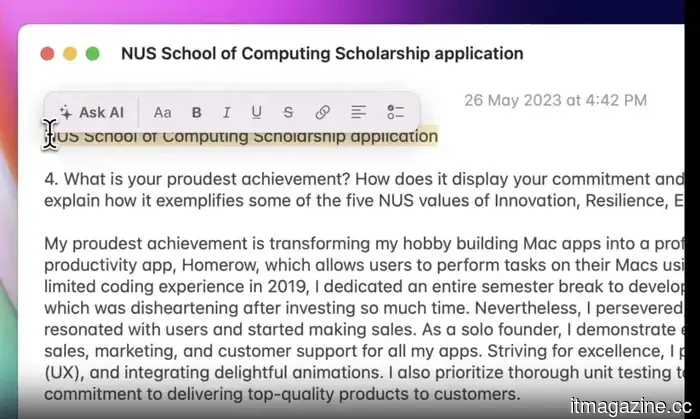
Typically, formatting text in Notes requires you to select it and then reach up to the toolbar. ProNotes resolves this by providing a formatting bar directly above your selected text. I can adjust the font size, bold text, insert links, or create checklists without moving my cursor far from my current position. It may seem like a minor improvement, but once you get accustomed to it, reverting to the old method feels burdensome.
ProNotes
Format text using markdown shortcuts
While I appreciate the formatting bar, my preferred method for styling notes is through Markdown. If you're familiar with apps like Obsidian, you likely know how to use Markdown shortcuts. ProNotes brings these shortcuts to Apple Notes. For instance, typing # and hitting space creates a title, ## for a heading, and ### for a subheading.
Additionally, you can type – followed by a space to create a checklist, three backticks for a monostyled block, and > for a block quote. Having these shortcuts finally functional in Notes feels satisfying, given how accustomed I am to them in other apps.
Slash commands for when shortcuts slip your mind
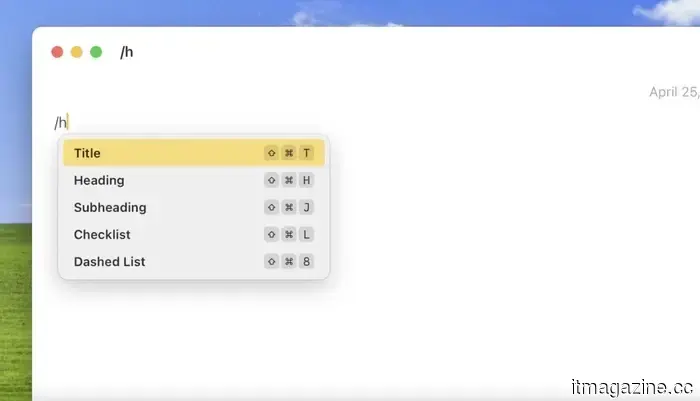
Not everyone wants to memorize multiple keyboard shortcuts, and that’s where slash commands become useful. By typing a forward slash followed by commands like /title, /heading, /checklist, /table, or /quote, ProNotes formats your text accordingly. There’s even a shortcut for inserting a table, a feature that Apple Notes still lacks on its own.
ProNotes
Backlinks have finally arrived in Apple Notes
macOS Sonoma introduced the option to link one note to another, which was a welcome addition. With the latest macOS Golden Gate update, Apple enhanced this by allowing links to subheadings, making it easier to create a table of contents.
ProNotes
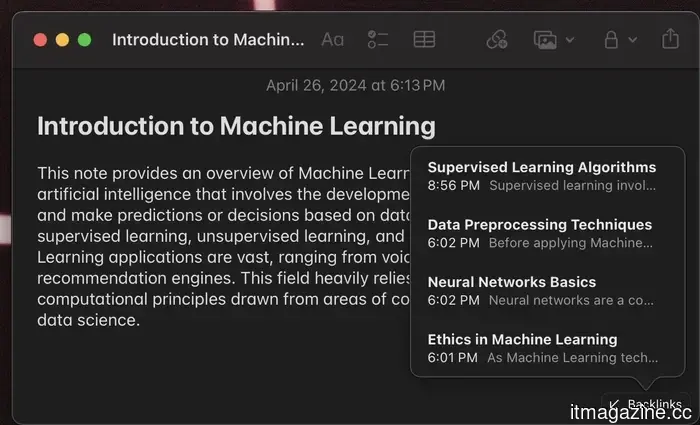
However, neither of these updates included a way to view which notes are linking back to the current note. ProNotes addresses this with a Backlinks feature, enabling you to open any note and instantly see all other notes that reference it.
If you use Notes to create a personal wiki or keep track of interconnected ideas, this feature alone could justify installing the extension.
Save time with templates
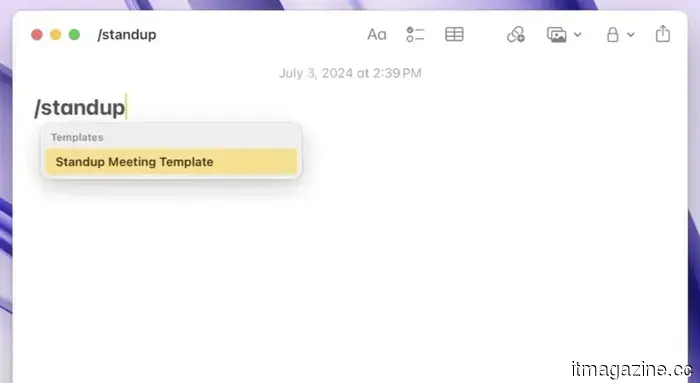
Templates are another feature I wish Apple had included from the start. With ProNotes, you can create a folder called Templates, place your template notes there, and then use a slash command to access one whenever you need it. Just type the word template or the title of your template, and it’ll appear ready to insert.
ProNotes
The extension smartly removes the template’s title when inserting the content into your note, so you won’t have to tidy up afterwards. You can also include variables like @today or @date within your templates, which will automatically update to display the current date in your locale’s format.
If you often take meeting notes or any type of notes that follow a consistent format, this feature can save you a significant amount of time.
Find any note in seconds
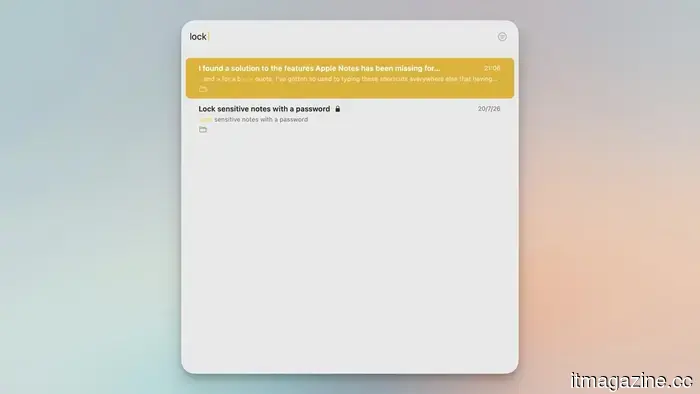
Apple Notes has a decent search function, but I particularly miss the search bar that comes with other note-taking applications like Obsidian. In Obsidian, I can use a keyboard shortcut to bring up a floating search bar that allows me to quickly find and open notes. ProNotes adds this feature to Notes, significantly improving the search experience.
Rachit Agarwal / Digital Trends
By pressing Command and P within Notes, ProNotes activates a keyboard-friendly search window, helping me locate any note in mere seconds. I can even create separate shortcuts—one for use strictly within Notes and another for system-wide use—allowing me to access a note from anywhere on my Mac.
ProNotes AI, if you want to go further
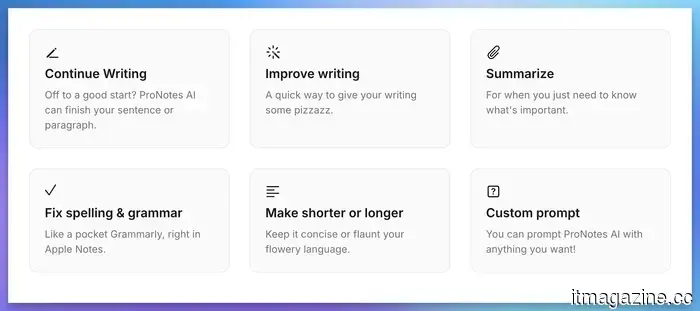
ProNotes also includes a paid AI option for users looking to enhance their experience. It can help continue writing sentences or paragraphs, improve writing quality, summarize lengthy notes, correct spelling and grammar, and adjust the length of text as needed.
ProNotes
There’s also an option to submit custom prompts if you need the AI to perform specific tasks. However, these features are optional, and everything mentioned previously functions without any payment. I don't pay for this feature as AI isn't a significant part of my note-taking process,
Other articles
 The design of the Xperia 10 VIII has been revealed, and Sony is making minimal changes.
The leaked design of Sony's forthcoming Xperia 10 VIII resembles that of last year's version closely.
The design of the Xperia 10 VIII has been revealed, and Sony is making minimal changes.
The leaked design of Sony's forthcoming Xperia 10 VIII resembles that of last year's version closely.
 Galbot Robots finish 100 back-to-back rallies with a tennis champion.
Galbot asserts that its robot achieved 100 rallies against a tennis champion without any teleoperation involved. This statement comes from the company itself, and the robot has not been given a name.
Galbot Robots finish 100 back-to-back rallies with a tennis champion.
Galbot asserts that its robot achieved 100 rallies against a tennis champion without any teleoperation involved. This statement comes from the company itself, and the robot has not been given a name.
 ASUS' less powerful Googlebook might still come with a hefty price tag.
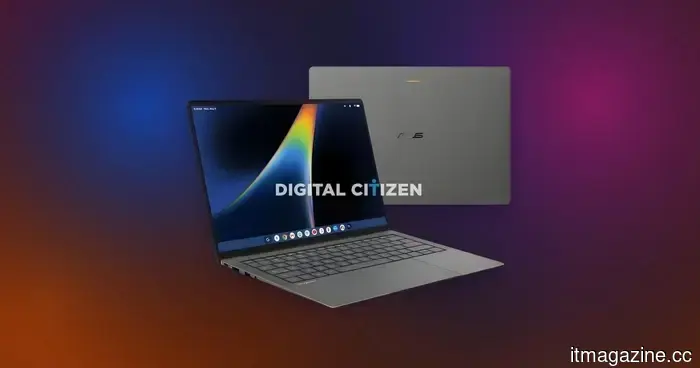
A leaked listing for the ASUS Googlebook CX9406 indicates that even a Core Ultra 5 variant equipped with 16GB of RAM might carry a higher price tag.
ASUS' less powerful Googlebook might still come with a hefty price tag.
A leaked listing for the ASUS Googlebook CX9406 indicates that even a Core Ultra 5 variant equipped with 16GB of RAM might carry a higher price tag.
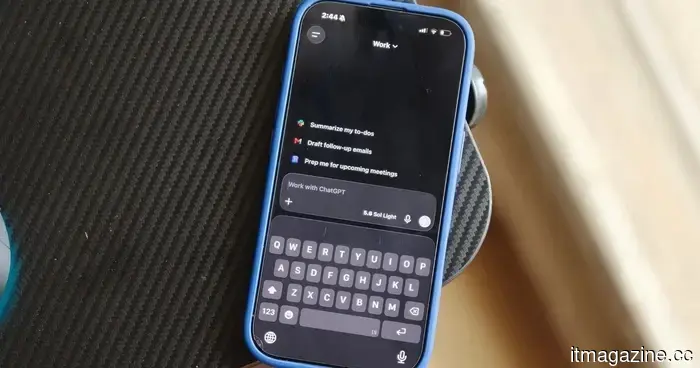 ChatGPT for iPhone now allows users to access recent photos by performing a long press.
The most recent iPhone update for ChatGPT allows users to quickly access and attach their last four photos by long-pressing the plus button.
ChatGPT for iPhone now allows users to access recent photos by performing a long press.
The most recent iPhone update for ChatGPT allows users to quickly access and attach their last four photos by long-pressing the plus button.
 Silicon Valley aims to integrate AI into everything, but it prefers that we remain unaware of its presence.
Despite all the chatter from tech companies regarding AI clutter, I haven't come across substantial proof that they truly desire to reduce AI usage. Spotify has eliminated tens of millions of spammy uploads. LinkedIn allows users to flag posts that appear to be AI-generated noise, while YouTube has removed networks of subpar channels. Pinterest and TikTok are also taking similar actions…
Silicon Valley aims to integrate AI into everything, but it prefers that we remain unaware of its presence.
Despite all the chatter from tech companies regarding AI clutter, I haven't come across substantial proof that they truly desire to reduce AI usage. Spotify has eliminated tens of millions of spammy uploads. LinkedIn allows users to flag posts that appear to be AI-generated noise, while YouTube has removed networks of subpar channels. Pinterest and TikTok are also taking similar actions…
 Employers are discreetly bringing back individuals who were replaced by AI, offering them lower salaries to return.
Forrester reports that 55% of employers regret their decisions to reduce staff due to AI and anticipates that half of those layoffs will likely be discreetly reversed, moved offshore, or compensated at lower wages.
Employers are discreetly bringing back individuals who were replaced by AI, offering them lower salaries to return.
Forrester reports that 55% of employers regret their decisions to reduce staff due to AI and anticipates that half of those layoffs will likely be discreetly reversed, moved offshore, or compensated at lower wages.
I discovered a solution for the features that Apple Notes has lacked for years.
Apple Notes is fantastic, but it lacks some important features. I discovered a free extension that addresses nearly all of these shortcomings, and here’s what it offers.