
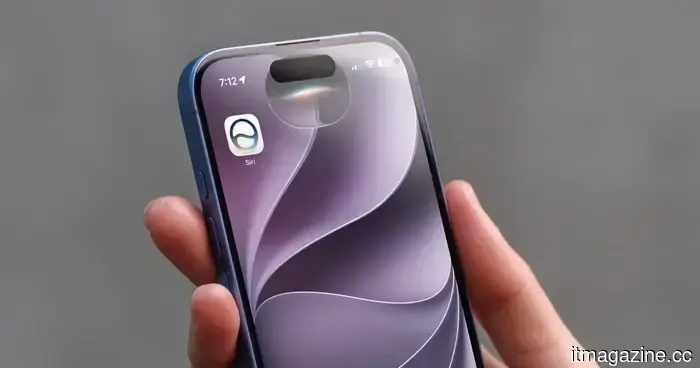
The most amusing and practical Siri commands for iOS and macOS.
There was a time when Siri held the title of the top voice assistant, but it eventually lost this position to competitors like Google Assistant and Alexa. With the emergence of AI assistants such as Google Gemini and ChatGPT Voice, the competition has intensified even further.
Fortunately, after years of neglect, Apple has finally decided to improve Siri. While there is still much progress to be made, I must admit that I’m enjoying this new version of Siri, which has become more beneficial to my daily routines than ever before.
However, Siri's usefulness depends largely on how it is used by its operator; thus, learning the tricks to maximize its potential is essential. The commands you use may accomplish your goals, but they might not be the most effective methods to interact with Siri. We’ll guide you through various commands that assist with tasks ranging from calculations to managing device settings.
**Activating Siri**
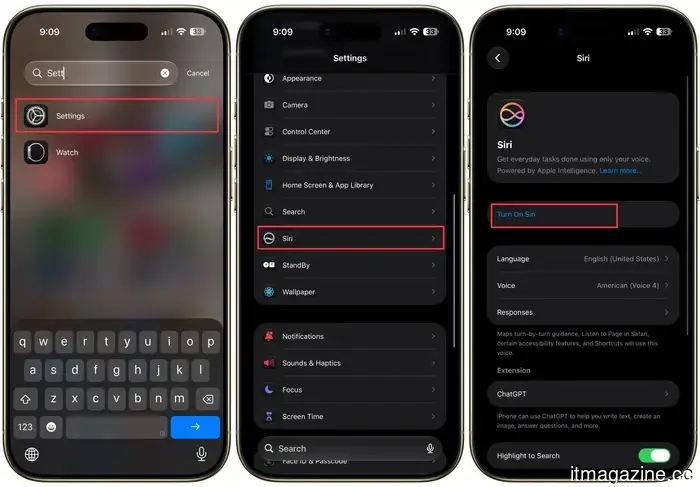
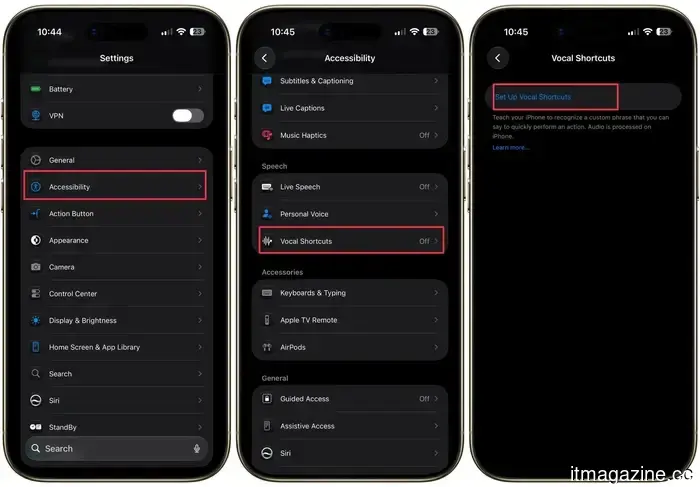
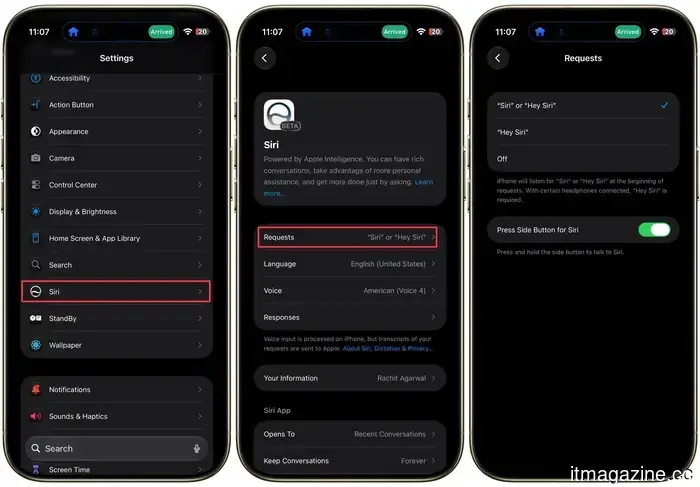
If Siri is unresponsive, it might be disabled. On newer iPhones, navigate to Settings → Apple Intelligence & Siri (or just Siri in iOS 27) to verify (older, non-Apple Intelligence devices still use the classic Settings → Siri & Search path). Once activated, there are several methods to initiate Siri:
- Press and hold the Home or Side button.
- Enable “Listen for ‘Hey Siri’” in the same settings menu, then simply say “Hey Siri” aloud.
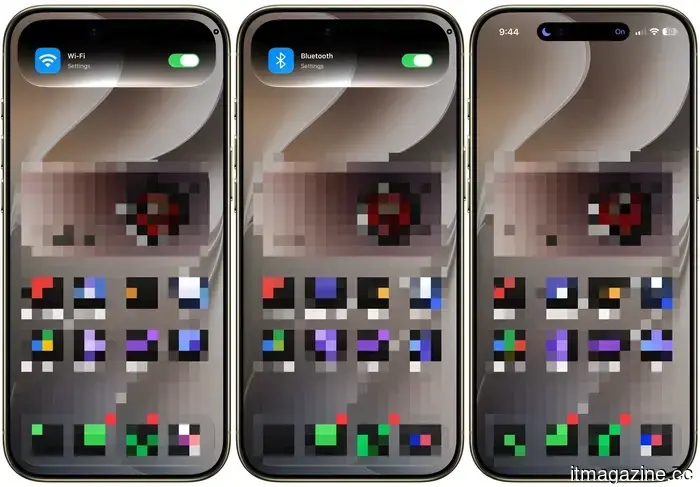
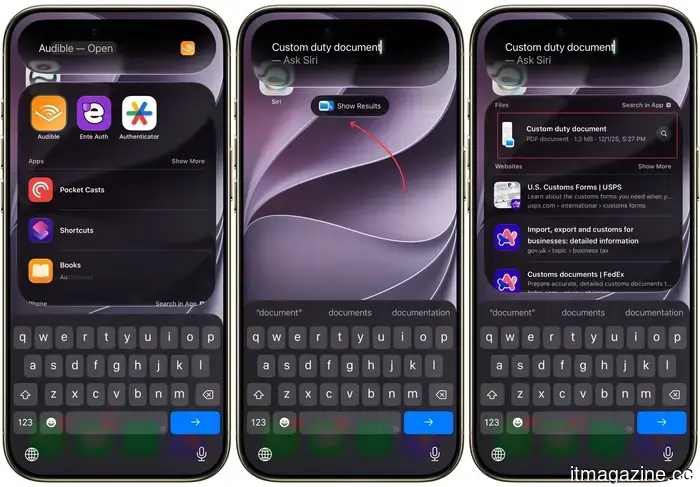
- If your iPhone has iOS 27, you can also swipe down from the top-middle to access Siri AI.
- If you’re using AirPods, double-tap the AirPods Pro or 2nd-gen AirPods to engage Siri (this can be customized as well).
- For the latest AirPods and AirPods Pros, press and hold the stem to activate Siri.
- Users of AirPods Max can hold the Digital Crown until they hear a chime.
- On Apple Watch, press and hold the Digital Crown or raise your wrist and begin speaking.
- On a Mac, press and hold the F5 key or use the “Hey Siri” command.
- In your car, say “Hey Siri” through CarPlay; no need to touch the screen while driving.
**Siri Just Got an Upgrade: Meet Siri AI**
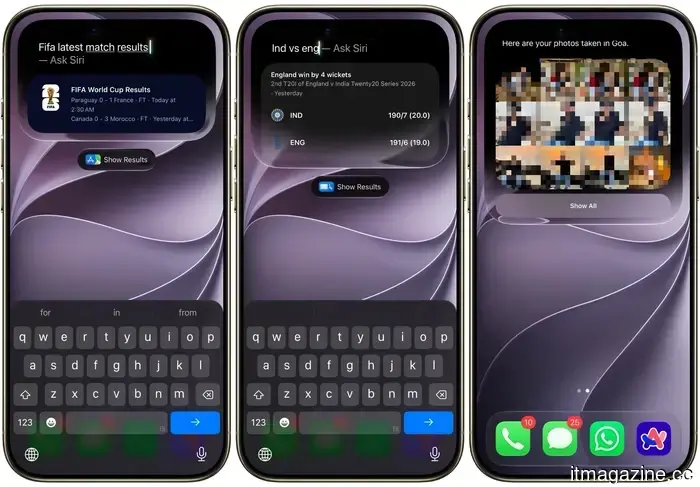
If you’ve noticed Siri felt stagnant in recent years, significant changes are underway. Apple introduced Siri AI at WWDC this June, marking the most substantial transformation Siri has undergone. Unlike the previous command-and-response format, Siri AI can now engage in real conversations, remember past inquiries without requiring repetition, and sift through your Photos, Mail, Messages, Notes, Reminders, and Calendar to find what you’re looking for.
To support this, Siri AI operates on Apple’s new Foundation Models, which were developed with Google’s assistance. However, Apple has customized these techniques from Gemini to create something smaller, faster, and specifically optimized for Apple’s hardware. Your private data remains secure, as Private Cloud Compute manages sensitive information independently.
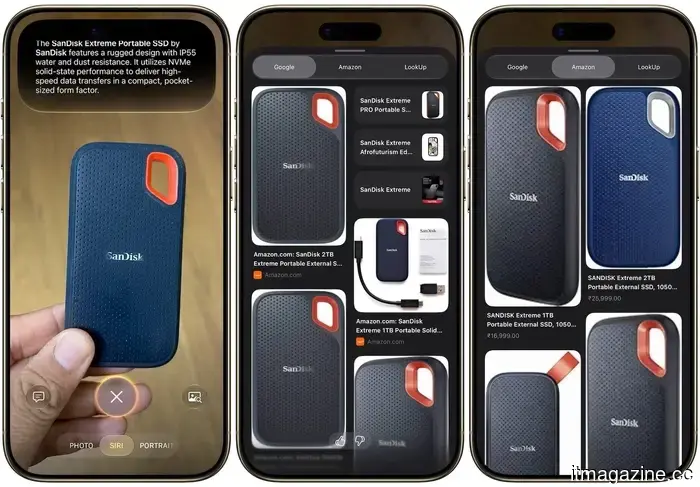
Siri AI also introduces a Camera mode for Visual Intelligence. Point your camera at a membership barcode, and Siri can convert it into a Wallet pass, or take a picture of an item and locate its listing on Amazon. Additionally, there is now a dedicated Siri app that allows you to start a conversation on your iPhone and continue it on your Mac or iPad, maintaining contextual relevance.
The update spans the entire Apple lineup:
- iOS 27 on iPhone
- iPadOS 27 on iPad
- macOS 27 Golden Gate on Mac
- watchOS 27 on Apple Watch
- visionOS 27 on Vision Pro
The caveat is hardware. To run this feature, you'll need an iPhone 15 Pro or more recent, even though iOS 27 itself is compatible with iPhones as old as the iPhone 11. On the Mac side, macOS Golden Gate marks the end of support for Intel, moving forward exclusively with Apple Silicon.
One important note as you get excited: Siri AI is still in public beta as of this writing, initially supporting English and will not be available in the EU immediately. Apple has stated that the full rollout will be available later this year, with iOS 27 expected in September.
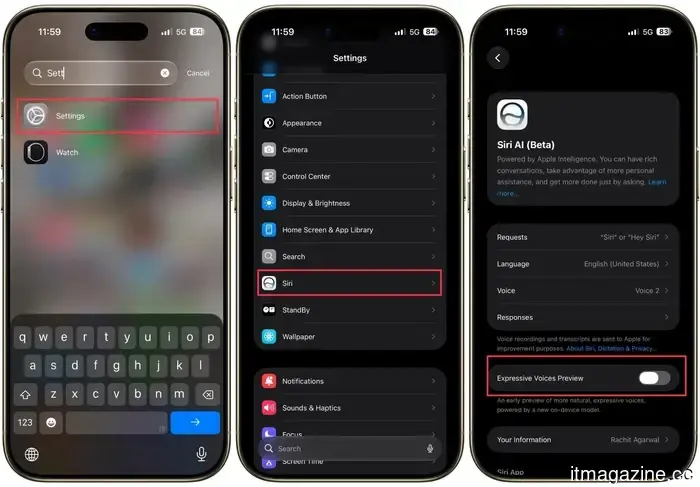
If you want to customize its voice, go to Settings → Siri → Voice to modify Siri’s speaking speed and expressiveness. These settings will also reflect in Maps and Safari for spoken directions, ensuring your preferred speed is consistent across the system.
**Commands for Calling, Voicemail, Messages, and Email**
Siri can manage most of your daily communication tasks without needing you to open an application. Here’s what to say:
- “Call [name or number].”
- “FaceTime [name or number].”
- “Call [name or number] on speaker” to initiate the call on speakerphone.
- “Call [name] back” to redial the last person who called you.
- “Check my voicemail” or “

Other articles
 Alina Kukarina discusses the importance of initiating AI transformation prior to selecting the technology.
Alina Kukarina contends that AI projects are likely to fail when companies overlook the critical thought process between their ambitions and actual execution, beginning with technology rather than with their intended purpose.
Alina Kukarina discusses the importance of initiating AI transformation prior to selecting the technology.
Alina Kukarina contends that AI projects are likely to fail when companies overlook the critical thought process between their ambitions and actual execution, beginning with technology rather than with their intended purpose.
 Apple inadvertently disclosed its AirPods that come with a camera.
A concealed demo video in macOS Tahoe 26.7 exhibits AirPods with cameras in operation, and they could be released as early as September.
Apple inadvertently disclosed its AirPods that come with a camera.
A concealed demo video in macOS Tahoe 26.7 exhibits AirPods with cameras in operation, and they could be released as early as September.
 Nik Storonsky of Revolut has successfully raised a $500 million fund for his algorithm-driven venture firm QuantumLight.
QuantumLight, the data-focused venture capital firm co-founded by Revolut CEO Nik Storonsky, has successfully raised an oversubscribed second fund totaling $500 million, which is double the amount of its initial fund launched in 2025.
Nik Storonsky of Revolut has successfully raised a $500 million fund for his algorithm-driven venture firm QuantumLight.
QuantumLight, the data-focused venture capital firm co-founded by Revolut CEO Nik Storonsky, has successfully raised an oversubscribed second fund totaling $500 million, which is double the amount of its initial fund launched in 2025.
 An analysis connects violent AI content, referred to as 'slop,' to 'brain rot' and aggression in children.
A commonly circulated assertion that AI ‘slop’ leads to cognitive decline and aggressive behavior in children originates from a single, non-peer-reviewed GNET study that focused on online observations.
An analysis connects violent AI content, referred to as 'slop,' to 'brain rot' and aggression in children.
A commonly circulated assertion that AI ‘slop’ leads to cognitive decline and aggressive behavior in children originates from a single, non-peer-reviewed GNET study that focused on online observations.
 Browsing Tools and Ad Blockers: A Guide to a Cleaner Online Experience
A comparison of five browser-based ad blockers: Open Adblocker, uBlock Origin Lite, AdGuard, Ghostery, and Adblock Plus, each tailored to different browsing preferences.
Browsing Tools and Ad Blockers: A Guide to a Cleaner Online Experience
A comparison of five browser-based ad blockers: Open Adblocker, uBlock Origin Lite, AdGuard, Ghostery, and Adblock Plus, each tailored to different browsing preferences.
 What is the actual CO2 emissions from US data centres in terms of the equivalent of cars?
A recent study from Cornell estimates that AI servers in the US could produce between 24 and 44 million tonnes of CO2 annually by 2030. This emissions level is equivalent to that of 5 to 10 million cars, not 24 million, and this estimate is based on assumptions that merit further examination.
What is the actual CO2 emissions from US data centres in terms of the equivalent of cars?
A recent study from Cornell estimates that AI servers in the US could produce between 24 and 44 million tonnes of CO2 annually by 2030. This emissions level is equivalent to that of 5 to 10 million cars, not 24 million, and this estimate is based on assumptions that merit further examination.
The most amusing and practical Siri commands for iOS and macOS.
Siri has become even more intelligent with iOS 27 and macOS Golden Gate. Explore the most entertaining and helpful Siri commands for the iPhone, Mac, HomePod, and Apple Watch.