

Apple Reminders was inadequate for project management until I discovered this feature.
For a long time, I only used Apple Reminders for jotting down quick tasks. With its Siri integration, Reminders allowed me to quickly add tasks, ensuring nothing got overlooked. However, for managing larger projects, I always switched to more robust task managers like OmniFocus or Things 3.
That changed when I discovered the Column view, a feature Apple introduced in the iOS 17 and macOS Sonoma updates, which I somehow missed initially. Once I found it and learned to use it, Reminders transformed into a genuine project management tool rather than just a fancy sticky note.
So, what exactly is a Kanban board?
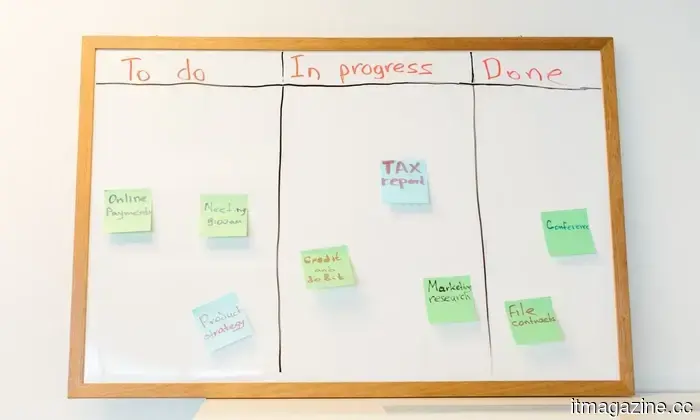
If you’re unfamiliar with it, a Kanban board is a visual method for tracking the progress of your work. Instead of a single lengthy list, it features columns representing different stages of a task, with cards that move across these columns as the work advances.
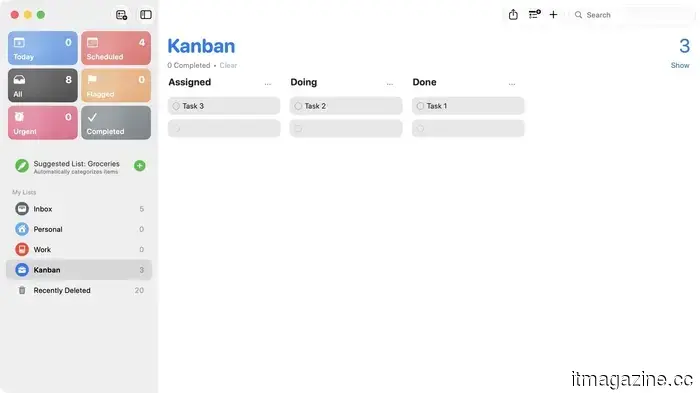
A basic setup might include just three columns: Assigned, Doing, and Done. You begin a task in Assigned, move it to Doing when you start working on it, and shift it into Done when it's complete.
This format allows you to visually monitor all your tasks, making project management much simpler than following a single overwhelming task list. I'll guide you on how to set it up in Apple Reminders for project management.
The key lies in sections
Reminders doesn’t label this feature as Kanban within the app, which is likely why many, including myself, overlooked it. The functionality arises from the combination of two features Apple added with iOS 17: Sections and the Columns view. Sections enable you to divide a single list into labeled groups, and the Columns view allows those groups to be displayed in a workable board format.
Setting up a Kanban board on Mac
While this feature works on iPhone, iPad, and Mac, it is particularly effective on the iPad and Mac due to the larger board space. Let’s set up the Kanban board on the Mac.
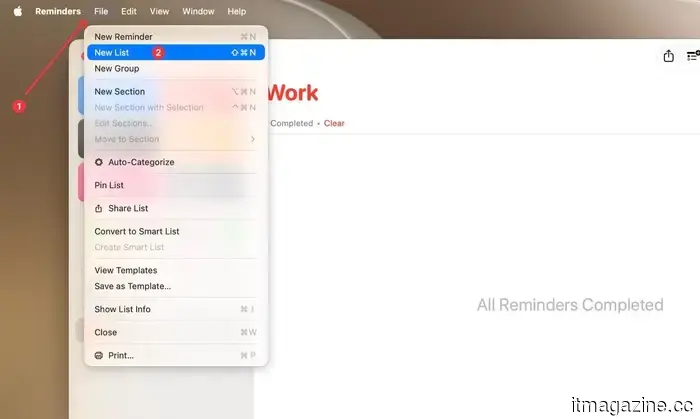
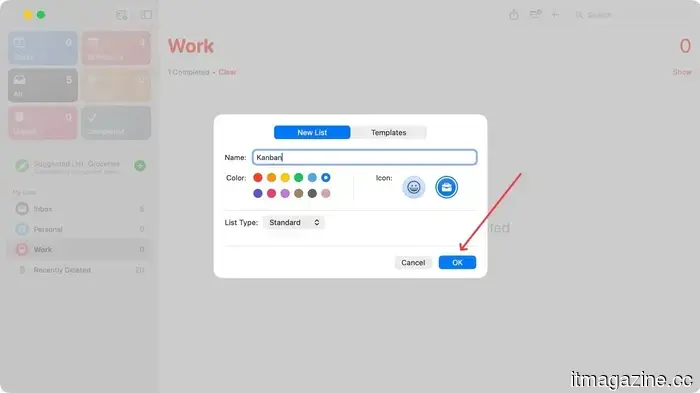
Open Reminders and navigate to File → New List or press the keyboard shortcut ⌘⇧N to create a new board. Type in a name, select an icon, and click the Okay button to create it.
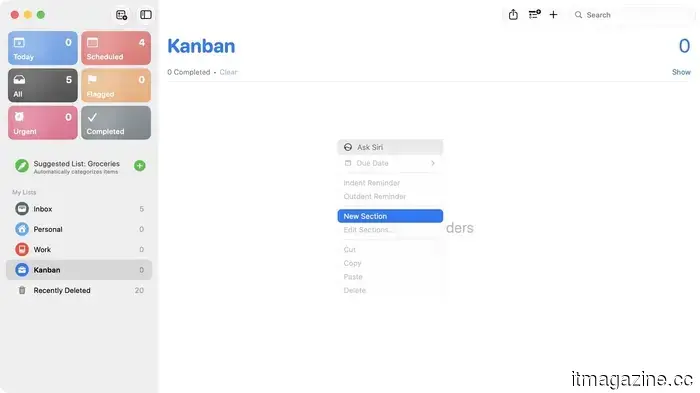
To include a section, you can either use the keyboard shortcut ⌘⌥N or right-click on an empty area within your list and select Add Section. Name each section and press Return to save.
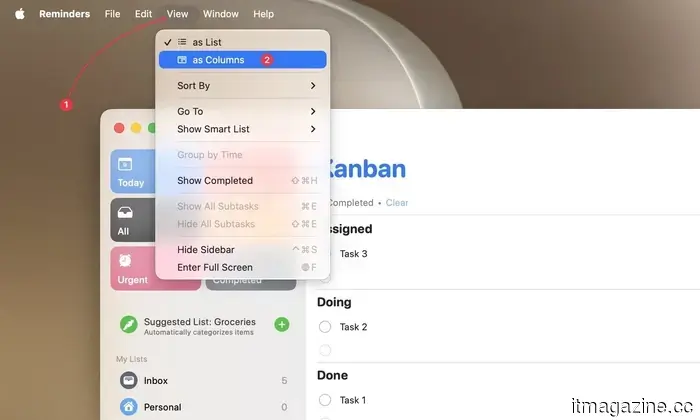
Add your tasks to the appropriate sections, then click the View menu at the top and select the Columns option.
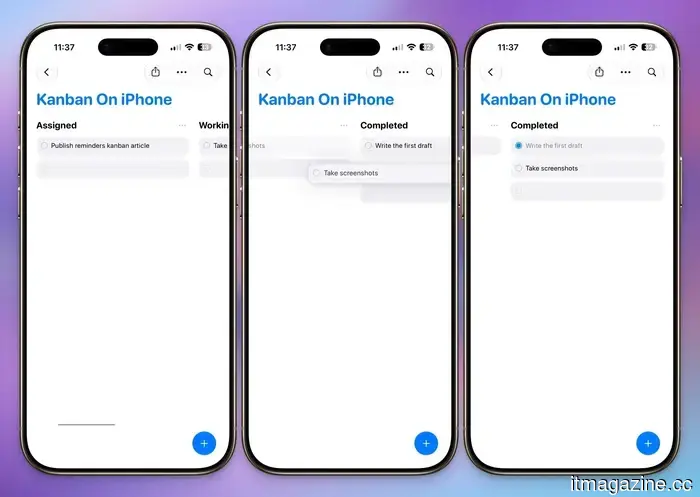
Your list will convert into a board layout. From there, you can drag cards between columns and click the checkmark to mark tasks as completed.
Setting up a Kanban board on iPhone
The great thing is that you don't need to replicate this process. Reminders syncs across devices, so any board created on Mac will also be available on your iPhone. However, if you prefer to start on your iPhone, the process is nearly the same.
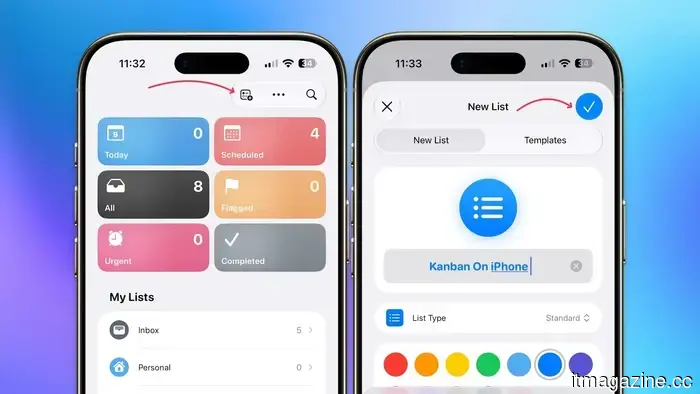
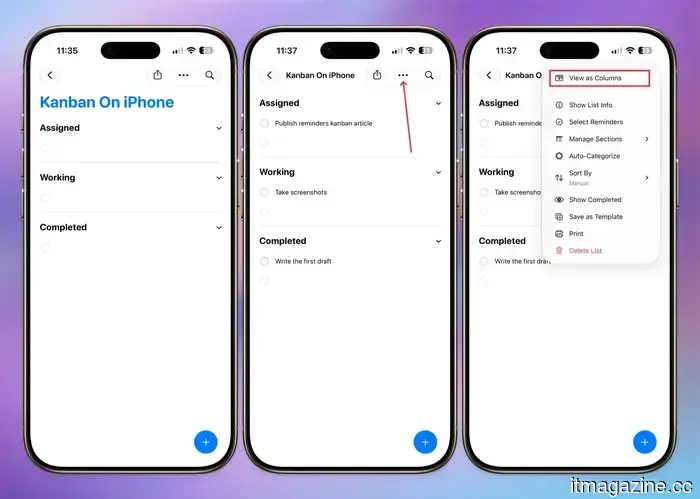
Open Reminders and tap the add list button in the top-right corner, then name it and press the checkmark to save.
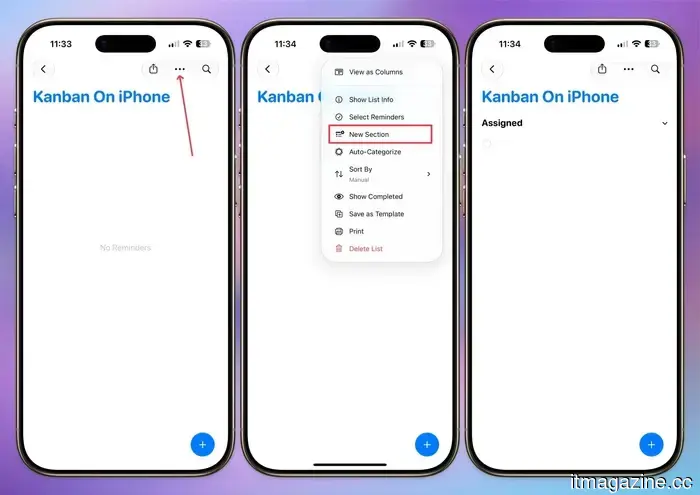
Next, tap the three-dot menu inside your new list and use the New Section button to add a section. You can add as many sections as needed.
Once your sections are created, begin adding tasks under the respective sections. When you want to view everything as a board, tap the three-dot menu again and choose View as Columns. Just like that, your simple list transforms into a Kanban board.
Moving a task is as simple as holding and dragging the card from one column to another. When a task is completed, tap the checkmark, and it will disappear from the board.
A few important notes
Switching to Column view does not detract from your existing use of Reminders. You can still attach due dates, notes, images, and subtasks to any task in a column, ensuring nothing gets lost during the transition.
You aren’t limited to a basic three-column setup; feel free to add as many sections as your workflow requires. My setup turned out to be significantly more detailed than just Assigned, Doing, and Done.
Why this changed my usage of Reminders
I manage a detailed workflow for planning and publishing content, and prior to this, I had to use separate apps for regular tasks and project management. Now, I can create sections for each stage a task goes through, from idea generation to research, drafting, and editing, allowing me to see everything move across the board at a glance.
This won’t replace a dedicated project management tool if you’re operating a large team or require extensive automation. However, if you're looking for a lightweight way to visualize your workload instead of scrolling through a long checklist, this hidden Column view is effective and is readily available on your phone at no cost.
If you haven't tried it yet, I encourage you to do so. After setting up your first board, reverting back to a simple checklist will
Other articles
 Grok’s image tools receive a professional enhancement featuring templates, accurate editing, and a second-place ranking in Arena.
SpaceXAI launched Grok Imagine Image 2.0, which features magic wand editing, background removal, multi-reference inputs, and templates. It holds the second position behind OpenAI on Arena.
Grok’s image tools receive a professional enhancement featuring templates, accurate editing, and a second-place ranking in Arena.
SpaceXAI launched Grok Imagine Image 2.0, which features magic wand editing, background removal, multi-reference inputs, and templates. It holds the second position behind OpenAI on Arena.
 Grok's image tools receive a professional enhancement featuring templates, accurate editing, and a second place ranking in the Arena.
SpaceXAI has released Grok Imagine Image 2.0, featuring magic wand editing, background removal, multi-reference inputs, and templates. It currently holds the second position on Arena, just behind OpenAI.
Grok's image tools receive a professional enhancement featuring templates, accurate editing, and a second place ranking in the Arena.
SpaceXAI has released Grok Imagine Image 2.0, featuring magic wand editing, background removal, multi-reference inputs, and templates. It currently holds the second position on Arena, just behind OpenAI.
 Moburst unveils an AI-driven mobile growth strategy guide after achieving significant milestones in campaign performance.
Moburst has released its four-pillar mobile growth framework tailored for the AI era, which includes ASO, Answer Engine Optimization, AI-mediated paid acquisition, and empirical creative testing. This launch comes in the wake of campaign successes that surpassed expectations by as much as 200% in collaboration with Sprout Social.
Moburst unveils an AI-driven mobile growth strategy guide after achieving significant milestones in campaign performance.
Moburst has released its four-pillar mobile growth framework tailored for the AI era, which includes ASO, Answer Engine Optimization, AI-mediated paid acquisition, and empirical creative testing. This launch comes in the wake of campaign successes that surpassed expectations by as much as 200% in collaboration with Sprout Social.
 You cannot achieve AI sovereignty through regulation alone.
Europe might provide regulatory certainty for AI companies, but it still lacks the essential compute, chips, energy, and infrastructure necessary for achieving strategic autonomy.
You cannot achieve AI sovereignty through regulation alone.
Europe might provide regulatory certainty for AI companies, but it still lacks the essential compute, chips, energy, and infrastructure necessary for achieving strategic autonomy.
 I've been using the Pixel 10 Pro for a year. I hope Google addresses these annoying problems in the Pixel 11 Pro.
Having spent a year using the Pixel 10 Pro, I have a clear understanding of what requires improvement. The Pixel 11 Pro has a genuine opportunity to make the necessary adjustments.
I've been using the Pixel 10 Pro for a year. I hope Google addresses these annoying problems in the Pixel 11 Pro.
Having spent a year using the Pixel 10 Pro, I have a clear understanding of what requires improvement. The Pixel 11 Pro has a genuine opportunity to make the necessary adjustments.
 Moburst unveils an AI-driven mobile growth playbook after achieving notable performance milestones in their campaigns.
Moburst has released its four-pillar mobile growth framework designed for the AI era, which includes ASO, Answer Engine Optimization, AI-augmented paid acquisition, and data-driven creative testing. This announcement comes after achieving campaign results exceeding targets by as much as 200% with Sprout Social.
Moburst unveils an AI-driven mobile growth playbook after achieving notable performance milestones in their campaigns.
Moburst has released its four-pillar mobile growth framework designed for the AI era, which includes ASO, Answer Engine Optimization, AI-augmented paid acquisition, and data-driven creative testing. This announcement comes after achieving campaign results exceeding targets by as much as 200% with Sprout Social.
Apple Reminders was inadequate for project management until I discovered this feature.
I never imagined that Apple Reminders could manage real project tracking until I discovered the hidden Column view, which transforms it into a genuine Kanban board.