

This one application has greatly enhanced my experience on my Mac.
Occasionally, you encounter an application that fundamentally alters your usage of a Mac. For me, Supercharge has been that application over the past year. It offers a multitude of tweaks and features that address various annoyances in macOS and enhance the overall experience.
While it's challenging to detail all its capabilities in one article, here are some of my favorite Supercharge features that have independently transformed my Mac experience. They have become so essential to my workflow that I miss them whenever I use a Mac without Supercharge.
**Improved Finder Contextual Menu**
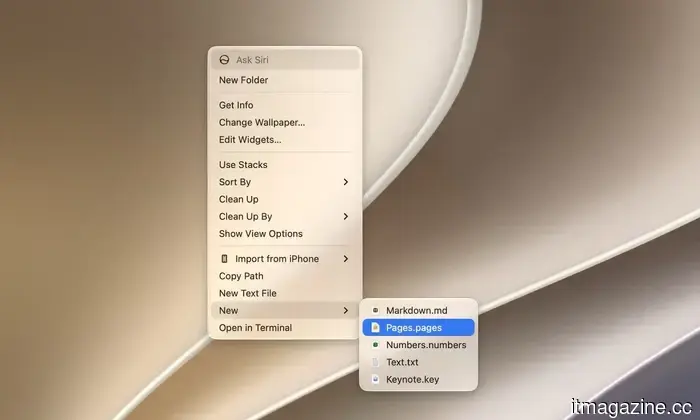
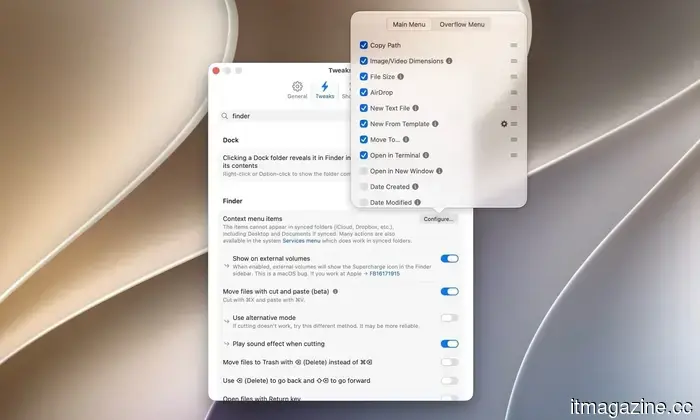
The right-click menu in Finder is rather basic. Supercharge provides numerous actions that can be added to the Finder menu, making it more functional. For instance, it allows me to create a new text file, a Markdown file, or a Pages document directly from the right-click menu.
When I right-click on a selected file, I can open it in Terminal, AirDrop it to my iPhone, or move it to another folder. Right-clicking on an image reveals its aspect ratio, file size, and more. I can also add options to create a folder within another folder, copy the file URL, attach a file directly to an email, among many others.
**One-Click DMG Installations**
Installing an application from outside the Mac App Store is usually a complicated process. You have to download the DMG file, double-click to mount the disk, drag the app into your Applications folder, eject the disk, and then remember to delete the DMG file sitting in your Downloads.
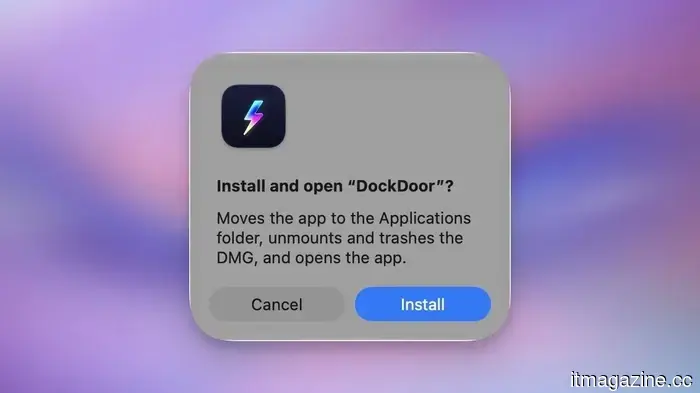
Supercharge simplifies this into a single click. When you double-click a DMG file, the app asks if you want to install it. You press the Install button, and it automatically copies the app, ejects the disk, and sends the DMG file to the trash.
**Prevent Accidental App Quitting**
On macOS, ⌘W closes a window while ⌘Q quits the entire app. These keys are positioned closely on the keyboard, which means every Mac user has inadvertently shut down an app when intending to close just one window.
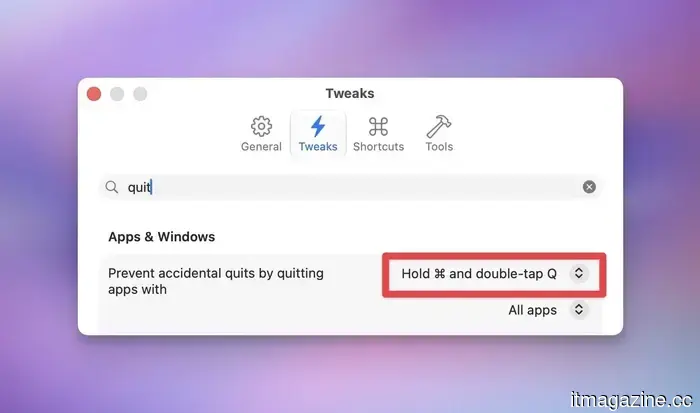
Supercharge addresses this by offering several options. You can alter the quit shortcut to ⌘⇧Q, require a double-press of ⌘Q, or mandate that you press and hold ⌘Q before the app quits. I prefer the double-press option, and since enabling it, I haven’t accidentally closed an app, which has saved my work on numerous occasions.
**Add Keyboard Shortcuts for Nearly Anything**
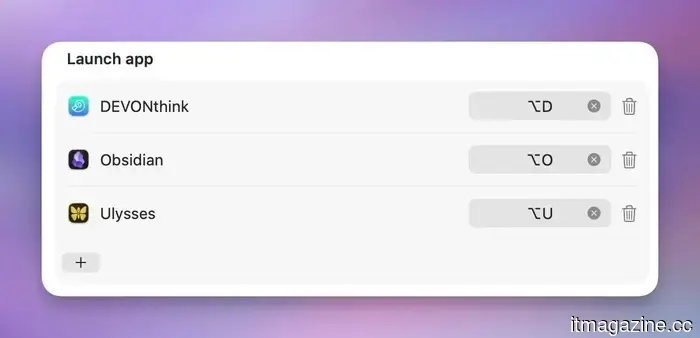
A feature I particularly enjoy about Supercharge is the ability to assign keyboard shortcuts to almost anything. I’ve set shortcuts for my most frequently used applications, eliminating the need to search for them or access them from the Dock.
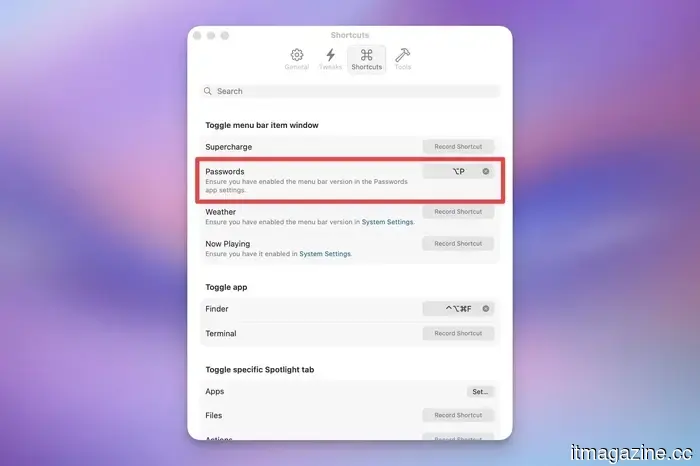
For example, I can press ⌥O to open Obsidian, ⌥U for Ulysses, and ⌥D for DEVONthink. I also appreciate that Supercharge allows me to create a keyboard shortcut to launch the Apple Passwords menu bar app.
Typically, I would need to click its Menu Bar icon, but with Supercharge, I can simply use the ⌥P shortcut to access it, making it easy to copy and paste passwords as needed.
**Disable Keyboard and Screen for Easy Cleaning**
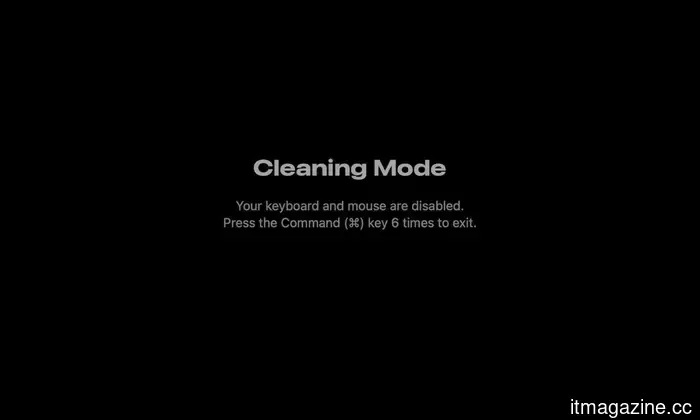
I don’t know about you, but my MacBook’s keyboard and screen tend to get greasy and collect dust, necessitating regular cleaning. The challenge is that cleaning while they’re still active can lead to accidental keystrokes or clicks.
This is where Supercharge’s Cleaning Mode comes in. When activated, it disables the keyboard and turns off the display, allowing me to clean it with ease. Once I finish, I can hit the ⌘ key six times to reactivate them, simplifying the cleaning process.
**Stop Apple Music from Opening with AirPods**
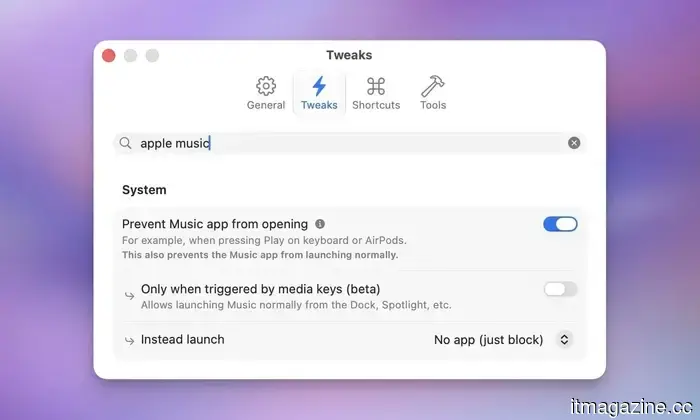
You might have experienced this at some point. Your AirPods are connected to your Mac, and when you press the button on the stem to play a video, it inadvertently opens the Apple Music app instead, as the original application is no longer in focus.
This recurring annoyance is addressed by Supercharge. With a simple toggle, it prevents the Music app from launching when I press play on my AirPods or use the play button on my MacBook’s keyboard.
**Automatically Quit Unused Apps**
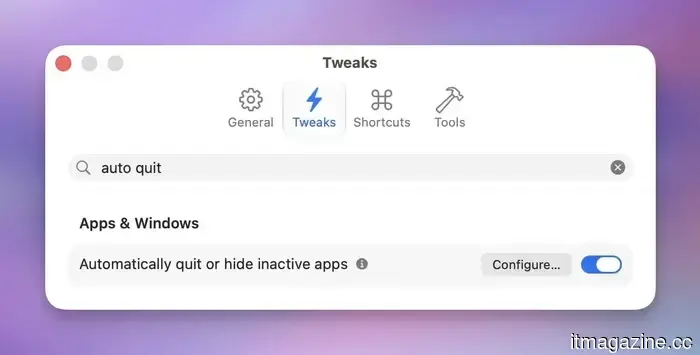
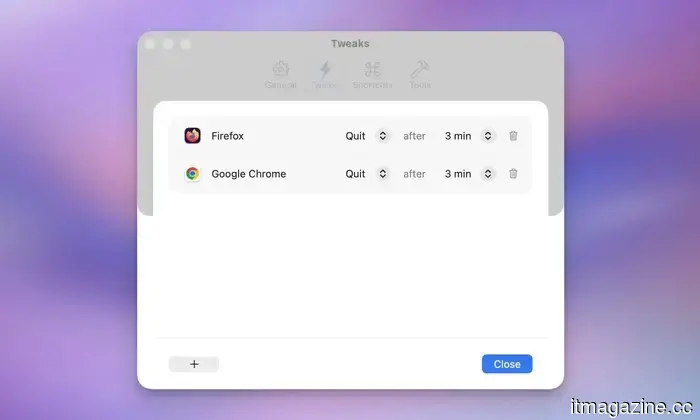
We often forget to close applications, leaving them running in the background. Apps like Slack, Google Chrome, or Firefox consume memory while you focus on something else. Supercharge offers a feature that quits these applications after a designated period of inactivity.
The timer initiates when you switch to another app. For example, if you set it to three minutes, the selected apps will close three minutes after switching. It’s smart too; it won’t interfere with the app you’re actively using, skips menu bar-only apps, and doesn’t quit applications while your camera or microphone is in use.
This feature helps
Other articles
 Although the Apple Car project may be discontinued, it laid the groundwork for Apple Intelligence.
The self-driving car project that Apple discontinued is said to have laid the technological groundwork for Apple Intelligence, contributing to the development of the Neural Engine and the AI hardware that supports current iPhones, Macs, and Apple AI servers.
Although the Apple Car project may be discontinued, it laid the groundwork for Apple Intelligence.
The self-driving car project that Apple discontinued is said to have laid the technological groundwork for Apple Intelligence, contributing to the development of the Neural Engine and the AI hardware that supports current iPhones, Macs, and Apple AI servers.
 The Apple Car may have been canceled, but it laid the groundwork for Apple Intelligence.
Apple's abandoned self-driving car initiative is said to have laid the technological groundwork for Apple Intelligence, contributing to the development of the Neural Engine and the AI hardware that drives the current iPhones, Macs, and Apple AI servers.
The Apple Car may have been canceled, but it laid the groundwork for Apple Intelligence.
Apple's abandoned self-driving car initiative is said to have laid the technological groundwork for Apple Intelligence, contributing to the development of the Neural Engine and the AI hardware that drives the current iPhones, Macs, and Apple AI servers.
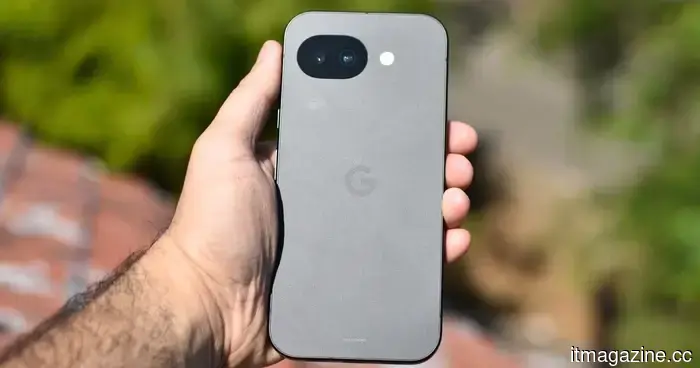 The Pixel 11 is just around the corner, and here are three improvements I'm hoping Google will implement.
The Pixel 11 is approaching, and Google has an opportunity to address three persistent problems that have hindered the Pixel experience for years.
The Pixel 11 is just around the corner, and here are three improvements I'm hoping Google will implement.
The Pixel 11 is approaching, and Google has an opportunity to address three persistent problems that have hindered the Pixel experience for years.
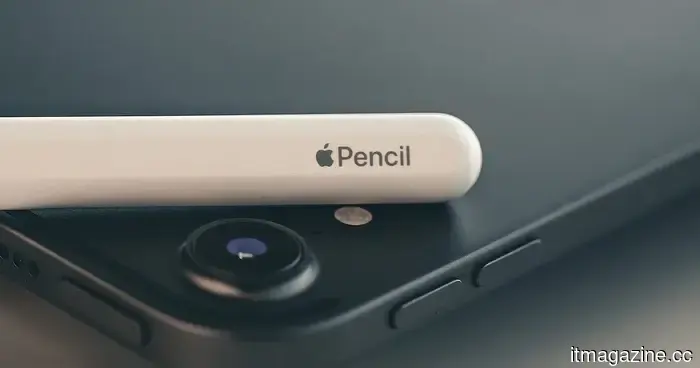 Apple may introduce two new Apple Pencils next spring in conjunction with the iPad Pro release.
According to reports, Apple is getting ready to introduce two new models of the Apple Pencil next spring, which include an updated version of the Apple Pencil Pro and a new USB-C Apple Pencil, anticipated to be released together with the next-generation iPad Pro.
Apple may introduce two new Apple Pencils next spring in conjunction with the iPad Pro release.
According to reports, Apple is getting ready to introduce two new models of the Apple Pencil next spring, which include an updated version of the Apple Pencil Pro and a new USB-C Apple Pencil, anticipated to be released together with the next-generation iPad Pro.
 What is Copilot? Everything you should know about Microsoft's AI assistant.
Microsoft Copilot now encompasses a range of applications, from free AI chat to Office tools, as well as work features powered by GPT-5.6. Here’s how its various versions are integrated.
What is Copilot? Everything you should know about Microsoft's AI assistant.
Microsoft Copilot now encompasses a range of applications, from free AI chat to Office tools, as well as work features powered by GPT-5.6. Here’s how its various versions are integrated.
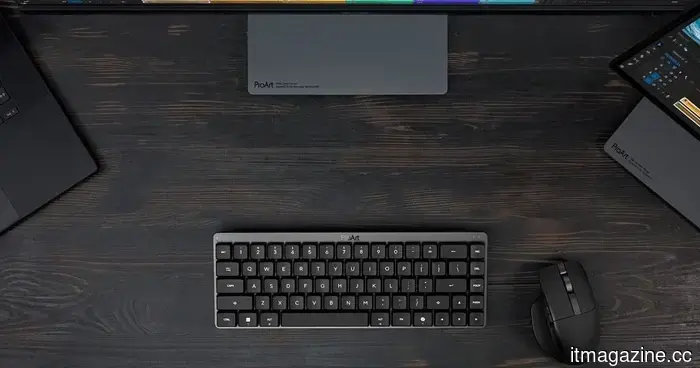 ASUS enhances its ProArt series with a sleek keyboard and an intelligent creator mouse.
ASUS has enhanced its ProArt ecosystem by introducing the ProArt Keyboard KD300 and ProArt Mouse MD301, which offer creator-centric functionalities, a compact design, and the ability to connect to multiple devices for professionals.
ASUS enhances its ProArt series with a sleek keyboard and an intelligent creator mouse.
ASUS has enhanced its ProArt ecosystem by introducing the ProArt Keyboard KD300 and ProArt Mouse MD301, which offer creator-centric functionalities, a compact design, and the ability to connect to multiple devices for professionals.
This one application has greatly enhanced my experience on my Mac.
Supercharge addresses the minor macOS irritations that have troubled Mac users for years. With features like one-click DMG installations, app shortcuts, and a more intelligent Finder menu, these adjustments have transformed my experience with my Mac.