
How to modify the default applications on a Mac
One aspect I really appreciate about macOS is that it includes built-in applications for your daily tasks. You have Safari for internet browsing, the Mail app for managing your emails, and the Preview app to view photos and PDFs.
But what if you prefer to use a third-party application instead of the default? Fortunately, Apple makes it simple to change the default applications on your Mac. So, whether you want to set Google Chrome or Outlook as your default, here’s how to do it.
Changing the default app for specific file types
If you're not looking to change your default web browser or email client (which we’ll discuss later), there’s just one method to remember for altering default apps on a Mac.
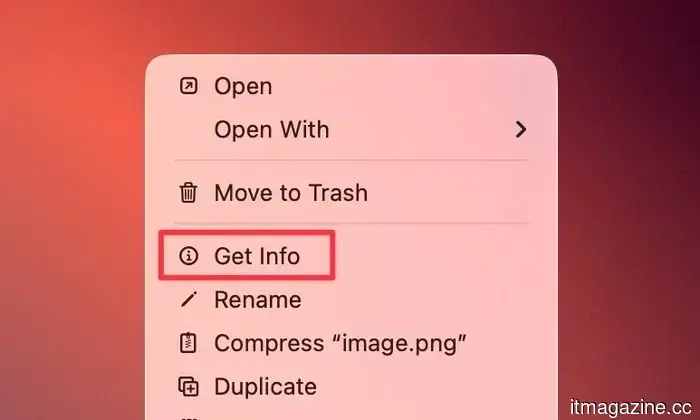
For example, if you have a PNG file and wish to change which app opens it. By default, your Mac will open it with Preview, the built-in photo viewing and editing app. To change this, right-click or Ctrl+click the file, then select Get Info.
Rachit Agarwal / Digital Trends
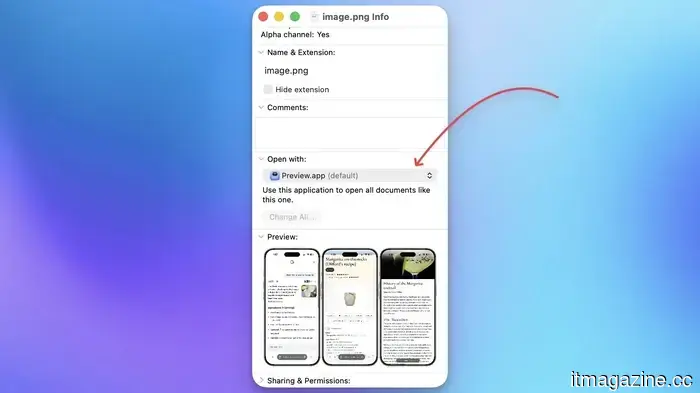
This will open a new window. In this window, go to the “Open with:” section and select your preferred app from the drop-down menu.
Rachit Agarwal / Digital Trends
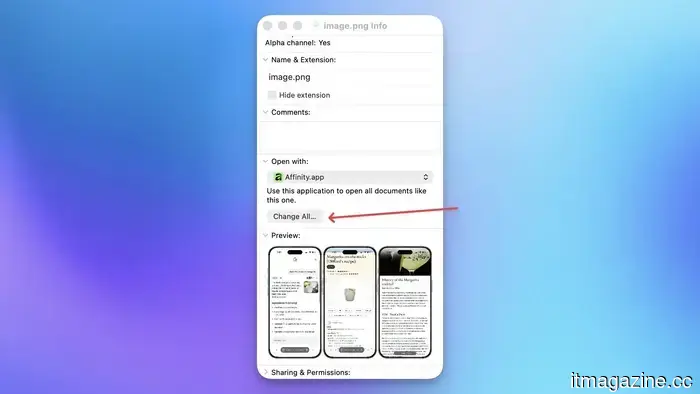
Then, click the Change All button. The next time you double-click a file with the same extension, it will launch in your newly selected default app.
Rachit Agarwal / Digital Trends
Changing your default web browser
Safari is the default browser on Macs, and it works well for most users. It’s quick, automatically blocks tracking links, and is gentle on battery life. However, it does lack certain features. The extension support is limited, and tab management could be better.
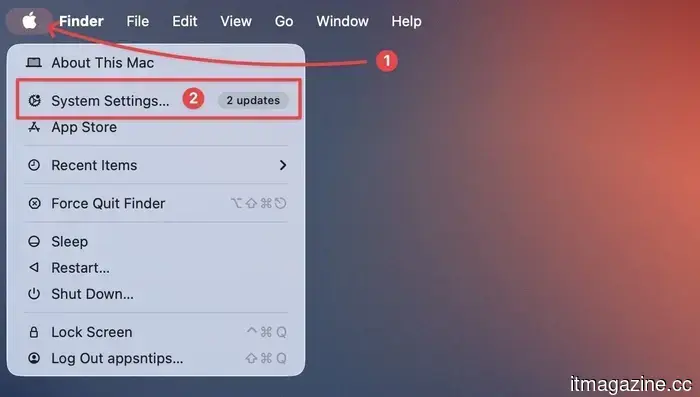
If you want to change your default web browser for any reason, doing so in macOS is straightforward. To begin, click the Apple logo in the top-left corner and open the “System Settings” app.
Rachit Agarwal / Digital Trends
Next, access the “Desktop & Dock” settings and scroll down to the Widgets section. You’ll find a dropdown menu next to the “Default web browser” setting. Click it and choose your preferred browser to set it as default.
Rachit Agarwal / Digital Trends
Now, whenever you click a link, such as one in an email from a friend, the new default browser will open.
Changing your default email app
Among app categories, the email app is one that often sparks debate among productivity workers. No two individuals seem to agree on the best email application for their workflow. Personally, I frequently switch between email apps, searching for one that meets my needs but never quite finding the right fit.
This has led me to the realization that there isn't a perfect email solution, and we are likely to keep switching to the next appealing option. If you find yourself in the same situation, these steps will help you change the default email client on your Mac.
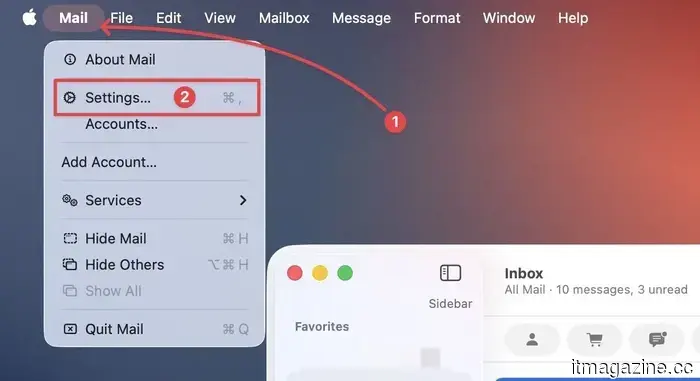
Open the Mail app on your Mac and use the keyboard shortcut “⌘,” to access the settings. Alternatively, you can click on Mail in the Menu Bar and access the settings from there.
Rachit Agarwal / Digital Trends
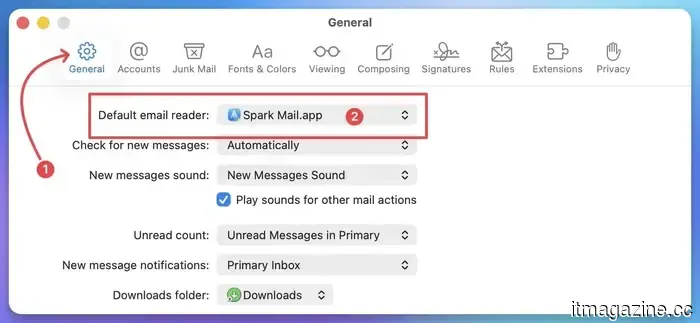
Select the General settings, where you’ll find a “Default email reader” option. In my case, I am currently using Spark as my default email client, and you can use the dropdown menu to select your preferred email client as the default.
Rachit Agarwal / Digital Trends
Common locations for changing default apps
As you may have noticed, not all default apps are adjusted in the same manner in macOS. Refer to the table below for quick access to where Apple places these settings for the most common app categories.
Task | Location
Change default browser | System Settings
Change default email app | Mail Settings
Change default image viewer | Get Info
Change default video player | Get Info
Change default PDF viewer | Get Info
Frequently asked questions
Q. How can I set Chrome as my default browser on Mac?
A. Click the Apple logo, open System Settings, and go to Desktop & Dock. Scroll down to the Widgets section and select Chrome from the dropdown next to Default web browser.
Q. How do I change the default PDF viewer on Mac?
A. Right-click any PDF file, select Get Info, choose your preferred PDF viewer from the dropdown under the Open With section, and click Change All. All PDFs will now open with that application.
Q. Why does my Mac keep opening files with the incorrect app?
A. Your Mac opens files with whatever app is set as the default for that file type. If the wrong app is being launched, right-click the file, select Get Info, and adjust the default app in the Open With section.
Q. What does the “Change All” button do on Mac?
A. Clicking Change All sets your selected app as the default for every file sharing that extension, not just the one you right-clicked
Other articles
 Open-ear earbuds are the latest headphones for those seeking plausible deniability.
I appreciate noise-canceling earbuds because the outside environment often intrudes without consent. A short walk to the gym shouldn't mean having to listen to every motorcycle, car horn, or construction noise that the city presents. The issue arises on the return trip, typically when I pause to purchase something. All of a sudden, I’m […]
Open-ear earbuds are the latest headphones for those seeking plausible deniability.
I appreciate noise-canceling earbuds because the outside environment often intrudes without consent. A short walk to the gym shouldn't mean having to listen to every motorcycle, car horn, or construction noise that the city presents. The issue arises on the return trip, typically when I pause to purchase something. All of a sudden, I’m […]
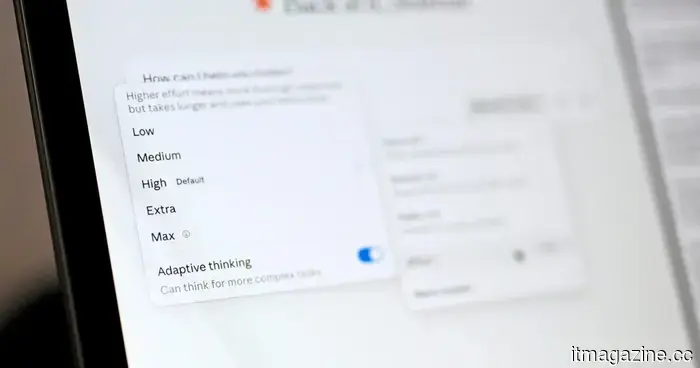 You can now select the level of thought that Claude puts into his responses to your questions.
The Claude Opus 4.8 update from Anthropic allows users to adjust the depth of Claude's thinking before it provides a response.
You can now select the level of thought that Claude puts into his responses to your questions.
The Claude Opus 4.8 update from Anthropic allows users to adjust the depth of Claude's thinking before it provides a response.
 Slate's extremely affordable electric vehicle will begin taking pre-orders in June, yet the price remains undisclosed.
Slate Auto's sleek electric truck will begin accepting $300 preorders on June 24, coinciding with the anticipated announcement of the actual price for its affordable EV.
Slate's extremely affordable electric vehicle will begin taking pre-orders in June, yet the price remains undisclosed.
Slate Auto's sleek electric truck will begin accepting $300 preorders on June 24, coinciding with the anticipated announcement of the actual price for its affordable EV.
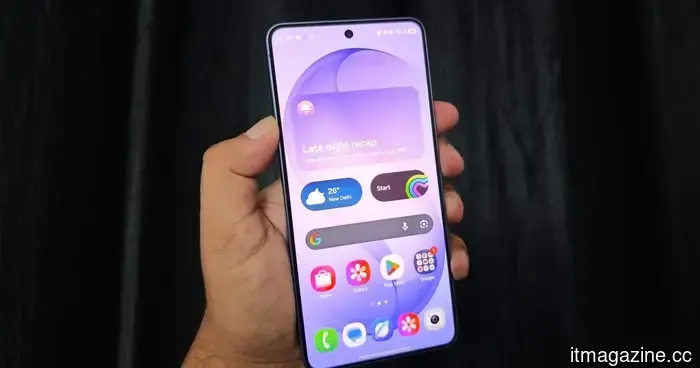 With One UI 9, your WhatsApp and Google Meet calls will be displayed in Samsung's Phone app.
One UI 9 introduces a consolidated call log in Samsung's Phone app, merging WhatsApp, Google Meet, and standard calls into a single interface.
With One UI 9, your WhatsApp and Google Meet calls will be displayed in Samsung's Phone app.
One UI 9 introduces a consolidated call log in Samsung's Phone app, merging WhatsApp, Google Meet, and standard calls into a single interface.
 Open-ear earbuds are the latest headphones for those seeking plausible deniability.
I appreciate noise-canceling earbuds since the outside world tends to intrude without consent. A walk to the gym shouldn't necessitate listening to every motorcycle, car horn, or construction drill that the city unleashes. The issue arises on the return trip, often when I pause to purchase something. Suddenly, I’m […]
Open-ear earbuds are the latest headphones for those seeking plausible deniability.
I appreciate noise-canceling earbuds since the outside world tends to intrude without consent. A walk to the gym shouldn't necessitate listening to every motorcycle, car horn, or construction drill that the city unleashes. The issue arises on the return trip, often when I pause to purchase something. Suddenly, I’m […]
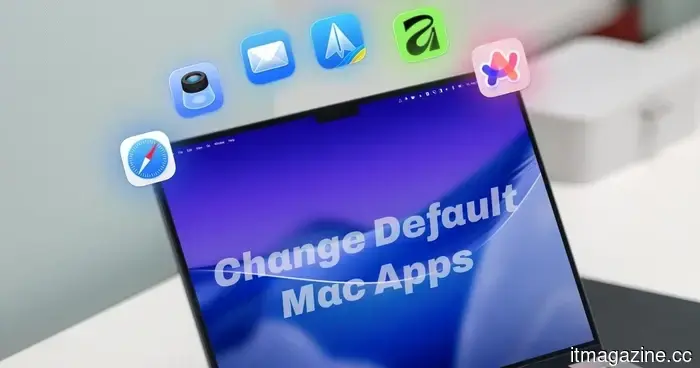 How to modify the default applications on a Mac
Changing default apps on your Mac is simple and uncomplicated, whether you're switching your browser and email client or setting new applications to open specific file types.
How to modify the default applications on a Mac
Changing default apps on your Mac is simple and uncomplicated, whether you're switching your browser and email client or setting new applications to open specific file types.
How to modify the default applications on a Mac
Changing default applications on your Mac is simple and direct, whether it's switching your browser and email client or designating a new app for specific file types.