
I utilize this iPhone feature whenever someone asks to borrow my device.
In my opinion, there are primarily two types of panic we face in life. The first involves sending a risky message to the wrong recipient. The second occurs when I hand my unlocked phone to someone and suddenly remember that my entire digital existence is contained within it. Unfortunately, I’ve experienced the latter far too often. Usually, the intention is harmless—a friend wants to take a quick photo, my cousin wants to view a short video, or someone just needs to place a food order or check the cricket scores. But the moment my iPhone is no longer in my grasp, my mind races through everything stored on it—personal conversations, banking applications, work emails, private notes, passwords, photos, and those screenshots I always forget to remove.
Smartphones have evolved beyond mere communication devices; they are essentially compact vaults holding years of personal data, habits, conversations, and memories. Allowing someone to borrow your device can feel like giving them a portion of your mind for a moment. And honestly, that realization alone is enough to make me uneasy. This is precisely why one particular feature on my iPhone has become indispensable—Guided Access, which I utilize nearly every time someone requests to use my phone.
My iPhone now operates within invisible boundaries.
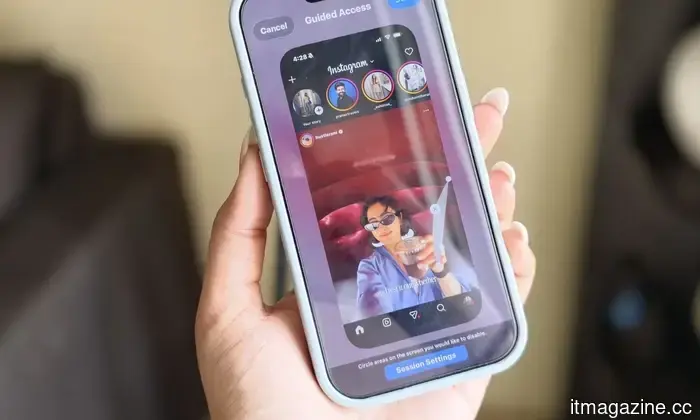
The simplest way to explain Guided Access is this: it temporarily confines your iPhone to a single app. So, if I pass my phone to someone to watch an Instagram reel, they can only view that reel. They cannot casually scroll through my photo gallery, access WhatsApp, check notifications, or browse through apps I never intended to share with them. It establishes boundaries without making the interaction awkward.
And honestly, that balance is crucial. Most of us aren’t being rude when someone asks to borrow our phone. You don’t want to hover over their shoulder or snatch the device back every few seconds like a protective raccoon guarding its treasure. However, at the same time, modern smartphones contain far too much personal information to be handed over carelessly. Guided Access eliminates this awkward tension completely because the phone physically cannot exit the app you have locked it into.
Shimul Sood / Digital Trends
I actually started using it after one specific event that changed how I share my phone permanently. I gave my iPhone to someone just to show them a single image. Within moments, they began swiping through my camera roll as if they were casually exploring a museum exhibition. Thankfully, nothing catastrophic happened, but the experience reminded me of how casually we handle personal data until someone nearly stumbles upon something private.
That incident made me realize that most phone privacy concerns stem not from hacking or malware but from completely ordinary social situations where boundaries simply don’t exist. Since then, activating Guided Access before letting someone use my phone has become second nature. It only takes a few seconds, eliminates anxiety entirely, and allows me to stay calm instead of mentally bracing myself for a possible privacy breach every time my phone leaves my hand.
This added step has saved me significant stress.
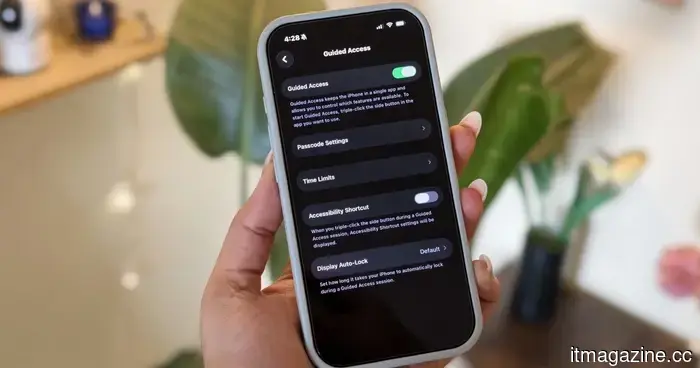
What I genuinely appreciate about Guided Access is how incredibly simple it is to set up. Here’s how to enable it:
Shimul Sood / Digital Trends
1. Open the Settings app.
2. Navigate to Accessibility.
3. Scroll down and select Guided Access.
4. Activate the feature.
5. Set a passcode or enable Face ID for authentication.
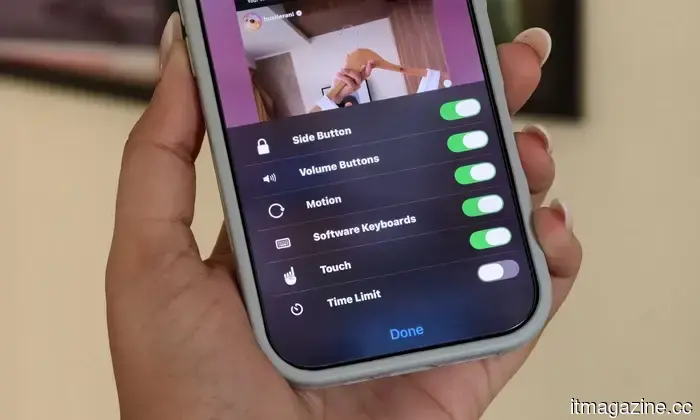
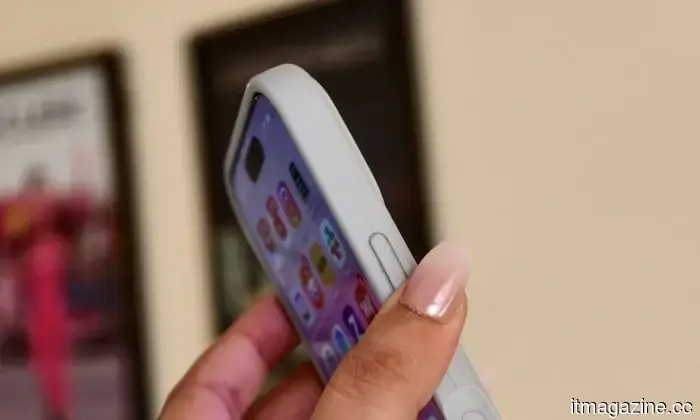
Once you’ve done this, the experience becomes effortless. Whenever you’re about to lend your phone to someone, simply open the app you want them to use and triple-click the side button. Then tap “Start,” and Guided Access instantly locks the iPhone into that specific app. The feature also offers a surprising amount of control if you wish to customize further. You can disable certain areas of the screen, turn off touch input completely, block keyboard access, or even disable the volume buttons. It feels refreshingly powerful for something hidden away in the Accessibility settings.
Guided Access prevents all potential chaos before it even starts. It’s one of those features you might overlook until you truly need it.
The calmest my mind has ever been when sharing my phone.
The interesting thing about privacy features is that they seldom seem essential during ordinary moments. You don’t consider them when everything is running smoothly. Their importance becomes apparent during unexpected situations, where your mind begins to envision worst-case scenarios. This is where Guided Access truly shines for me. It provides me with peace of mind in scenarios that once made me subtly uneasy. I can hand my iPhone to someone to scan a QR code, get directions, queue up music in the car, place a food order, or make a quick call without worrying about unintentional oversharing. That anxiety about whether someone might accidentally access something private is no longer a concern.
Shimul Sood / Digital Trends
This is likely why I have come to value it so much. In a world where our smartphones contain everything from payment apps and work emails to private conversations,
Other articles
 Edifier’s latest budget headphones feature song lyrics displayed on the earcups, and I'm perplexed.
Edifier has introduced the Auro Ace budget headphones, featuring a customizable dot-matrix display capable of displaying synchronized lyrics and animations in real time.
Edifier’s latest budget headphones feature song lyrics displayed on the earcups, and I'm perplexed.
Edifier has introduced the Auro Ace budget headphones, featuring a customizable dot-matrix display capable of displaying synchronized lyrics and animations in real time.
 Mozilla is struggling to demonstrate that VPNs are crucial privacy tools for all.
Mozilla is cautioning UK regulators about the potential consequences of undermining VPNs, asserting that they continue to be vital tools for privacy and security as global restrictions increase.
Mozilla is struggling to demonstrate that VPNs are crucial privacy tools for all.
Mozilla is cautioning UK regulators about the potential consequences of undermining VPNs, asserting that they continue to be vital tools for privacy and security as global restrictions increase.
 Google's Rambler might make voice typing an experience I actually enjoy.
Google's Rambler appears to be a minor enhancement to Gboard, yet it could discreetly address a genuine issue by transforming chaotic spoken ideas into messages that you would likely send.
Google's Rambler might make voice typing an experience I actually enjoy.
Google's Rambler appears to be a minor enhancement to Gboard, yet it could discreetly address a genuine issue by transforming chaotic spoken ideas into messages that you would likely send.
 YouTube is providing creators with a new tool to combat AI deepfakes.
YouTube is introducing a new AI safety feature designed to assist creators in identifying deepfake-style videos that use their likeness. This tool operates discreetly in the background, but its significance may grow as AI-generated content becomes more prevalent on the internet.
YouTube is providing creators with a new tool to combat AI deepfakes.
YouTube is introducing a new AI safety feature designed to assist creators in identifying deepfake-style videos that use their likeness. This tool operates discreetly in the background, but its significance may grow as AI-generated content becomes more prevalent on the internet.
 The initial DDR5 memory kit from ASUS ROG appears to be rapid, eye-catching, and incredibly costly.
ASUS ROG has introduced its inaugural DDR5 desktop memory kit, which boasts a capacity of 48GB, speeds of DDR5-6000, and high-end specifications aimed at enthusiasts.
The initial DDR5 memory kit from ASUS ROG appears to be rapid, eye-catching, and incredibly costly.
ASUS ROG has introduced its inaugural DDR5 desktop memory kit, which boasts a capacity of 48GB, speeds of DDR5-6000, and high-end specifications aimed at enthusiasts.
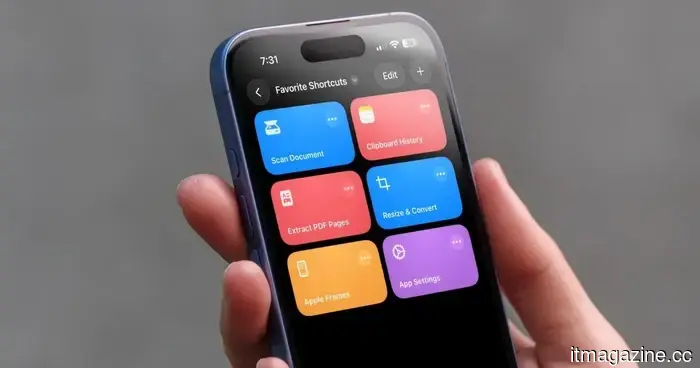 I can't imagine life without iPhone shortcuts. Here are my top 7 favorites that you should definitely give a try as well.
iPhone shortcuts can significantly reduce the time you spend on tasks. Here are seven of my personal favorites that I use daily, and I'm confident you'll appreciate them as well.
I can't imagine life without iPhone shortcuts. Here are my top 7 favorites that you should definitely give a try as well.
iPhone shortcuts can significantly reduce the time you spend on tasks. Here are seven of my personal favorites that I use daily, and I'm confident you'll appreciate them as well.
I utilize this iPhone feature whenever someone asks to borrow my device.
Giving someone your unlocked phone can be stressful, especially when your entire digital life is contained within it. This often-overlooked iPhone feature discreetly addresses that issue in a way that I have come to depend on almost every day.