
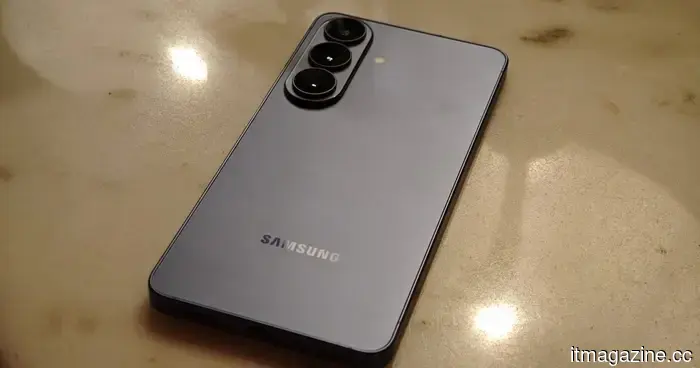
I allowed this Galaxy S26 feature to manage my battery, and it really does work.
I have never been very skilled at maintaining my phone’s battery health. I’m familiar with the recommendations — avoid charging over 80 percent, don’t allow the battery to completely deplete, and try not to leave the phone plugged in overnight. I understand these habits the same way I know I should drink more water or go to bed earlier. They seem sensible in theory, but in practice, I struggle to follow them consistently.
When I began using the Galaxy S26 and noticed that Device Care’s optimization features were managing much of this for me, my initial response was doubt. Smartphones have included “smart” protective tools for years, and most of them quickly fade into the background after initial activation. Often, I forget those settings are even there. This was different, however. It didn’t stand out with flashy notifications or constant reminders, but rather, I could sense it adapting to my usage patterns instead of forcing me to alter my habits.
The battery caretaker I never had to supervise
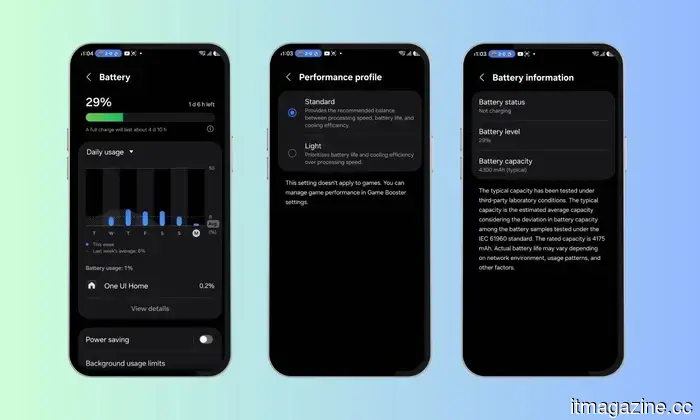
Device Care on the Galaxy S26 does more than just stop charging at 80 percent. Over time, it learns your charging routine and adjusts accordingly. For instance, if you typically charge your phone overnight, it will charge to a certain level, pause for a while, and then complete charging closer to your waking time. The goal is to minimize the time the battery remains at 100%, which is a key factor in long-term battery wear.
But the experience is not limited to charging habits. Device Care also monitors running apps in the background, flags those consuming excessive battery, and optimizes performance in subtle ways that don’t disrupt your experience. In fact, these changes were so seamless that I hardly noticed them happening. I only realized something was different when I checked my battery statistics and saw a steadier battery drain compared to the previous phones I used. Overall, it provides a thoughtful, behind-the-scenes experience that genuinely makes a difference over time. It aims to help your phone age better without requiring you to drastically change your daily usage.
Set it once, forget it completely
Setting it up takes under a minute, and once activated, you rarely need to think about it again. Here’s how to access everything:
Open Settings and scroll to Device Care.
Tap Battery, then scroll down to view the battery settings.
Activate the features you use frequently.
While there, you can also enable Battery Protection if you prefer a more rigid approach that limits charging to a percentage you set.
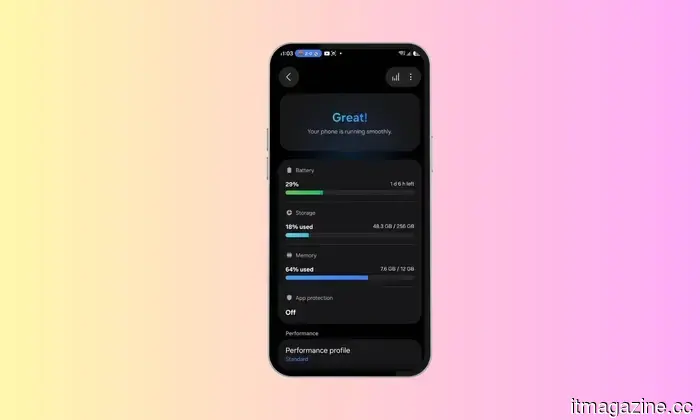
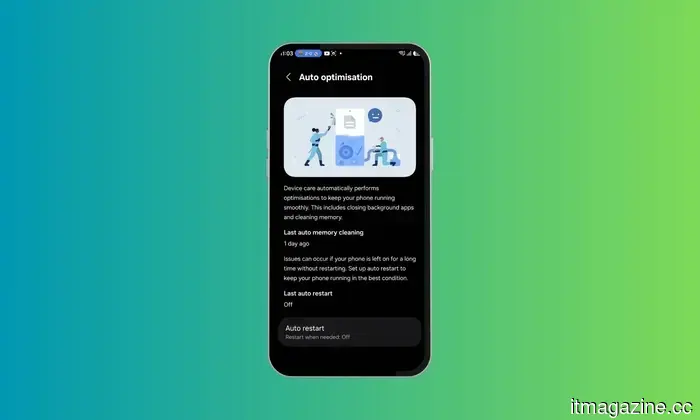
Then, return to the main Device Care screen and enable Auto Optimization. This feature automatically performs a quick system check for issues like unnecessary background activity, battery drain, and storage problems. Honestly, that’s mostly all it takes. Once the settings are configured, the Galaxy S26 manages the rest quietly in the background without demanding your attention.
Ultimately, I recommend enabling the features that truly align with your phone usage and enhance your daily experience.
The toughest aspect was relinquishing control
The unusual part was actually learning to trust the feature from the start. There’s something slightly unsettling about allowing your phone to manage battery life and decide when to charge slowly or stop before reaching 100 percent. Even when you understand the reasoning behind it, there’s that moment of anxiety when you wake up and see 97 percent instead of a full charge. In the initial days, I frequently checked to ensure nothing was malfunctioning.
However, once I stopped doubting it, the advantages became clear. My battery health noticeably improved during my time with the Galaxy S26 compared to when I was attempting — and mostly failing — to manage charging habits on my own. I believe that's what makes this feature work so well for me: it alleviates the need for constant diligence. At some point, I just had to accept a simple truth — the phone is more capable of managing its battery than I am.
The S26 took charge like an adult
What surprised me the most was not just the enhancement of battery health, but how much mental clutter this feature eliminated from my day. I ceased constantly checking my battery percentage, debating whether to plug it in immediately or wait, and worrying about accidentally leaving it charging overnight.
That’s where Device Care excels. It takes over the minor decisions, so you don’t have to think about them continuously. And really, that’s what effective software should do — resolve an issue so seamlessly that it blends into the background of your life. If you are someone who acknowledges battery health advice, agrees with it fully, and then forgets to implement it a few days later, this feature is ideal for you. It essentially manages the discipline aspect for you, and evidently, that was exactly what I needed.
Other articles
 Mortal Kombat 2 excels in fan service over narrative development.
Mortal Kombat 2 offers intense fatalities and plenty of fan service, yet its hasty storytelling and underutilized characters prevent this sequel from achieving a true Flawless Victory.
Mortal Kombat 2 excels in fan service over narrative development.
Mortal Kombat 2 offers intense fatalities and plenty of fan service, yet its hasty storytelling and underutilized characters prevent this sequel from achieving a true Flawless Victory.
 Dutch company Eyeo secures €40 million to develop NCOS color-splitting image sensors for commercial use.
Eyeo has completed a €40 million Series A funding round led by Innovation Industries to advance its Nanophotonic Color Splitting sensor technology developed by imec.
Dutch company Eyeo secures €40 million to develop NCOS color-splitting image sensors for commercial use.
Eyeo has completed a €40 million Series A funding round led by Innovation Industries to advance its Nanophotonic Color Splitting sensor technology developed by imec.
 If the manufacturer of your router or drone is prohibited from operating in the US, they will continue to receive updates until 2029.
The FCC has prolonged support for updates on restricted routers and drones until 2029, with the goal of mitigating cybersecurity threats posed by unsupported and vulnerable equipment.
If the manufacturer of your router or drone is prohibited from operating in the US, they will continue to receive updates until 2029.
The FCC has prolonged support for updates on restricted routers and drones until 2029, with the goal of mitigating cybersecurity threats posed by unsupported and vulnerable equipment.
 Jensen Huang addressed the class of 2026 at CMU:
Jensen Huang gave the commencement speech at Carnegie Mellon University, presenting AI as a pivotal moment for the reindustrialization of the United States.
Jensen Huang addressed the class of 2026 at CMU:
Jensen Huang gave the commencement speech at Carnegie Mellon University, presenting AI as a pivotal moment for the reindustrialization of the United States.
 Turkey's Grand Games secures $70 million in Series B funding.
Grand Games, located in Istanbul, has secured $70 million in a Series B funding round, which was led by Balderton Capital's Growth Fund.
Turkey's Grand Games secures $70 million in Series B funding.
Grand Games, located in Istanbul, has secured $70 million in a Series B funding round, which was led by Balderton Capital's Growth Fund.
 Amazon is set to issue its inaugural Swiss franc bond as part of a six-phase initiative focused on artificial intelligence capital expenditures.
Amazon has appointed BNP Paribas, Deutsche Bank, and JPMorgan for its inaugural issuance of bonds in Swiss franc.
Amazon is set to issue its inaugural Swiss franc bond as part of a six-phase initiative focused on artificial intelligence capital expenditures.
Amazon has appointed BNP Paribas, Deutsche Bank, and JPMorgan for its inaugural issuance of bonds in Swiss franc.
I allowed this Galaxy S26 feature to manage my battery, and it really does work.
The Device Care functionalities of the Galaxy S26 effectively manage battery health, background applications, and system optimization in ways that yield noticeable benefits over time. After the initial setup, it generally operates in the background, allowing you to use your phone without interruption.