
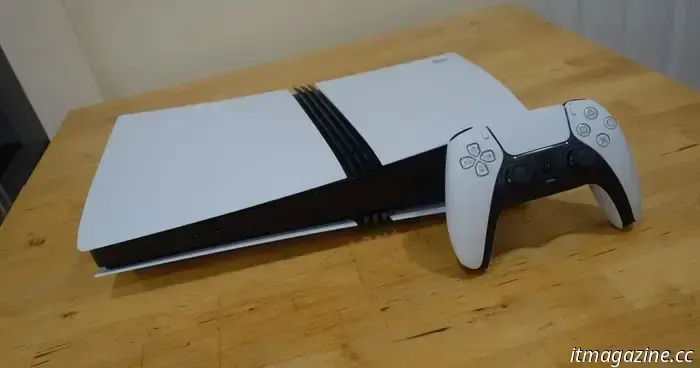
Here are the steps you need to take with your new PS5 before starting a game.
Just acquired a PlayStation 5 or PS5 Pro, or received one as a Christmas gift? Congratulations! Sony's sleek white console has taken the lead in this generation of gaming thanks to advancements in technology over the PS4 and an impressive game library.
Once you've unboxed it, you may be uncertain about where to begin. With five years of updates and an extensive library to explore, we’ve compiled this guide to assist you in transitioning from powering it on to enjoying free games through PlayStation Plus and more.
Here are the initial steps to take with your PS5 right after unboxing.
Plug it in
It may seem obvious, but a notable point is that the HDMI 2.1 cable included in the box is essential to unlock the full potential of your new PS5. Therefore, we recommend replacing any previous cable (if there was one) with this one to achieve the best visual quality from the console.
While we’re discussing connections, ensure that the ports at the top/front are free from any furniture to allow the fans to expel air unhindered. If possible, we also advise using a wired Ethernet connection for your internet.
Although it may not always be feasible, hardwiring offers a more stable connection and often improves download speeds.
For reference, my PS5 Pro is positioned behind my TV with ample ventilation and connected to a mesh network via Ethernet. Achieving 'ideal conditions' isn't always possible, but making the best efforts at this stage will set you up for success.
Connect to the internet and update the system software
This step might seem a bit obvious at first glance. Your PS5 includes built-in Wi-Fi and Ethernet capabilities; however, you will need to create a PlayStation Network account to utilize online features.
This process doesn’t take long, but during peak times like Christmas Day, server congestion can be an issue. Therefore, if you’re gifting a PS5 to someone, consider opening it, downloading important updates, and setting up an account before wrapping it.
This approach allows you to bypass digital queues for server updates, ensuring the recipient can start playing immediately.
Adjust your USB power settings
While it’s not essential, having your PS5 charge your DualSense controller while it’s not in use reduces downtime and avoids the hassle of tangled cables.
In your PS5's Settings, navigate to System, Power Saving, and then Features Available in Rest Mode. You can set the 'Supply Power to USB Ports' option to charge connected devices for three hours or continuously, although the latter consumes more power.
Transfer your saved games from a PS4
If you own a PS4 with saved games, you can transfer the data using a network transfer feature.
With both consoles connected to the same Wi-Fi network or via an Ethernet cable, go to Settings, System, System Software, and then Data Transfer to initiate the process.
If your PS4 isn't available, you can use your PS5 to download your saves stored in the cloud. Simply go to Settings, Saved Data, and you’ll find the option to download your cloud data.
Move your PS4 games using an external hard drive
The network transfer feature can also facilitate moving PS4 games to your PS5, but a quicker method (especially if you have an external hard drive) is to transfer your PS4 games to that drive.
You can then connect it to your PS5 and access your games. However, keep in mind some limitations.
PS4 games can be played from either internal or external storage, but due to the limited SSD space in the PS5, you might need to manage games on the external drive if you don’t mind having it connected to the back of your console.
PS5 games must be played from the internal drive or an M.2 SSD since they require faster storage. Fortunately, we have a list of excellent SSD options for you.
Adjust your 3D Audio settings
A significant aspect of the PS5’s original announcement was its new Tempest sound engine, which remains a valuable feature. It can provide a competitive edge as you can hear an enemy’s footsteps, and the sound of raindrops in games like Assassin’s Creed: Shadows becomes even more immersive.
To set it up for compatible headsets and TV speakers, go to Settings, then Sound, followed by 3D Audio. The walkthrough will guide you through setting up this impressive technology and help you create a tailored 3D audio profile for an optimal experience.
Use the PlayStation App
In the previous console generation, companion apps were rather basic, but the latest PlayStation App for iOS and Android has improved significantly.
You can use it to browse the store, reply to messages, and share your captures, along with managing downloads and even uninstalling games remotely.
If you received a PlayStation gift card for Christmas, using the app is a much simpler way to redeem it compared to the on-screen keyboard.
Sign up for PlayStation Plus
To play online on your PlayStation
Other articles
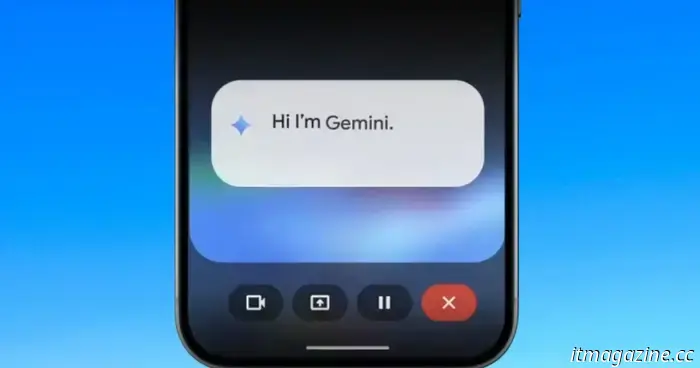 Gemini may soon be able to perform tasks in the background without taking over your screen.
Gemini might soon cease disrupting your workflow. Google is working on a modification that enables the assistant to manage requests in the background, allowing users to switch between apps while maintaining their progress.
Gemini may soon be able to perform tasks in the background without taking over your screen.
Gemini might soon cease disrupting your workflow. Google is working on a modification that enables the assistant to manage requests in the background, allowing users to switch between apps while maintaining their progress.
 Marshall Major V headphones are available for $89.99 at Best Buy, which is a savings of $60.
If you’ve been considering a pair of on-ear headphones that you can easily overlook charging, Best Buy has reduced the price of the Marshall Major V to $89.99. This is a $60 savings on a newer model that embraces Marshall’s traditional, sturdy design and extended listening capabilities. The major appeal here is straightforward: you're receiving a genuine brand-name product.
Marshall Major V headphones are available for $89.99 at Best Buy, which is a savings of $60.
If you’ve been considering a pair of on-ear headphones that you can easily overlook charging, Best Buy has reduced the price of the Marshall Major V to $89.99. This is a $60 savings on a newer model that embraces Marshall’s traditional, sturdy design and extended listening capabilities. The major appeal here is straightforward: you're receiving a genuine brand-name product.
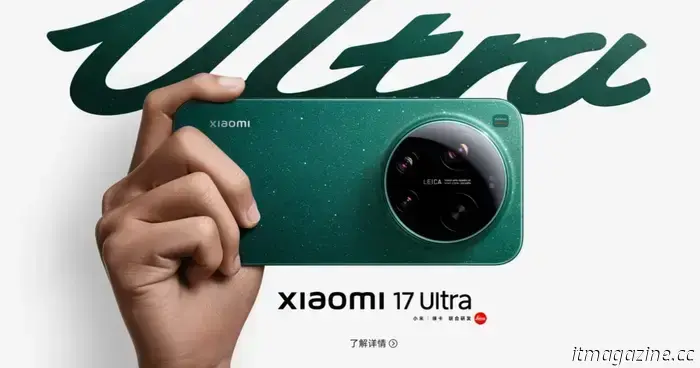 The Xiaomi S25 Ultra competitor boasts a physical zoom ring reminiscent of DSLR cameras, along with a 200MP zoom lens.
The Xiaomi 17 Ultra isn't merely focused on increasing megapixels; it's redefining the experience of smartphone zoom by incorporating a physical zoom ring around an impressive 200MP periscope camera.
The Xiaomi S25 Ultra competitor boasts a physical zoom ring reminiscent of DSLR cameras, along with a 200MP zoom lens.
The Xiaomi 17 Ultra isn't merely focused on increasing megapixels; it's redefining the experience of smartphone zoom by incorporating a physical zoom ring around an impressive 200MP periscope camera.
 Four remarkable robot demonstrations from 2025, along with one significant failure.
This year has been significant for humanoid robots, showcasing a variety of increasingly sophisticated designs. The highlights here emphasize physical mobility rather than artificial intelligence capabilities, which are anticipated to be more prominent next year. H1 by Unitree Many humanoid robots continue to move as if they are urgently searching for […]
Four remarkable robot demonstrations from 2025, along with one significant failure.
This year has been significant for humanoid robots, showcasing a variety of increasingly sophisticated designs. The highlights here emphasize physical mobility rather than artificial intelligence capabilities, which are anticipated to be more prominent next year. H1 by Unitree Many humanoid robots continue to move as if they are urgently searching for […]
 Where is Santa currently? He's not too far away...
It's Christmas Eve, and as the evening draws near, the question of 'When will Santa arrive?' will echo around the house. NORAD anticipates he will be in your airspace between 9 PM and midnight, but we all know the guideline… only if you're sound asleep. If you're curious about his current whereabouts, take a look at the resources we've been using […]
Where is Santa currently? He's not too far away...
It's Christmas Eve, and as the evening draws near, the question of 'When will Santa arrive?' will echo around the house. NORAD anticipates he will be in your airspace between 9 PM and midnight, but we all know the guideline… only if you're sound asleep. If you're curious about his current whereabouts, take a look at the resources we've been using […]
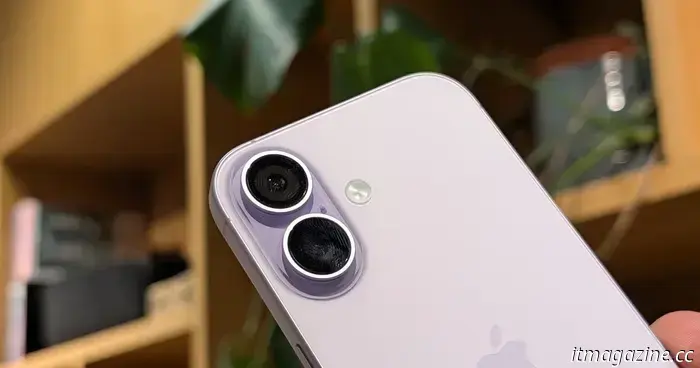 8 tips and tricks for your new iPhone: covering setup, storage, and beyond.
Here are some helpful tips to kickstart your life in iOS.
8 tips and tricks for your new iPhone: covering setup, storage, and beyond.
Here are some helpful tips to kickstart your life in iOS.
Here are the steps you need to take with your new PS5 before starting a game.
Unpack your new system and maximize its potential with our PS5 setup guide this holiday season.