
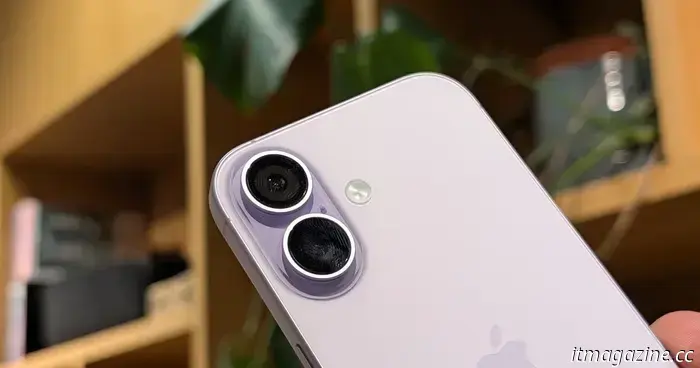
8 tips and tricks for your new iPhone: covering setup, storage, and beyond.
So you received an iPhone for Christmas? Welcome! After spending a decade switching between Android devices, I returned to iOS with the iPhone 14 Pro in 2022, following an unfortunate incident where my Samsung Galaxy S10e accidentally ended up in a pool while on vacation. Since then, I've had no regrets, except for being more careful about checking the pockets of my swim shorts.
I’ve gathered some helpful iPhone tips along the way. Here are a few pointers to help you get started.
1. Bring your digital life along
When upgrading from one iPhone to another, Apple makes the process seamless, transferring your settings and preferences effortlessly.
However, if you’re transitioning from Android, it’s not as smooth, but Apple has made a decent effort with the Move to iOS app. Simply download it on your Android device and follow the directions. If it doesn’t work for some reason, we have more advanced instructions available here.
2. Learn to type again
If you’ve been using Android for years, getting accustomed to the iPhone keyboard might feel a bit strange at first. My main tip is to control the cursor by pressing and holding the spacebar and sliding your finger left or right, which makes correcting those annoying typographical errors easier.
Alternatively, you can opt for a more familiar experience. Since iOS 8, Apple has allowed the use of third-party keyboards, so you can try one that suits you. When I switched to iOS, I was excited to see Google’s Gboard available, allowing for convenient swipe controls and easy GIF access.
3. Consider Apple One
Apple One bundles Apple services together.
Digital subscriptions are unfortunately an integral part of modern life. Or perhaps “fortunately” for Apple shareholders, as the company’s services are projected to generate around $100 billion this year.
If you’re tempted by multiple Apple subscription services, consider signing up for Apple One to save some money. For $19.95 per month, you can get Apple Music, Apple TV+, Apple Arcade, and 50GB of iCloud storage, which is about a one-third discount compared to subscribing separately. If your family members also use iPhones, you can save even more with the Family plan, which allows up to six users access to the same services (plus an additional 150GB of iCloud storage) for $25.95 per month.
Regarding subscriptions, if you choose to subscribe to non-Apple services, be sure to verify that the App Store price isn't unexpectedly higher. Some developers may charge more through the App Store due to Apple's cut, although this might change with a recent court ruling.
4. Manage your storage wisely
Even with added iCloud space, managing iPhone storage can be challenging, especially if you went with a 128GB model (note to self: avoid skimping on storage in the future).
To free up storage on your iPhone, enable two features designed for space-saving. ‘Offload Unused Apps’ removes apps you’re not currently using while retaining your data for easy redownloading. You can find this option under Settings > Apps > App Store > ‘Offload Unused Apps’.
Additionally, in the Photos app, there’s a feature to ‘Optimize iPhone Storage’, which keeps high-quality versions of your photos and videos in iCloud while reducing the size of local copies (Settings > iCloud > Photos > ‘Optimize iPhone Storage’).
In my experience, photos are often the main culprit behind storage issues, but there are ways to manage them effectively. In the Photos app, you can filter just your screenshots to quickly delete years' worth of unnecessary screen captures. For the rest of your photos, an app like Swipewipe can make the tedious process of deciding which ones to keep easier and more engaging.
5. Familiarize yourself with MagSafe
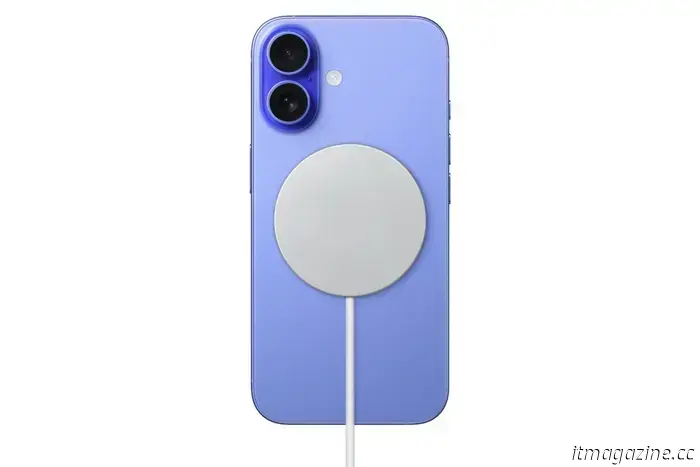
Unless you’ve chosen an iPhone 16e, which lacks this feature for budget reasons, your new phone supports the MagSafe accessory system, allowing you to magnetically attach accessories to the back of your phone.
This is mainly used to simplify wireless charging, with compatible chargers snapping easily onto the back without sliding off. However, there are many other useful accessories, like card holders and the ability to use your iPhone's excellent camera as a webcam for your Mac. You can view some of the best MagSafe accessories here.
6. Experiment with Back Tap controls
The iPhone is renowned for its exceptional accessibility features. While most are tailored for users with specific needs, there’s one that many may find useful: Back Tap.
This feature allows you to assign certain functions to a double or triple tap on the back of the iPhone. You can link it to a predefined list of functions (like opening Siri, activating the torch, taking a screenshot, etc.) or create custom shortcuts through the Shortcuts app.
To set it up, go to Settings > Accessibility > Touch > Back Tap.
7. Utilize your
Other articles
 Here are the steps you need to take with your new PS5 before starting a game.
Unpack your new system and maximize its potential with our PS5 setup guide this holiday season.
Here are the steps you need to take with your new PS5 before starting a game.
Unpack your new system and maximize its potential with our PS5 setup guide this holiday season.
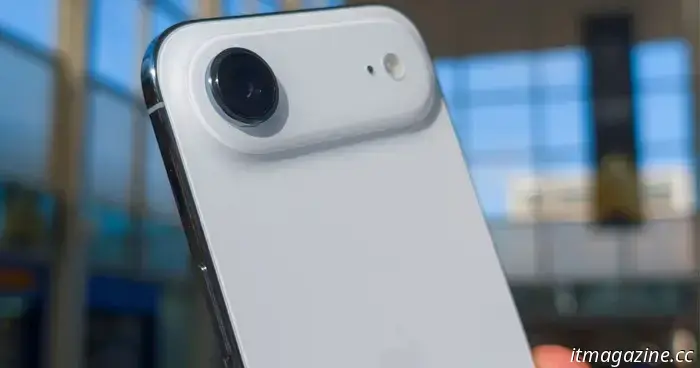 A new leak regarding the iPhone Air 2 has reignited optimism for a potential launch in 2026.
A recent leak indicates that Apple might not delay the launch of the iPhone Air 2 until 2027. Contrary to previous reports, there are now indications of a potential release in 2026, reigniting expectations for an earlier arrival of Apple’s ultra-thin iPhone.
A new leak regarding the iPhone Air 2 has reignited optimism for a potential launch in 2026.
A recent leak indicates that Apple might not delay the launch of the iPhone Air 2 until 2027. Contrary to previous reports, there are now indications of a potential release in 2026, reigniting expectations for an earlier arrival of Apple’s ultra-thin iPhone.
 Lenovo's upcoming laptop will literally turn away from you.
Lenovo's 2026 update unveils ThinkPads powered by Panther Lake and the motorized Auto Twist laptop, which boasts AI-assisted rotation and high-resolution 10MP webcams to transform premium business productivity.
Lenovo's upcoming laptop will literally turn away from you.
Lenovo's 2026 update unveils ThinkPads powered by Panther Lake and the motorized Auto Twist laptop, which boasts AI-assisted rotation and high-resolution 10MP webcams to transform premium business productivity.
 Marshall Major V headphones are available for $89.99 at Best Buy, which is a savings of $60.
If you’ve been considering a pair of on-ear headphones that you can easily overlook charging, Best Buy has reduced the price of the Marshall Major V to $89.99. This is a $60 savings on a newer model that embraces Marshall’s traditional, sturdy design and extended listening capabilities. The major appeal here is straightforward: you're receiving a genuine brand-name product.
Marshall Major V headphones are available for $89.99 at Best Buy, which is a savings of $60.
If you’ve been considering a pair of on-ear headphones that you can easily overlook charging, Best Buy has reduced the price of the Marshall Major V to $89.99. This is a $60 savings on a newer model that embraces Marshall’s traditional, sturdy design and extended listening capabilities. The major appeal here is straightforward: you're receiving a genuine brand-name product.
 The Xiaomi S25 Ultra competitor boasts a physical zoom ring reminiscent of DSLR cameras, along with a 200MP zoom lens.
The Xiaomi 17 Ultra isn't merely focused on increasing megapixels; it's redefining the experience of smartphone zoom by incorporating a physical zoom ring around an impressive 200MP periscope camera.
The Xiaomi S25 Ultra competitor boasts a physical zoom ring reminiscent of DSLR cameras, along with a 200MP zoom lens.
The Xiaomi 17 Ultra isn't merely focused on increasing megapixels; it's redefining the experience of smartphone zoom by incorporating a physical zoom ring around an impressive 200MP periscope camera.
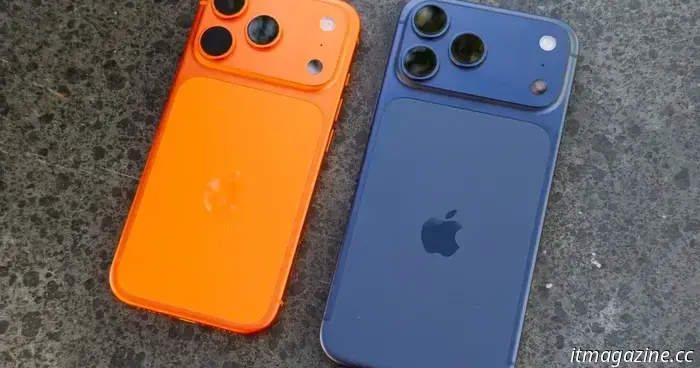 Xiaomi appears to be facing a memory crisis, which may have repercussions for Samsung and Apple in 2026.
The memory crisis is no longer just a theory. Xiaomi's 17 Ultra demonstrates how increasing RAM prices are subtly influencing flagship pricing, a trend that Apple and Samsung may soon adopt.
Xiaomi appears to be facing a memory crisis, which may have repercussions for Samsung and Apple in 2026.
The memory crisis is no longer just a theory. Xiaomi's 17 Ultra demonstrates how increasing RAM prices are subtly influencing flagship pricing, a trend that Apple and Samsung may soon adopt.
8 tips and tricks for your new iPhone: covering setup, storage, and beyond.
Here are some helpful tips to kickstart your life in iOS.