
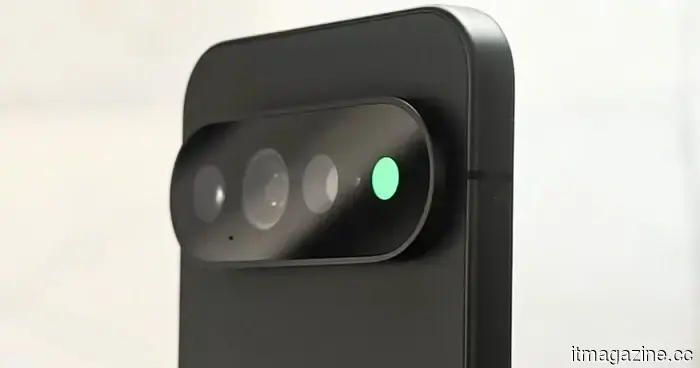
The HiLight Studio application uncovers details that Google conceals regarding the RGB light on the Pixel 11 Pro, but it may not appeal to everyone.
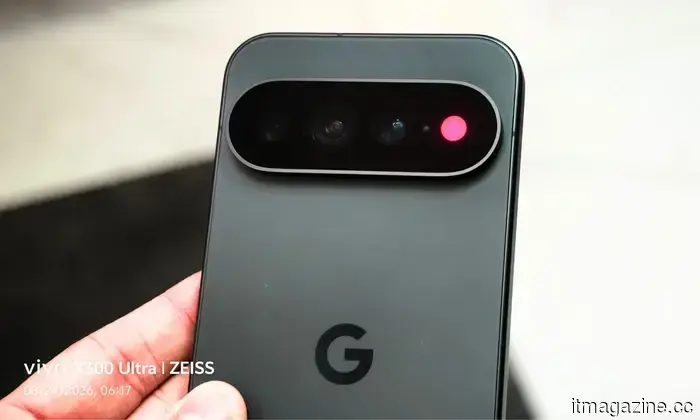
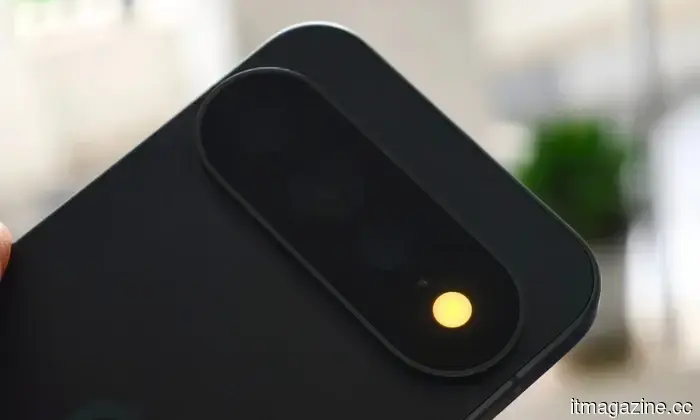
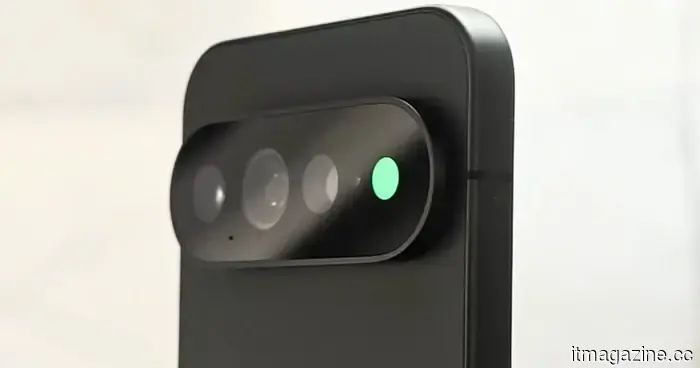
In addition to the new chipset, camera enhancements, and Gemini Intelligence, the Pixel 11 Pro has introduced a feature that generated significant excitement: the HiLight RGB light module located on the back.
Before Google revealed this feature, I was genuinely enthusiastic about it, envisioning a range of potential applications; the light could serve as a discreet notification alert for users, without the need to immediately unlock the device. However, Google limited its functionality to two uses: Gemini interactions and calls from selected contacts.
Tech content creator @Dhananjay_Tech (DhananjayBhosale) responded to this by developing an app called HiLight Studio, with a straightforward proposition: to unlock the full potential of HiLight by allowing integration with third-party applications, enabling users to have fun with it. After testing the app on a Pixel 11 Pro XL for a few days, I have some reflections on what HiLight can actually do and how much Google has left unexplored.
Here’s where HiLight Studio comes into play
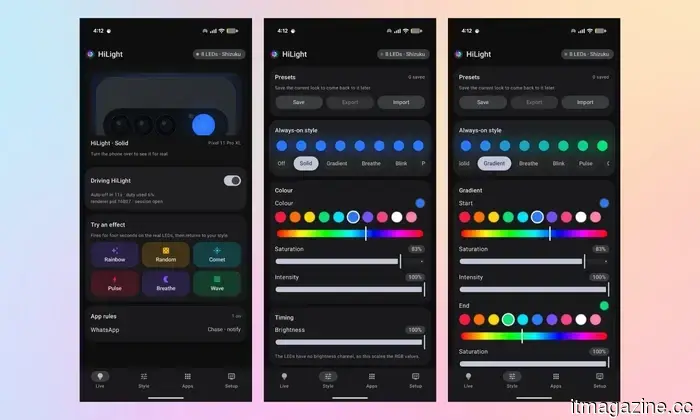
The home page offers a variety of HiLight effects. The Rainbow effect is the most similar to what has been showcased in promotion materials, featuring modules that illuminate in a rotating gradient pattern. There are also five additional effects to choose from: Random, Comet, Pulse, Breathe, and Wave. While this section is labeled Live (at the bottom of the screen), the Style page to the right allows you to set HiLight as a continuous light source.
You can customize the LED modules' lighting styles, including a gradient option (where you can select start and end colors), a breathing effect (with customizable timing per cycle), and more.
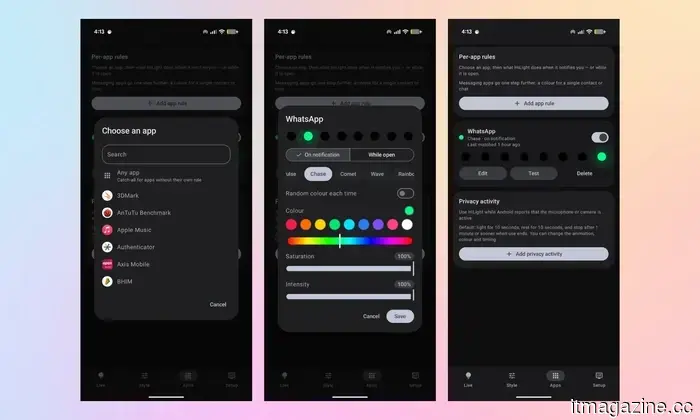
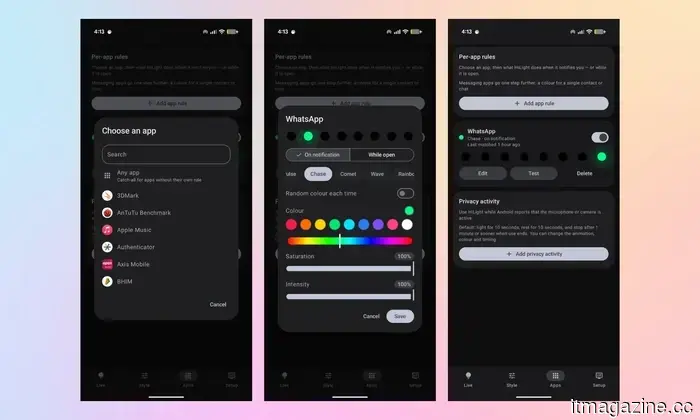
There’s also an Apps section that allows you to specify how the HiLight module reacts to notifications from different apps. For example, I configured a Chasing green light for WhatsApp, set to activate "on notification" instead of "while open." You can also create specific rules for other apps such as Instagram, Messenger, Teams, Gmail, or Slack.
This is where the hardware finally becomes relevant
In my opinion, this is one of the most intuitive and natural applications of HiLight, and I hope it remains this way. The app genuinely enhances the appeal of Google’s HiLight module, transforming a mundane system feature into what I always envisioned: a glanceable notification system.
However, there is a drawback: enabling wireless debugging prevents access to my daily banking and payment applications due to security concerns, which are understandable, not overly cautious. Consequently, while I appreciate HiLight Studio's functionality, I can't use it all the time. Moreover, the setup process to get the app functioning can be quite challenging for an average user.
Accessing the unavailable features takes longer than necessary
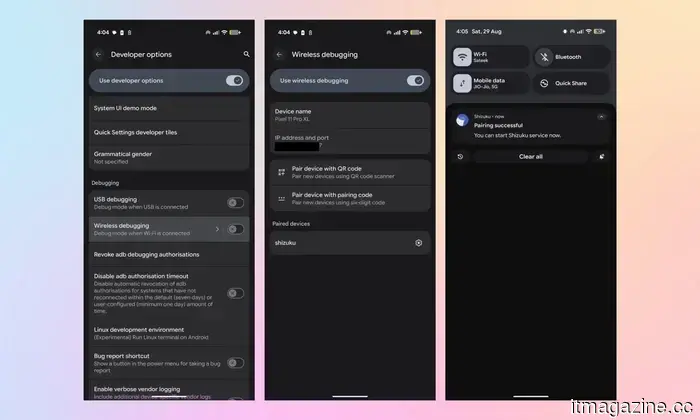
To get started, you must have two apps: HiLight Studio and Shizuku. First, activate Developer Options by tapping the build number seven times under “About phone,” as that's still the method for accessing settings in 2026. Then, enable wireless debugging, install Shizuku, connect it using the six-digit code presented in the notification, and hit “Start.”
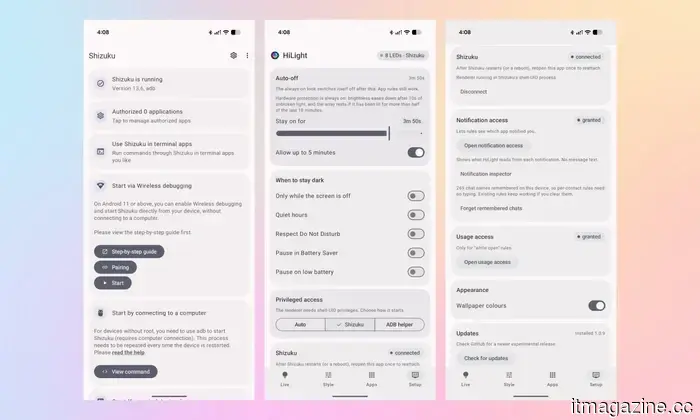
For those unfamiliar, Shizuku allows third-party apps to utilize first-party system permissions, which in this case refers to the HiLight module. It's only available on the Play Store for devices running Android 16, so it wasn’t accessible for my Pixel 11 Pro XL that runs Android 17, necessitating a sideload instead. Additionally, some may be aware that the app was recently compromised by RedHook malware, which might deter most users from installing it.
Once you're through those steps, open HiLight Studio, go to Setup, and under “Privileged access,” select Shizuku. Don’t forget to grant notification access as well. If done correctly, you’ll see a confirmation message indicating "8 LEDs · Shizuku," followed by a final toggle next to “System has HiLight” that unlocks the available effects at the bottom.
Achieving this is not as easy as it sounds
It took me around 150 words to detail this process, and realistically, one would need about 10 to 15 minutes to set everything up — assuming familiarity with Developer Options and apps like Shizuku.
The app functions correctly about 70 to 80% of the time, but occasionally a WhatsApp notification fails to activate the effect. Moreover, restarting the phone disrupts the connection between HiLight Studio and Shizuku, requiring reconnection to activate the lights again.
I’d need to forfeit access to essential payment apps, keep wireless debugging enabled, and rely on a third-party service that may pose security risks, just to access functionality that Google could have included natively. These aren’t the kinds of hurdles a typical user would want to encounter on their smartphone.
HiLight Studio illustrates what Google is overlooking
I genuinely commend the app’s creator for allowing users to explore HiLight's true capabilities. Nonetheless, a third-party solution
Other articles
 Just $1 was enough for Texas to fill the state with Flock surveillance cameras funded by motorists.
Approximately 3,200 Flock cameras in Texas were financed by funds generated from a $1 auto insurance fee that was initially authorized to address vehicle crime.
Just $1 was enough for Texas to fill the state with Flock surveillance cameras funded by motorists.
Approximately 3,200 Flock cameras in Texas were financed by funds generated from a $1 auto insurance fee that was initially authorized to address vehicle crime.
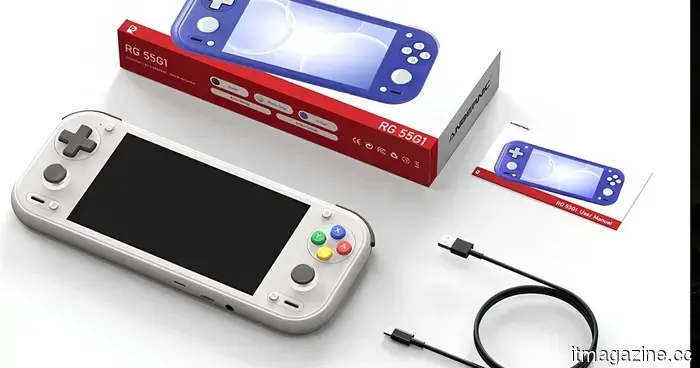 The Anbernic RG 55G1 is a $150 device resembling the Switch Lite, designed specifically for retro gaming.
Nintendo's Switch Lite has influenced many handheld devices, but Anbernic's newest model closely mirrors it while incorporating its own unique hardware elements to make the comparison noteworthy. The Anbernic RG 55G1 will be available from August 31, starting at a price of $150, featuring a compact design, a […]
The Anbernic RG 55G1 is a $150 device resembling the Switch Lite, designed specifically for retro gaming.
Nintendo's Switch Lite has influenced many handheld devices, but Anbernic's newest model closely mirrors it while incorporating its own unique hardware elements to make the comparison noteworthy. The Anbernic RG 55G1 will be available from August 31, starting at a price of $150, featuring a compact design, a […]
 Feeling the impact of OpenAI removing GPT models from Cursor? Anthropic provides a timely solution with increased limits for Claude.
Anthropic is pledging increased computing power for Claude in Cursor as OpenAI plans to end its model-access agreement with the coding platform.
Feeling the impact of OpenAI removing GPT models from Cursor? Anthropic provides a timely solution with increased limits for Claude.
Anthropic is pledging increased computing power for Claude in Cursor as OpenAI plans to end its model-access agreement with the coding platform.
 The robotic pizza chefs are not faring well.
The envisioned future of fast food was meant to feature an experience where you enter a restaurant, make your order, and observe a robot precisely putting together your pizza. However, various companies that aimed to automate pizza production have found it challenging to translate that idea into a viable business. The most recent case is Picnic, whose [...]
The robotic pizza chefs are not faring well.
The envisioned future of fast food was meant to feature an experience where you enter a restaurant, make your order, and observe a robot precisely putting together your pizza. However, various companies that aimed to automate pizza production have found it challenging to translate that idea into a viable business. The most recent case is Picnic, whose [...]
 Feeling the impact of OpenAI removing GPT models from Cursor? Anthropic provides a timely alternative with increased limits for Claude.
Anthropic is offering increased computing power for Claude within Cursor as OpenAI plans to end its model-access agreement with the coding platform.
Feeling the impact of OpenAI removing GPT models from Cursor? Anthropic provides a timely alternative with increased limits for Claude.
Anthropic is offering increased computing power for Claude within Cursor as OpenAI plans to end its model-access agreement with the coding platform.
 The HiLight Studio app uncovers what Google conceals regarding the RGB light of the Pixel 11 Pro, but it's not suitable for everyone.
The third-party HiLight Studio app generally functions well, but the Shizuku setup and its inconsistent reliability highlight the actual issue.
The HiLight Studio app uncovers what Google conceals regarding the RGB light of the Pixel 11 Pro, but it's not suitable for everyone.
The third-party HiLight Studio app generally functions well, but the Shizuku setup and its inconsistent reliability highlight the actual issue.
The HiLight Studio application uncovers details that Google conceals regarding the RGB light on the Pixel 11 Pro, but it may not appeal to everyone.
The HiLight Studio app from a third party generally operates well, but the Shizuku configuration and its inconsistent reliability highlight the underlying issue.