
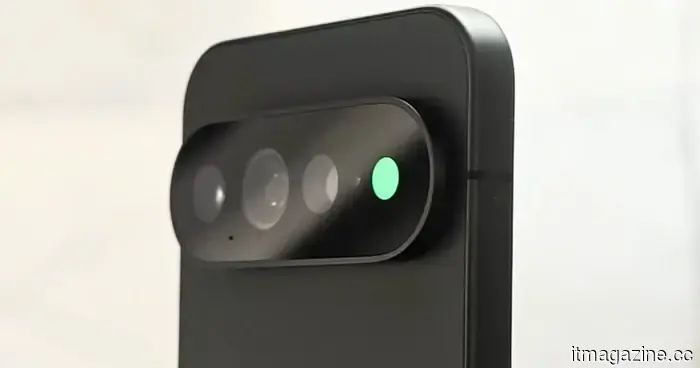
The HiLight Studio app uncovers what Google conceals regarding the RGB light of the Pixel 11 Pro, but it's not suitable for everyone.
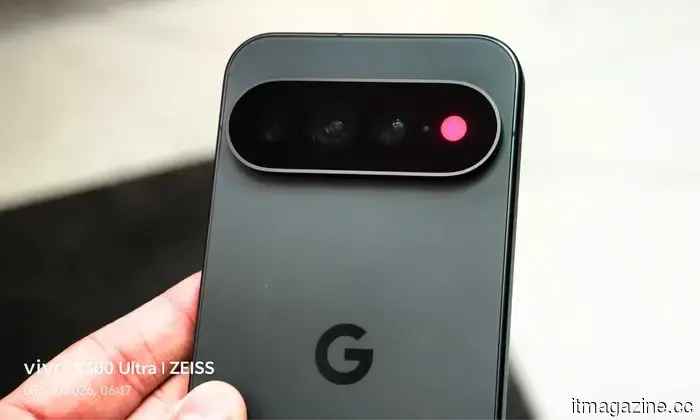
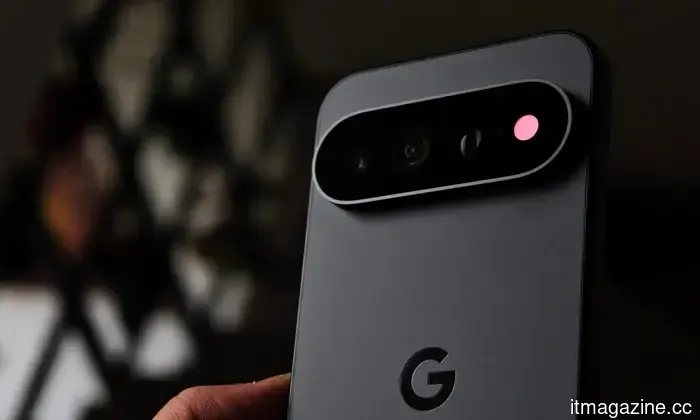
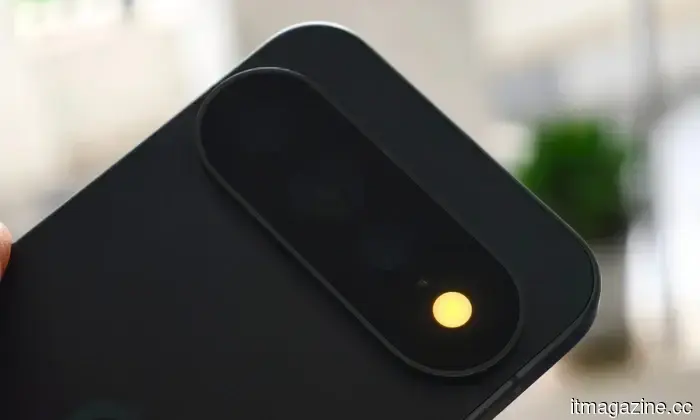
In addition to the new chipset, camera enhancements, and Gemini Intelligence, the Pixel 11 Pro has come with a feature that has generated quite a buzz: the RGB light module at the back known as HiLight.
Prior to Google unveiling this feature, I was genuinely excited about its possibilities; the light could have served as a discreet notification system for users, allowing them to see notifications without needing to unlock their phones right away. Unfortunately, Google limited the functionality to two specific uses: Gemini interactions and calls from selected contacts.
This is why tech content creator @Dhananjay_Tech (Dhananjay Bhosale) developed an app called HiLight Studio, promoting the idea of unlocking HiLight’s full potential by allowing third-party apps to access it for added enjoyment. After trying out the app for a few days on a Pixel 11 Pro XL, I have some thoughts on both the actual capabilities of HiLight and how much Google has left untapped.
Where HiLight Studio comes in
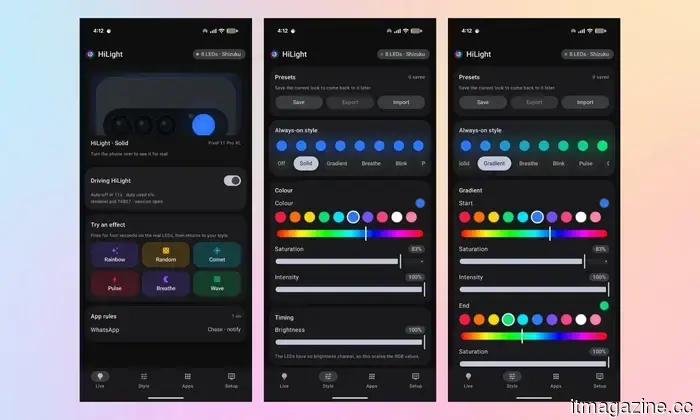
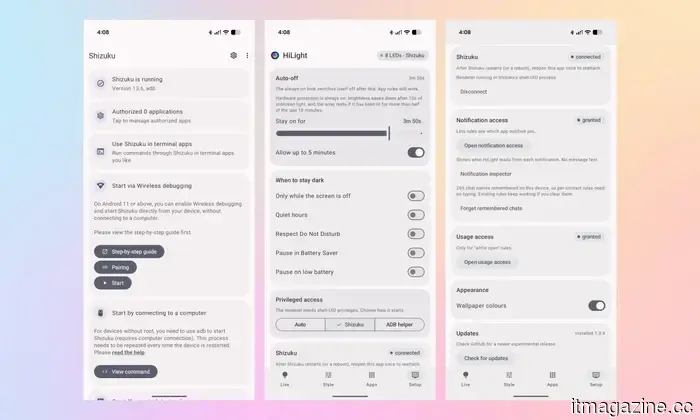
On the main page, users can explore various HiLight effects. The Rainbow effect resembles what we’ve seen in promotional content, with the modules lighting up in a rotating gradient. There are also five additional effects available: Random, Comet, Pulse, Breathe, and Wave. While this page is labeled Live (at the bottom of the screen), the Style page on the right allows you to activate HiLight as a persistent light.
You can select different lighting styles for the LED modules, including a gradient option (where you can choose the start and end colors), a breathing effect (with adjustable timing for each cycle), and more.
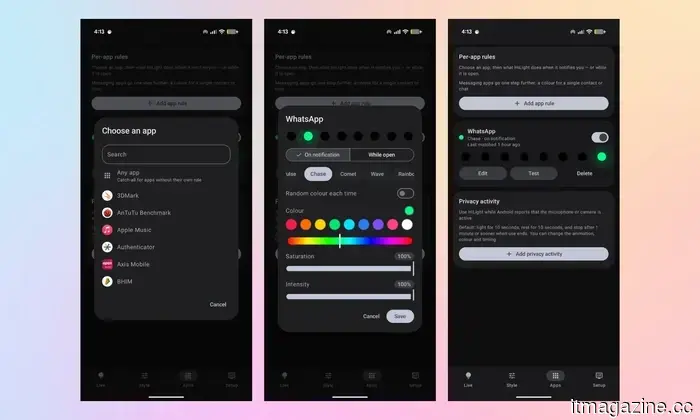
There’s also an Apps section, where you can set how the HiLight module reacts to notifications from different apps. For instance, I configured a Chasing green light for WhatsApp, set to activate “on notification” instead of “while open.” Similarly, you can establish specific rules for apps like Instagram, Messenger, Teams, Gmail, or Slack.
This is where the hardware finally shines
I find this to be one of the most natural uses for HiLight, and I hope it remains intuitive. Essentially, the app makes Google’s HiLight module engaging. It transforms the otherwise mundane system implementation into a glanceable notification feature, exactly as I envisioned it would be.
However, there is a downside: enabling wireless debugging prevents me from accessing my daily banking and payment apps for security reasons, which, to be fair, is a sensible precaution. So, while I appreciate what HiLight Studio accomplishes, I can't use it regularly. Furthermore, actually getting the app up and running can be a cumbersome process for the average user.
Accessing the features Google left behind is more complicated than it should be
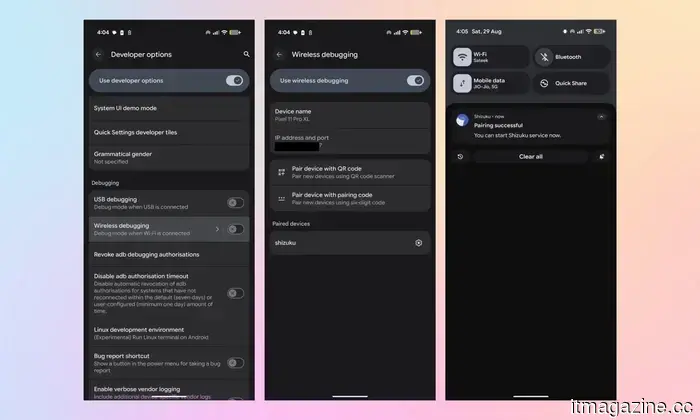
To get started, you need two apps installed: HiLight Studio and Shizuku. First, enable Developer Options by tapping the build number seven times under “About phone,” as this method of access is apparently still in use in 2026. Next, enable wireless debugging, install Shizuku, pair it using the six-digit code from the notification, and tap “Start.”
For those unfamiliar, Shizuku allows third-party apps to utilize first-party system permissions, in this case, for the HiLight module. It’s only available on the Play Store for Android 16 devices, so I had to sideload it on my Pixel 11 Pro XL running Android 17. Additionally, it’s worth noting that the app was recently targeted by RedHook malware, which may deter many users from installing it.
To enable wireless debugging on the Pixel 11 Pro XL
After that, you need to open HiLight Studio, navigate to Setup, and under “Privileged access,” select Shizuku. You also need to grant notification access. If everything is done correctly, you should see a small confirmation indicating “8 LEDs · Shizuku,” followed by a final toggle next to “System has HiLight,” which unlocks the effects at the bottom.
Reaching this stage is easier said than done
It took me about 150 words to describe the process, and it likely would take you around 10 to 15 minutes to set everything up, assuming you are familiar with Developer Options and apps like Shizuku.
The app works roughly 70 to 80% of the time, but at times, a WhatsApp notification may not trigger the effect. Moreover, restarting the phone disrupts the connection between HiLight Studio and Shizuku, requiring you to re-establish the link to utilize the lights.
Connecting Shizuku with HiLight Studio
In order to access HiLight's functionalities, I’d have to sacrifice access to the payment apps I use frequently, maintain wireless debugging, and depend on a third-party tool that may pose security risks, all for features that Google could have provided natively. These are steps that most users likely wouldn’t want to take on their smartphones.
For me, HiLight Studio highlights
Other articles
 Feeling the impact of OpenAI removing GPT models from Cursor? Anthropic provides a timely alternative with increased limits for Claude.
Anthropic is offering increased computing power for Claude within Cursor as OpenAI plans to end its model-access agreement with the coding platform.
Feeling the impact of OpenAI removing GPT models from Cursor? Anthropic provides a timely alternative with increased limits for Claude.
Anthropic is offering increased computing power for Claude within Cursor as OpenAI plans to end its model-access agreement with the coding platform.
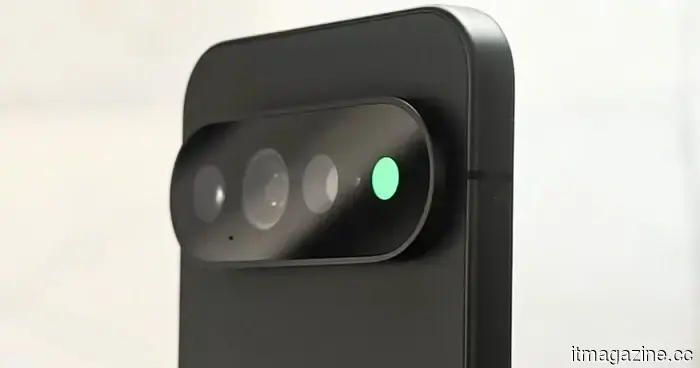 The HiLight Studio application uncovers details that Google conceals regarding the RGB light on the Pixel 11 Pro, but it may not appeal to everyone.
The HiLight Studio app from a third party generally operates well, but the Shizuku configuration and its inconsistent reliability highlight the underlying issue.
The HiLight Studio application uncovers details that Google conceals regarding the RGB light on the Pixel 11 Pro, but it may not appeal to everyone.
The HiLight Studio app from a third party generally operates well, but the Shizuku configuration and its inconsistent reliability highlight the underlying issue.
 A report from MIT indicates that AI is capable of completing nearly any undergraduate assignment that is presented to it.
According to MIT's AI committee, models are capable of reliably completing nearly any undergraduate task. In Europe, the use of exam monitoring software is considered high-risk under the AI Act.
A report from MIT indicates that AI is capable of completing nearly any undergraduate assignment that is presented to it.
According to MIT's AI committee, models are capable of reliably completing nearly any undergraduate task. In Europe, the use of exam monitoring software is considered high-risk under the AI Act.
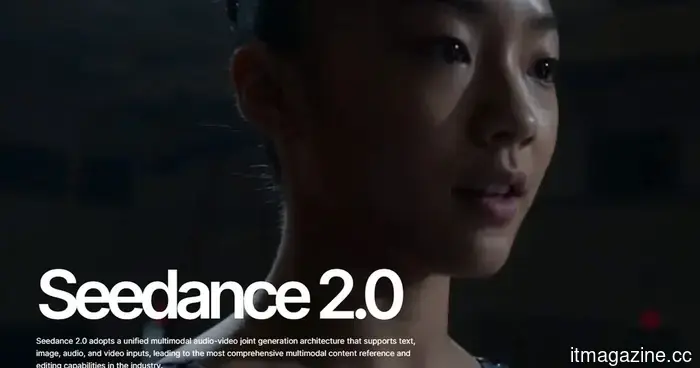 AI is playing an increasingly significant role in short dramas, and actors are bearing the consequences.
The entertainment sector might be on the verge of a peculiar new reality: the performer you're watching might not actually be a human actor. AI-generated dramas and virtual performers are transitioning from experimental technology to mainstream entertainment, as production companies are progressively utilizing artificial intelligence to generate characters, scenes, and even complete short-form productions. This change is occurring rapidly […]
AI is playing an increasingly significant role in short dramas, and actors are bearing the consequences.
The entertainment sector might be on the verge of a peculiar new reality: the performer you're watching might not actually be a human actor. AI-generated dramas and virtual performers are transitioning from experimental technology to mainstream entertainment, as production companies are progressively utilizing artificial intelligence to generate characters, scenes, and even complete short-form productions. This change is occurring rapidly […]
 Feeling the impact of OpenAI removing GPT models from Cursor? Anthropic provides a timely solution with increased limits for Claude.
Anthropic is pledging increased computing power for Claude in Cursor as OpenAI plans to end its model-access agreement with the coding platform.
Feeling the impact of OpenAI removing GPT models from Cursor? Anthropic provides a timely solution with increased limits for Claude.
Anthropic is pledging increased computing power for Claude in Cursor as OpenAI plans to end its model-access agreement with the coding platform.
 The robot pizza chefs are not performing well.
The anticipated future of fast food was meant to resemble this scenario: enter a restaurant, make an order, and observe a robot expertly creating your pizza with mechanical accuracy. However, several companies that vowed to automate pizza preparation have found it challenging to transform that idea into a viable business. The most recent instance is Picnic, whose […]
The robot pizza chefs are not performing well.
The anticipated future of fast food was meant to resemble this scenario: enter a restaurant, make an order, and observe a robot expertly creating your pizza with mechanical accuracy. However, several companies that vowed to automate pizza preparation have found it challenging to transform that idea into a viable business. The most recent instance is Picnic, whose […]
The HiLight Studio app uncovers what Google conceals regarding the RGB light of the Pixel 11 Pro, but it's not suitable for everyone.
The third-party HiLight Studio app generally functions well, but the Shizuku setup and its inconsistent reliability highlight the actual issue.