
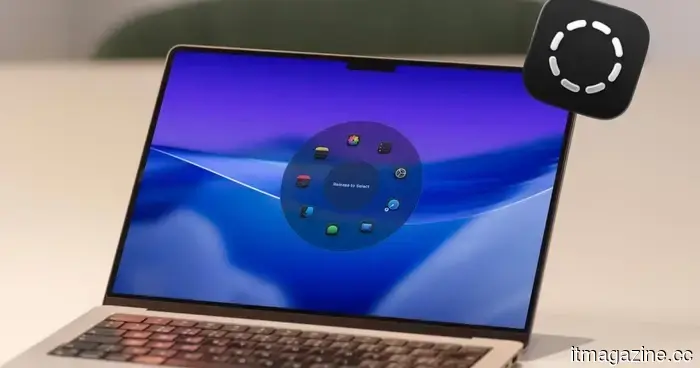
I’ve allowed the Radial menu to take control of my Mac, and I have no intention of reverting.
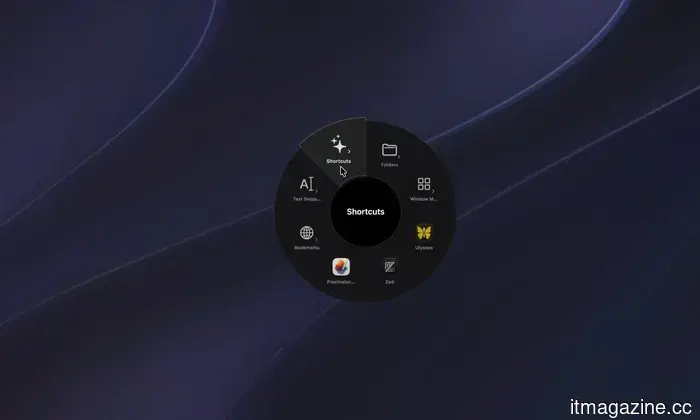
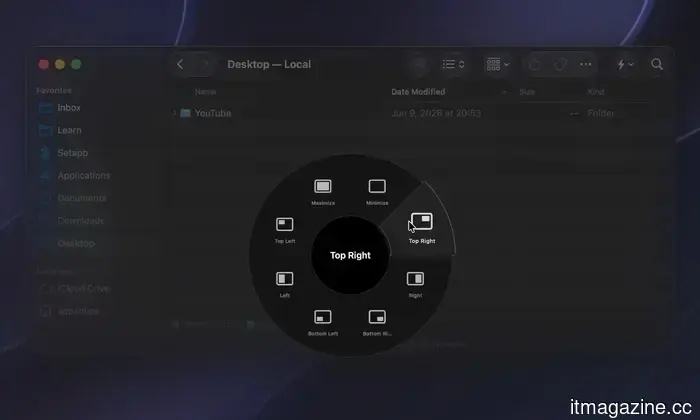
I have been using Radial for the past week, and it has quickly become one of those applications I can't imagine living without. It is a radial menu for macOS that places your shortcuts, scripts, and automations exactly where your cursor is, eliminating the need to sift through menus to find what you require.
The app has just received its 5.0 update, which introduces AI actions powered by Claude, window layouts, variables, a revamped settings interface, a new Atmosphere background effect, and a squircle menu shape. I've had the chance to try out most of these features, and here’s my experience.
How Radial integrates into my workflow
Before diving into the new functionalities, it's important to recognize the issues this app aims to address. Many of us perform numerous repetitive tasks on our Macs. Whether it's renaming files, compressing and converting documents, launching the same applications each morning, replying with the same messages, or executing identical terminal commands, our days are filled with redundancy. Radial simplifies these repetitive tasks, saving you both time and frustration.
From the menu, I can launch applications, open files, folders, and URLs, insert text snippets, simulate keyboard shortcuts, manage application windows, and execute system actions—all without interrupting my current activity. By simply wiggling my mouse cursor, I can bring up the app and access all my shortcuts immediately.
The app also provides app-specific shortcuts. For instance, when I activate the Radial menu while in Finder, it offers options to copy the file path, create a new text file, batch rename selected files, and more. Similarly, when I access my CleanShot X menu, it allows me to take a screenshot, record my screen, extract text, and other functions.
This means I no longer have to memorize all the keyboard shortcuts for different applications. I merely activate the Radial menu, and I gain swift access to all the necessary actions for the current app.
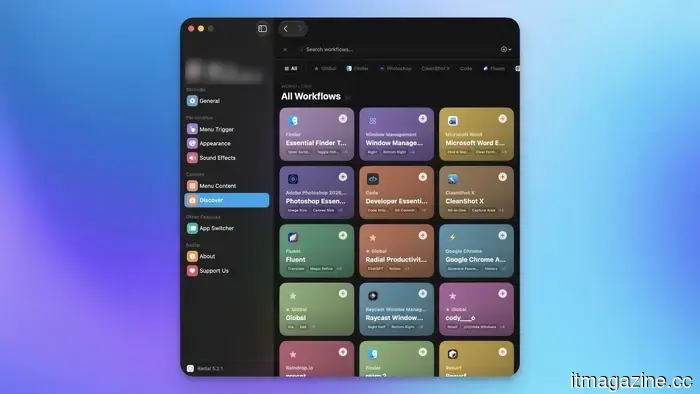
There's a community section available where you can browse and install shortcuts that other Radial users have created. This feature makes it easier to get started with the app since you don't have to painstakingly create every shortcut you use. If there's a demand for it, someone else may have already created a shortcut to address that need.
Using Radial to execute shortcuts is fantastic, but chaining them together is where the app truly shines. You can combine multiple shortcuts to execute routines with a single gesture, and once you adapt to this, it’s genuinely challenging to revert to your previous method.
Some new features added
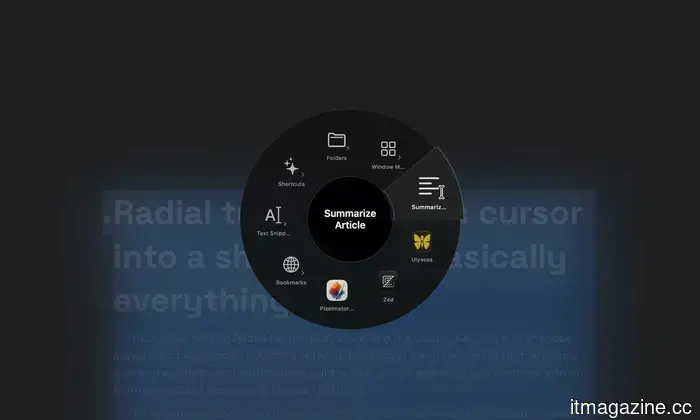
As mentioned, the app has recently rolled out its version 5.0 update, which includes several new features. The AI actions are the standout addition that I frequently utilize. Powered by Claude, these actions allow me to select any text on my Mac and have Radial summarize, rewrite, or modify it instantly, without the need to switch applications. Though it may seem minor, it has significantly saved me time.
Window layouts are another feature I found myself using more than anticipated. Instead of manually arranging my applications every morning, I saved a layout once and now I can set up my entire workspace with a single gesture. I haven’t even begun to explore the full potential of what this app can do. It also allows users to run macros, Apple scripts, shortcuts, and create automation and workflows.
Radial has seamlessly integrated into my daily Mac usage. It may not be an extravagant application, but it efficiently saves me time in numerous small ways that accumulate quickly. If you’ve been searching for a quicker approach to get tasks done, it’s definitely worth trying out.

Other articles
 South Korea intends to create a future fund utilizing the revenue from the chip tax.
According to Yonhap, Seoul aims to utilize the record profits from Samsung and SK Hynix to finance AI investments and address inequality through a new "future response fund."
South Korea intends to create a future fund utilizing the revenue from the chip tax.
According to Yonhap, Seoul aims to utilize the record profits from Samsung and SK Hynix to finance AI investments and address inequality through a new "future response fund."
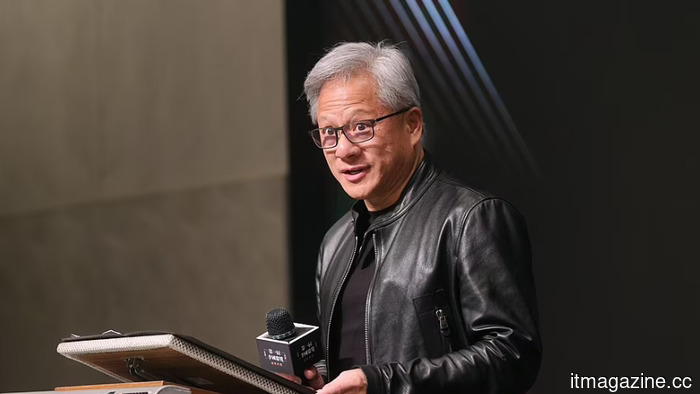 Hon Hai reports a 40% increase in sales driven by demand for AI servers.
Foxconn's parent company, Hon Hai, exceeded expectations with a 40% increase in quarterly sales, driven by rising demand for Nvidia AI racks, and stated that this momentum is expected to persist.
Hon Hai reports a 40% increase in sales driven by demand for AI servers.
Foxconn's parent company, Hon Hai, exceeded expectations with a 40% increase in quarterly sales, driven by rising demand for Nvidia AI racks, and stated that this momentum is expected to persist.
 US dominance in frontier AI casts a shadow over the NATO summit.
Washington determines which NATO partners can utilize cyber-capable AI such as Claude Mythos. During the summit in Ankara, the discussions remain confined to the hallways.
US dominance in frontier AI casts a shadow over the NATO summit.
Washington determines which NATO partners can utilize cyber-capable AI such as Claude Mythos. During the summit in Ankara, the discussions remain confined to the hallways.
 Spotify's streaming fraud problem is so significant that Kalshi traders are benefiting from manipulated charts.
According to a report by the Financial Times, Spotify has taken down over half a million streams from Malcolm Todd's song "Earrings" due to suspected bot activity. The track, which was initially released in 2024, unexpectedly surged to the top spot on Spotify's daily U.S. chart after a significant increase in its streams. Concurrently, traders on prediction [...]
Spotify's streaming fraud problem is so significant that Kalshi traders are benefiting from manipulated charts.
According to a report by the Financial Times, Spotify has taken down over half a million streams from Malcolm Todd's song "Earrings" due to suspected bot activity. The track, which was initially released in 2024, unexpectedly surged to the top spot on Spotify's daily U.S. chart after a significant increase in its streams. Concurrently, traders on prediction [...]
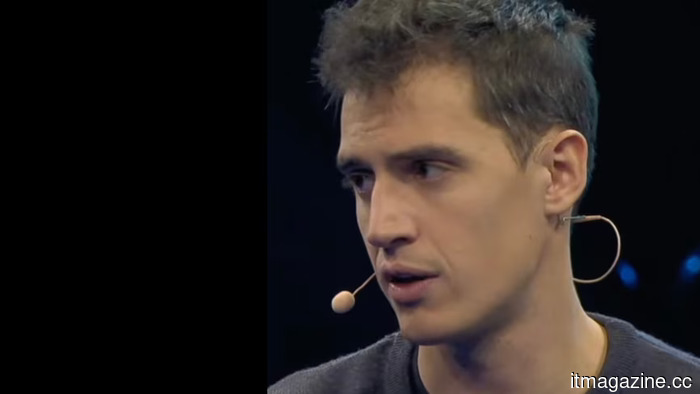 Mistral's CEO: Proprietary AI models grant an advantage to providers.
Arthur Mensch encourages businesses to adopt open source solutions, cautioning that closed AI providers keep data and vie with their own clients. The message culminates at Mistral.
Mistral's CEO: Proprietary AI models grant an advantage to providers.
Arthur Mensch encourages businesses to adopt open source solutions, cautioning that closed AI providers keep data and vie with their own clients. The message culminates at Mistral.
 India instructs Meta to remove child abuse advertisements from Instagram.
New Delhi has granted Meta a seven-day period to clarify how paid CSEAM ads were approved during Instagram's review process, intensifying an investigation initiated by a BBC inquiry.
India instructs Meta to remove child abuse advertisements from Instagram.
New Delhi has granted Meta a seven-day period to clarify how paid CSEAM ads were approved during Instagram's review process, intensifying an investigation initiated by a BBC inquiry.
I’ve allowed the Radial menu to take control of my Mac, and I have no intention of reverting.
I dedicated a week to testing Radial, a Mac application that places your shortcuts, scripts, and automations directly at your cursor, and it has already transformed my usage of the Mac.