

How to clear your browser cache in Chrome, Edge, Firefox, Safari, or Opera.
Your browser cache functions similarly to a storage closet. It silently keeps copies of web files like images, stylesheets, scripts, and fonts on your device. Because of this cache, websites load more quickly during subsequent visits as your browser utilizes files already stored instead of downloading them anew.
This leads to not only faster loading times, but also a reduction in data usage, lower battery consumption, and an enhanced overall user experience. However, if neglected, the cache can become cluttered over time, leading to potential issues.
An overloaded cache can slow your browser, present outdated web pages, and may even result in some sites malfunctioning or acting unpredictably. Clearing the cache is a simple and effective solution to these frustrating problems.
Fortunately, clearing your browser cache only takes a few seconds, and I will guide you through the process for Chrome, Edge, and Firefox.
### What You Need
- A PC or Mac
- A web browser (like Google Chrome, Opera, Safari, Firefox, or Microsoft Edge)
### Quick Steps: How to Clear Your Browser Cache
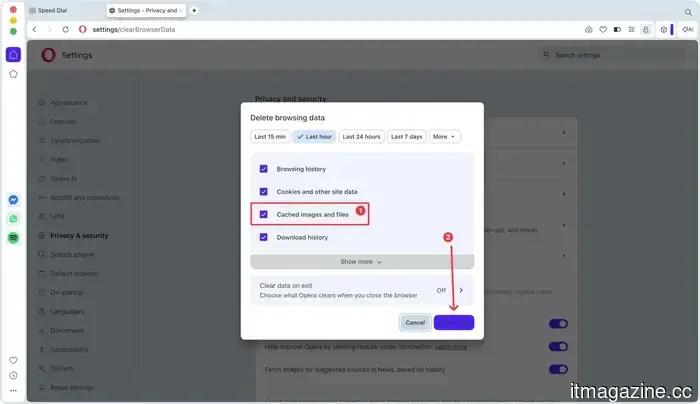
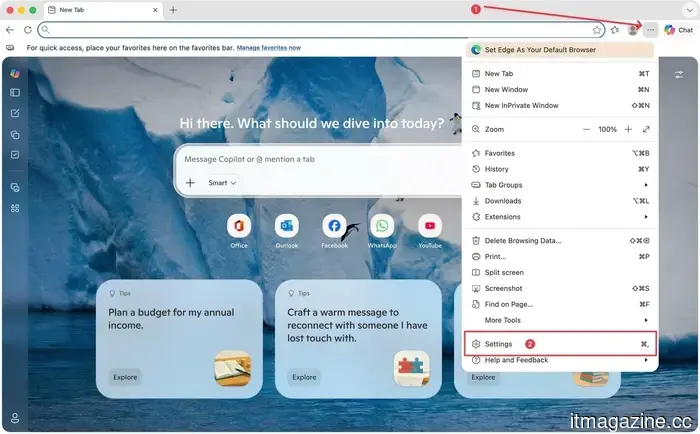
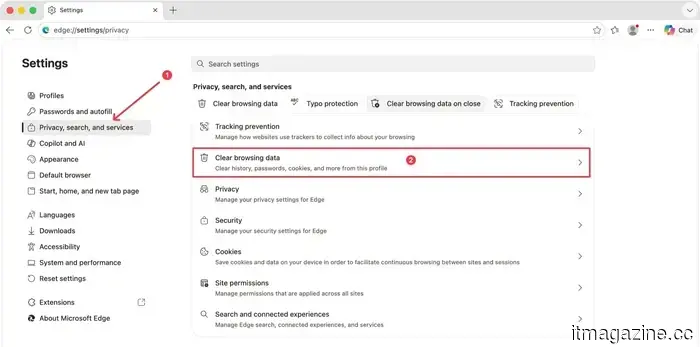
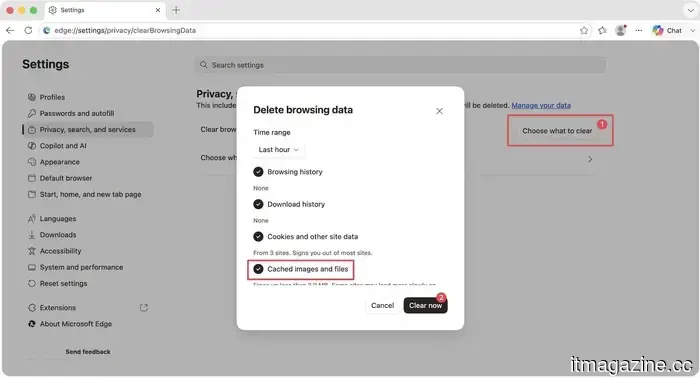
If you're short on time, here’s a quick overview. To clear your browser cache, access your browser settings, navigate to Privacy & Security, select Clear Browsing Data, check Cached Images and Files, and then click Clear Data. While the precise steps may vary slightly depending on the browser, the concept is consistent across all platforms.
Here’s a step-by-step guide:
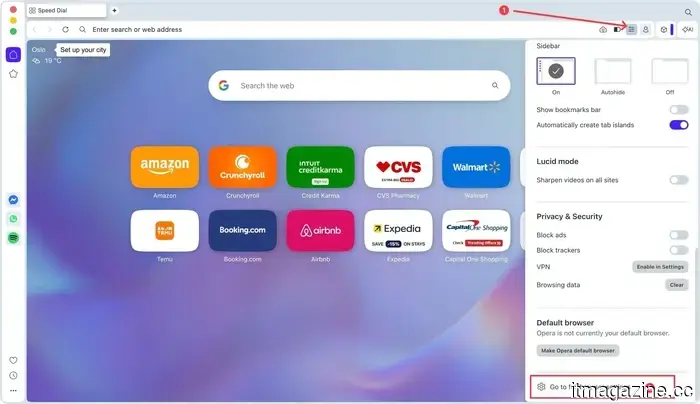
1. Open your browser settings.
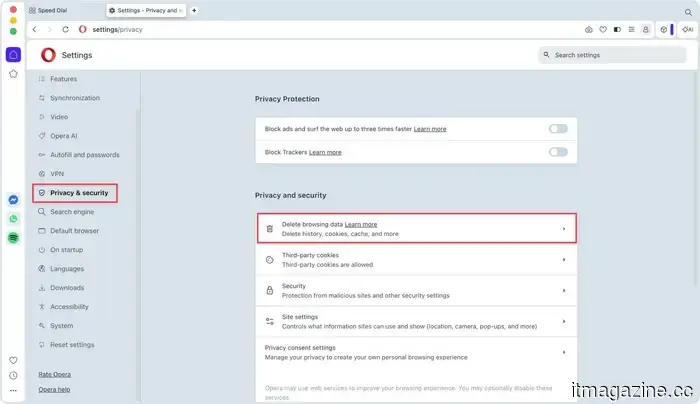
2. Navigate to Privacy & Security.
3. Select Delete browsing data.
4. Choose a time range.
5. Ensure Cached Images and Files is checked.
6. Click “Clear Data” or “Delete from this device.”
### Keyboard Shortcuts to Clear Browser Cache
Most Chromium-based browsers, including Google Chrome and Edge, allow you to quickly access the cache-clearing page with keyboard shortcuts.
- **macOS**: ⌘⇧Delete (Command+Shift+Delete)
- **Windows**: ⌃⇧Delete (Control+Shift+Delete)
Using these shortcuts will bring you directly to the Delete browsing data page.
### Why Clear Your Cache?
There are several benefits to clearing your browser's cache. Firstly, deleting the stored data compels your browser to fetch the latest webpage elements rather than relying on older, potentially outdated components.
Additionally, refreshing your cache can help resolve errors such as 404 and 502, which might occur due to a corrupted cache. You can also clear any personal data, like login IDs and passwords, that you prefer not to keep on your device.
It's a straightforward way to remove unnecessary data that could be slowing down your browser.
### What Clearing Your Browser Cache Does and Doesn’t Do
Before proceeding with the guide, let's outline what clearing your cache actually achieves and what it does not.
**Clearing cache can:**
- Free up storage space on your computer.
- Fix malfunctioning websites.
- Resolve loading errors like 404 or 502.
- Refresh outdated website data.
**Clearing cache does not:**
- Uninstall browser extensions.
- Remove saved passwords (unless you specifically select that option).
- Erase saved logins (unless you specifically select that option).
- Delete your browsing history.
### How to Clear Cache in Google Chrome
Google Chrome is the leading browser, and the steps to clear its cache are quite easy. These instructions also apply to other Chromium-based browsers, such as Vivaldi and Brave.
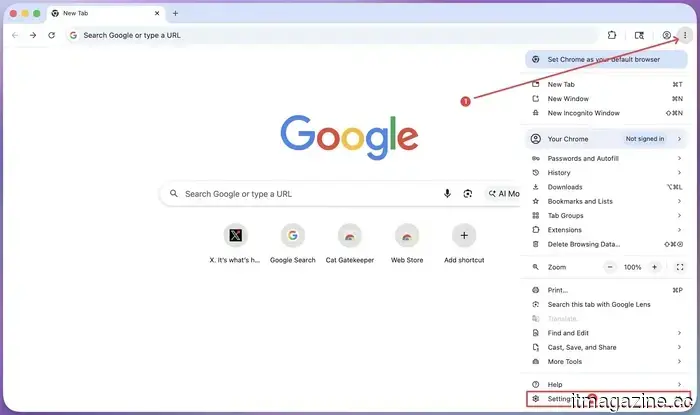
1. Open Google Chrome on your computer, click the three-dot menu in the top-right corner, then go to settings.
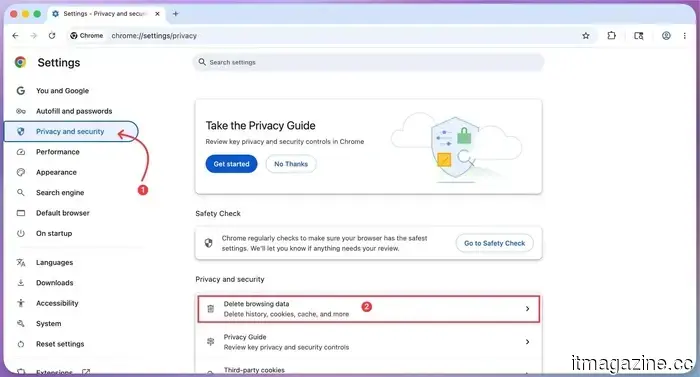
2. Click on “Privacy & Security” in the sidebar, then choose “Delete browsing data.”
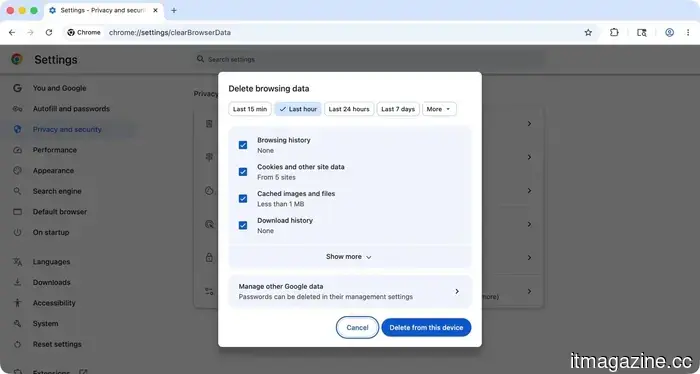
3. Select the timeframe for which you want to clear the browser cache. By default, options like browsing history, cookies, and download history are also selected. Uncheck any you do not wish to delete.
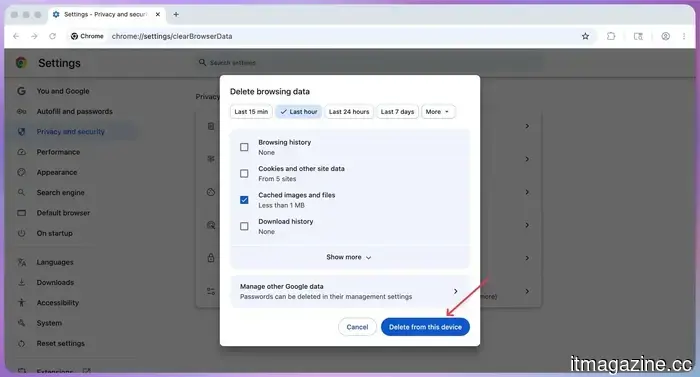
4. Finally, click the “Delete from this device” button to clear Chrome’s cache.
**Pro Tip**: You can use the shortcut ⌘⇧Delete (Mac) or ⌃⇧Delete (Windows) to access the clear cache settings quickly.
### How to Clear Cache in Firefox
To clear cache in Firefox, follow these steps:
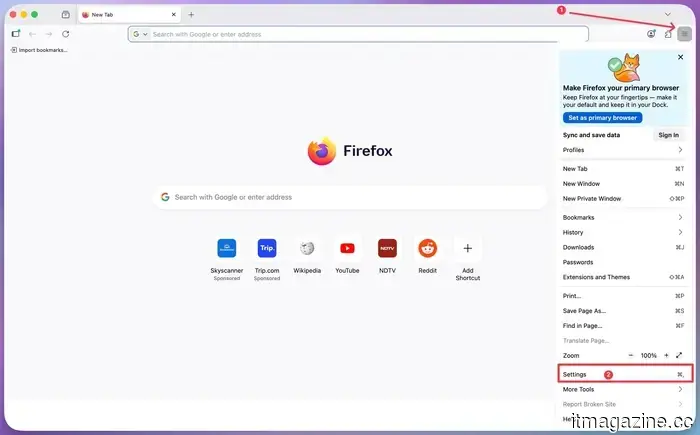
1. Open Firefox and click the three-bar menu in the upper-right corner, then select Settings from the drop-down menu.
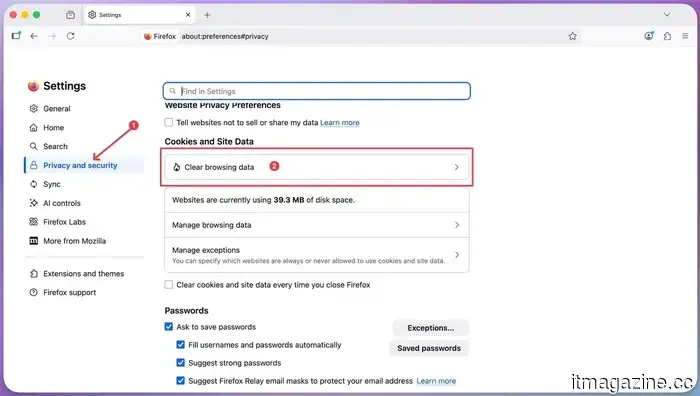
2. Click on the Privacy and Security tab on the left and navigate to the Cookies and Site Data section.
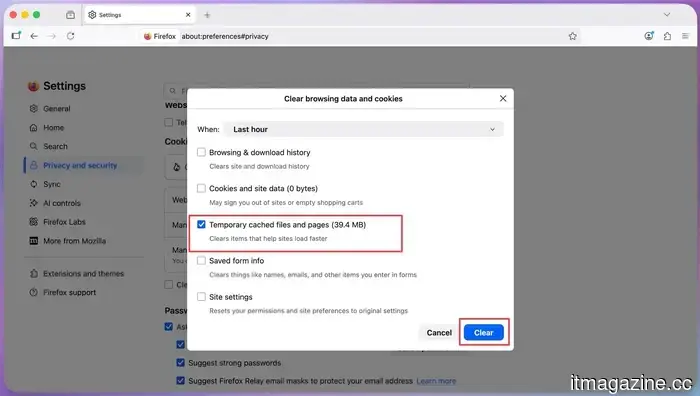
3. Click on Clear Data. Ensure the option for Cached Web Content is checked, then select Clear.
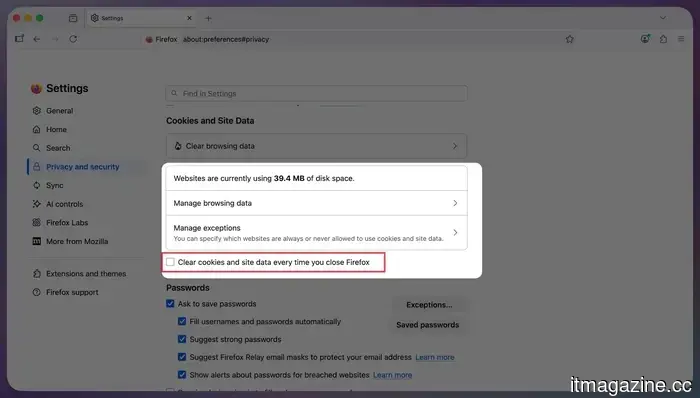
4. You can also check the box next to “Clear cookies and site data every time you close Firefox” for automatic clearing upon browser closure.
### How to Clear Cache in Safari on Mac
To clear the cache in Safari on a Mac:
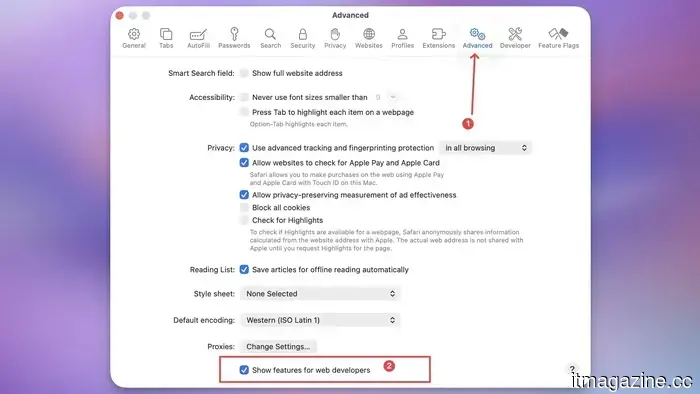
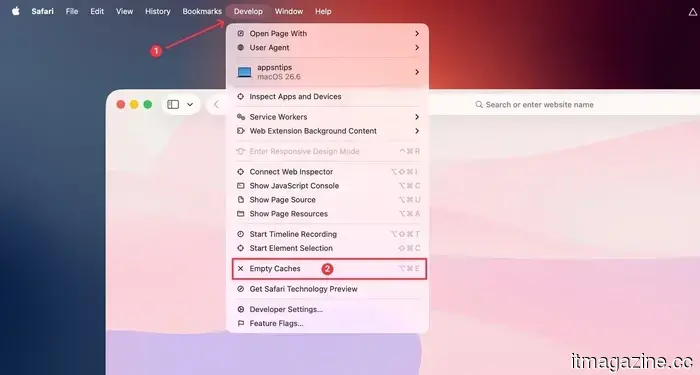
1. Open Safari and access the settings from the menu or by using the shortcut ⌘,(Command+comma).



Other articles
 Mexico introduces Olinia Uno, a government-supported electric vehicle priced at $8,600.
President Sheinbaum showcased the six-seat Olinia Uno prototype on a stage in Mexico City. This government-supported electric vehicle is priced at 150,000 pesos, which is approximately $8,600.
Mexico introduces Olinia Uno, a government-supported electric vehicle priced at $8,600.
President Sheinbaum showcased the six-seat Olinia Uno prototype on a stage in Mexico City. This government-supported electric vehicle is priced at 150,000 pesos, which is approximately $8,600.
 The most exciting items we encountered at Computex 2026, ranging from motherboards designed for space to mice equipped with cooling fans.
Computex 2026 showcased numerous high-performance laptops and gaming setups, but the standout products for us were the unusual items, such as a palm-cooled mouse, a spider-shaped Wi-Fi 8 router, and a gaming motherboard designed to operate in space.
The most exciting items we encountered at Computex 2026, ranging from motherboards designed for space to mice equipped with cooling fans.
Computex 2026 showcased numerous high-performance laptops and gaming setups, but the standout products for us were the unusual items, such as a palm-cooled mouse, a spider-shaped Wi-Fi 8 router, and a gaming motherboard designed to operate in space.
 Mexico introduces Olinia Uno, an $8,600 electric vehicle supported by the government.
President Sheinbaum showcased the six-seat Olinia Uno prototype by driving it onto a stage in Mexico City. This government-supported electric vehicle is priced at 150,000 pesos, roughly equivalent to $8,600.
Mexico introduces Olinia Uno, an $8,600 electric vehicle supported by the government.
President Sheinbaum showcased the six-seat Olinia Uno prototype by driving it onto a stage in Mexico City. This government-supported electric vehicle is priced at 150,000 pesos, roughly equivalent to $8,600.
 Nvidia and SK Hynix finalize a multi-year agreement for HBM4 AI memory.
Nvidia and SK Hynix have entered into a multi-year agreement to collaboratively develop AI memory for Vera Rubin and future projects, as memory stands as the most significant bottleneck in the AI sector.
Nvidia and SK Hynix finalize a multi-year agreement for HBM4 AI memory.
Nvidia and SK Hynix have entered into a multi-year agreement to collaboratively develop AI memory for Vera Rubin and future projects, as memory stands as the most significant bottleneck in the AI sector.
 5 iPhone applications I can't do without in 2026
From swift searches to classic gaming, these five apps have secured a lasting place on my iPhone. Some may be familiar to you, while others might be new, but each is definitely worth downloading today.
5 iPhone applications I can't do without in 2026
From swift searches to classic gaming, these five apps have secured a lasting place on my iPhone. Some may be familiar to you, while others might be new, but each is definitely worth downloading today.
 The most impressive items we encountered at Computex 2026, ranging from motherboards designed for space to mice with fan cooling.
Computex 2026 showcased a variety of high-performance laptops and gaming systems, but the items that left a lasting impression were the unusual ones, such as a palm-cooled mouse, a spider-shaped Wi-Fi 8 router, and a gaming motherboard designed to operate in space.
The most impressive items we encountered at Computex 2026, ranging from motherboards designed for space to mice with fan cooling.
Computex 2026 showcased a variety of high-performance laptops and gaming systems, but the items that left a lasting impression were the unusual ones, such as a palm-cooled mouse, a spider-shaped Wi-Fi 8 router, and a gaming motherboard designed to operate in space.
How to clear your browser cache in Chrome, Edge, Firefox, Safari, or Opera.
Is your browser running slow or is a website failing to load properly? Clearing your cache can be a quick solution. Here’s how to clear the browser cache in Chrome, Edge, Firefox, Safari, and Opera in just a few seconds.