
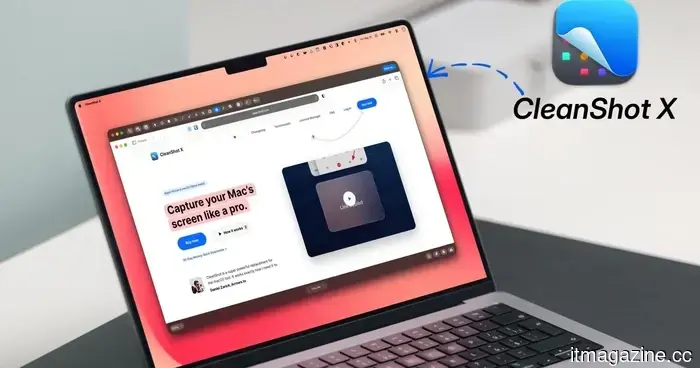
CleanShot X is my top Mac utility. Here are 8 features that will persuade you as well.
macOS includes a built-in screenshot tool that covers the essentials adequately. You can capture images, record your screen, and annotate your screenshots. However, it begins to falter when you seek additional capabilities, such as scrolling captures, advanced annotation options, or a quick method to share your screenshots via a link.
This is where CleanShot X comes into play. It is a robust screenshot and screen recording application for Mac that supersedes the built-in screenshot utility. It feels as if the developers identified the gaps in macOS's screenshot offerings and filled them all in.
In recent years, the app has introduced several features that I never realized I needed until they were available. It has become one of my go-to utilities on Mac, and in this article, I will highlight its features that will surely persuade you to purchase the app right away.
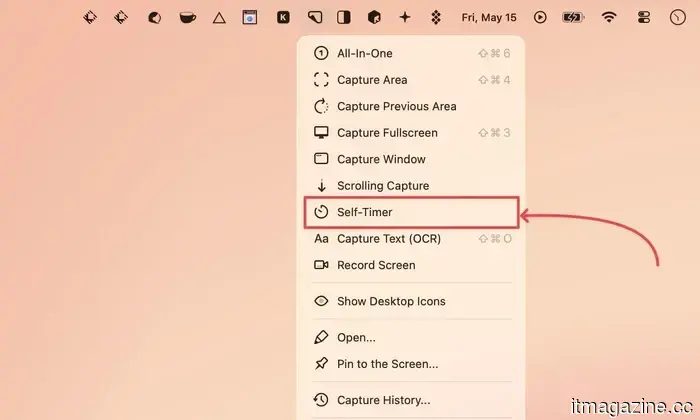
The scrolling capture feature eliminates the need to stitch screenshots together
One of the most annoying limitations of the macOS screenshot tool is its ability to only capture what's currently visible on your screen. When trying to capture a lengthy webpage or an entire chat history, I find myself taking multiple screenshots and then merging them. This consumes an enormous amount of time.
CleanShot X addresses this issue with its scrolling capture feature. I can initiate scrolling capture, and CleanShot X will automatically scroll through the content, providing a single cohesive image. I don't even have to scroll the page manually if I choose not to.
This feature alone saves me countless hours each month. If you regularly deal with long screenshots, it’s definitely worth trying.
Time delay capture enables you to capture challenging moments
Certain screenshots can be challenging to take because they require triggering an action just before capturing. For instance, an on-screen feature I want to capture might disappear the instant I click with my mouse or use a keyboard shortcut.
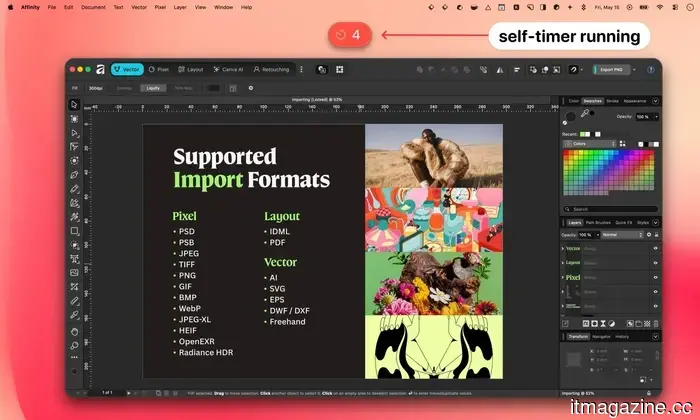
With CleanShot X’s time delay capture, I am granted a few moments to prepare before the screenshot is taken. I activate the capture, arrange everything, and CleanShot X handles the rest.
It’s a minor feature that effectively resolves a genuinely frustrating issue.
Extract text from images with OCR
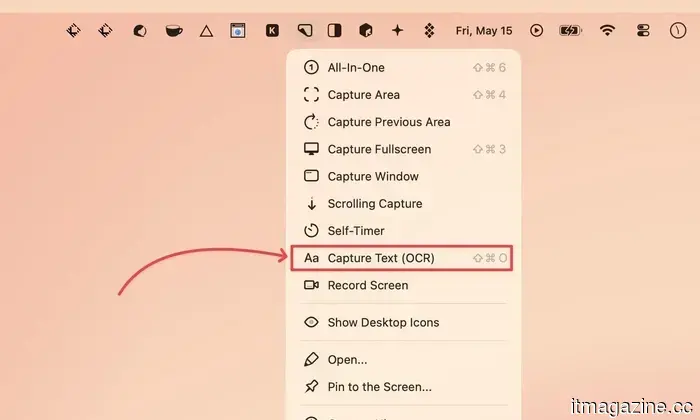
I appreciate that CleanShot X comes with a built-in OCR function. This feature allows me to extract text directly from any image or video on my display. Although rare, I have encountered websites that prevent content copying. CleanShot X’s OCR functionality eliminates this problem.
I frequently use this when reviewing PDF files with restricted permissions or while watching videos on YouTube. It is significantly faster than manually typing and operates surprisingly well. While many apps offer OCR capabilities, CleanShot X’s integrated feature means I don’t need to download an additional app.
Enhance your screenshots with attractive backgrounds
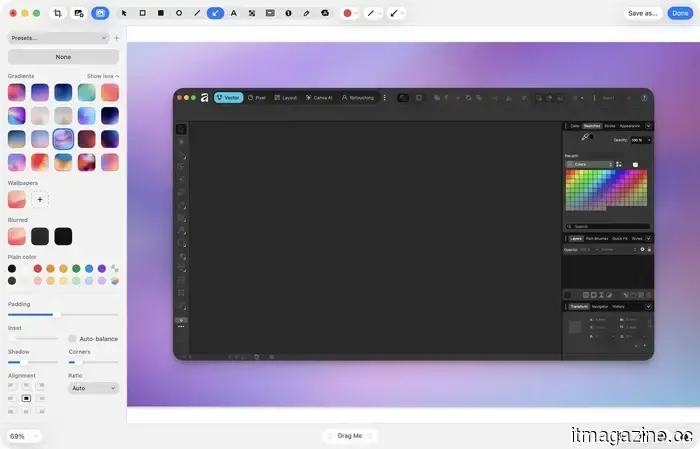
If you share screenshots for work, tutorials, or social media, you recognize how dull a basic screenshot can look. CleanShot X enables me to add appealing backgrounds to my screenshots, transforming a simple capture into something polished and ready to share.
For backgrounds, I have the option to choose solid colors, gradients, or even my current desktop wallpaper. I can also modify the padding and shadow, align the screenshot to the edges, and adjust the corner radius. This simple adjustment takes just a few seconds and greatly enhances the professionalism of my screenshots.
Effective annotation tools
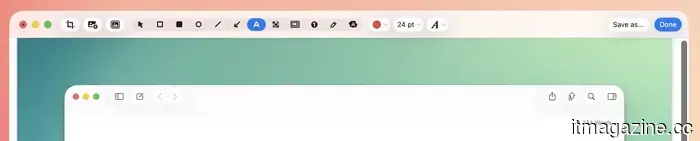
While the macOS screenshot tool provides basic annotation capabilities, I believe the tools within CleanShot X are the best available on Mac.
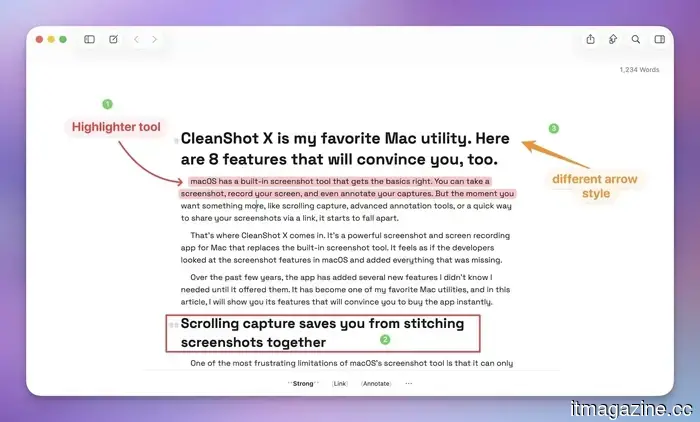
I can incorporate arrows, text labels, shapes, highlights, and more. Additionally, I can modify the weight and color of the annotations. There are also various arrow styles to choose from, and I particularly enjoy the curved arrow style, which allows me to bend arrows for emphasis.
One of my favorite recent features is the “Highlighter” tool, which snaps to the text in the screenshot, making it easy to highlight before sharing.
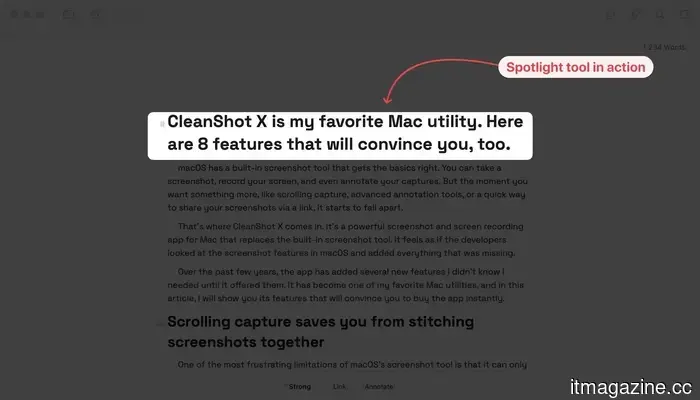
There’s also the “Spotlight” tool that emphasizes my selection by darkening other areas of the screenshot, perfect for directing attention to a specific section.
No matter what annotation tools you require, you can find them in CleanShot X.
Conceal sensitive information before sharing
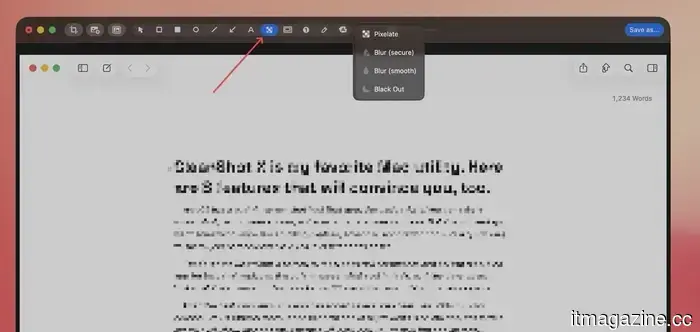
Countless times in the news, a public figure has shared a screenshot that inadvertently exposed private information. Fortunately, CleanShot X includes a dedicated tool to blur or black out sensitive data, preventing these mishaps.
I can choose to pixelate, blur, or completely obscure information. The best part is that I can adjust the intensity of these effects, allowing me to seamlessly blend the hidden data so it doesn’t stand out in the screenshot.
Built-in video and GIF recording
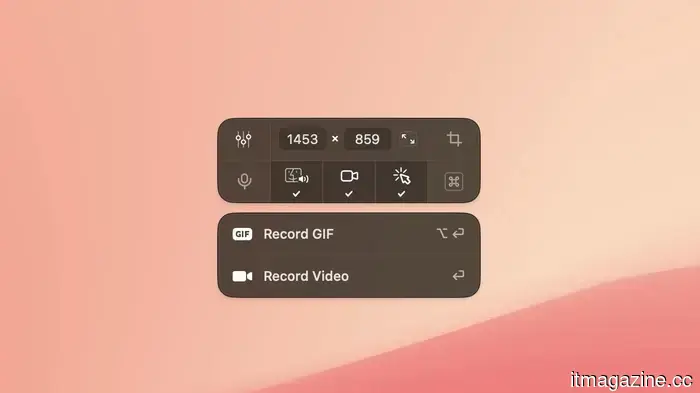
CleanShot X allows you to record your screen either as a video or directly export it as an optimized GIF. The GIF export is especially handy for sharing quick demonstrations or showing someone how to accomplish a task without needing a large video file.
It can record the entire screen, a specific window, or a custom area. It also captures mouse clicks and keyboard shortcuts. I appreciate that it automatically includes webcam video in the corner, so

Other articles
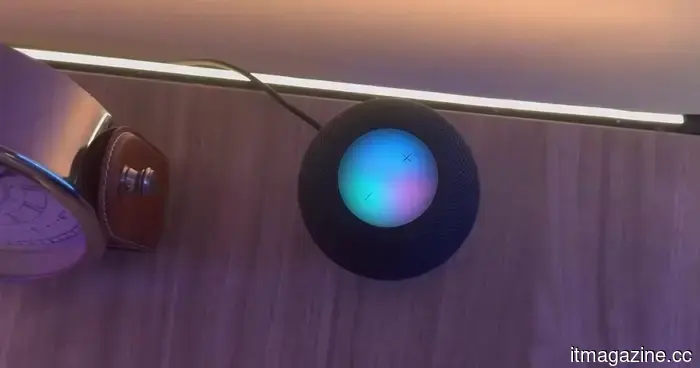 In 2026, the HomePod mini remains a sensible choice if you are already part of Apple's ecosystem.
The HomePod mini has seen little change throughout the years, yet it continues to deliver impressive sound quality, smooth integration with Apple devices, and an unexpectedly pleasant experience when used with the Apple TV 4K. However, the downside is that many of its top features are most effective within Apple’s ecosystem.
In 2026, the HomePod mini remains a sensible choice if you are already part of Apple's ecosystem.
The HomePod mini has seen little change throughout the years, yet it continues to deliver impressive sound quality, smooth integration with Apple devices, and an unexpectedly pleasant experience when used with the Apple TV 4K. However, the downside is that many of its top features are most effective within Apple’s ecosystem.
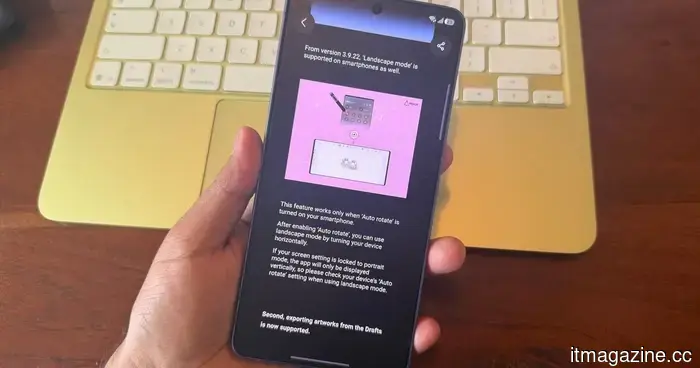 Samsung PenUp introduces new stylus features for your Galaxy phone, provided it is compatible with an S Pen.
Samsung's PenUp update introduces 53 new brushes, a Dual brush feature, enhanced draft syncing, and improved controls, enhancing the drawing app's utility on Galaxy devices that support the S Pen.
Samsung PenUp introduces new stylus features for your Galaxy phone, provided it is compatible with an S Pen.
Samsung's PenUp update introduces 53 new brushes, a Dual brush feature, enhanced draft syncing, and improved controls, enhancing the drawing app's utility on Galaxy devices that support the S Pen.
 AI shouldn't decide for you, but this one will indicate when you're making a poor choice.
A new AI tool developed by researchers at Cornell assists you in improving decision-making by identifying inconsistencies between your expressed values and your real choices.
AI shouldn't decide for you, but this one will indicate when you're making a poor choice.
A new AI tool developed by researchers at Cornell assists you in improving decision-making by identifying inconsistencies between your expressed values and your real choices.
 Gemini is set to take flight on your phone with its proactive capabilities.
A recent leak indicates that Google might be developing a more advanced version of Gemini capable of handling inbox clutter, producing meeting summaries, and even creating personalized AI skills.
Gemini is set to take flight on your phone with its proactive capabilities.
A recent leak indicates that Google might be developing a more advanced version of Gemini capable of handling inbox clutter, producing meeting summaries, and even creating personalized AI skills.
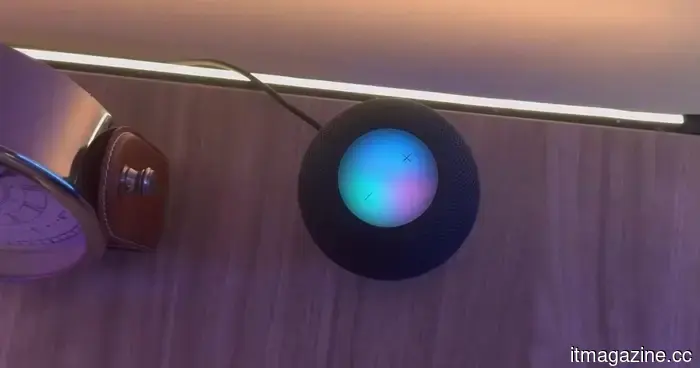 In 2026, the HomePod mini remains a sensible choice if you are already integrated into Apple's ecosystem.
The HomePod mini has seen little change over the years, but it continues to deliver respectable sound quality, effortless integration with Apple devices, and an unexpectedly good experience with the Apple TV 4K. However, the downside is that many of its top features are best utilized within Apple’s ecosystem.
In 2026, the HomePod mini remains a sensible choice if you are already integrated into Apple's ecosystem.
The HomePod mini has seen little change over the years, but it continues to deliver respectable sound quality, effortless integration with Apple devices, and an unexpectedly good experience with the Apple TV 4K. However, the downside is that many of its top features are best utilized within Apple’s ecosystem.
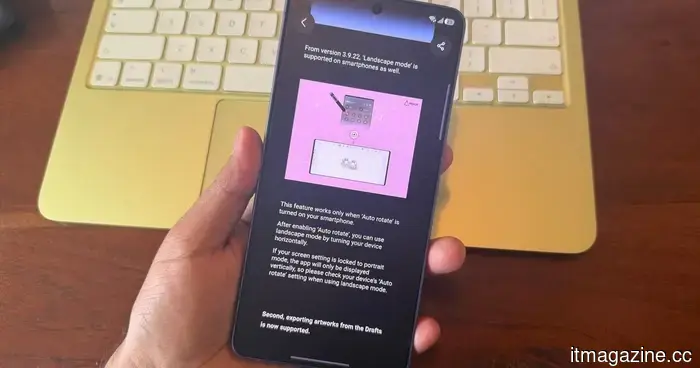 Samsung PenUp introduces additional stylus features for your Galaxy phone, provided it is compatible with an S Pen.
Samsung’s PenUp update introduces 53 new brushes, a Dual brush feature, improved draft syncing, and enhanced control smoothness, enhancing the functionality of the drawing app on Galaxy devices that support the S Pen.
Samsung PenUp introduces additional stylus features for your Galaxy phone, provided it is compatible with an S Pen.
Samsung’s PenUp update introduces 53 new brushes, a Dual brush feature, improved draft syncing, and enhanced control smoothness, enhancing the functionality of the drawing app on Galaxy devices that support the S Pen.
CleanShot X is my top Mac utility. Here are 8 features that will persuade you as well.
macOS includes a basic screenshot tool that covers the essentials. However, when more advanced options are required, it lacks depth. CleanShot X is the enhancement your Mac needs, and these 8 features demonstrate its superiority.