

I tried out the AI Image to Video 2.0 feature on the Honor 600 Pro, and it exceeded my expectations.
Before you dismiss the concept, allow me to explain. AI is ubiquitous in our lives, often in ways that a typical, screen-focused person might not recognize. Yet, among the continuous stream of AI integrations, there are some delightful features. One such capability, which I wish I could utilize without complicated permissions or token issues, is the effortless conversion of still images into brief video clips.
I discovered this feature on my current go-to device, the Honor 600 Pro, and the results have been gratifying. It's not an entirely new function, but what caught my eye is the polished execution by Honor. There are no sign-up complications, it integrates smoothly into the system gallery, and the conversion process is straightforward. Plus, there’s a specific button on the phone that takes you directly to this AI image transformation.
When Honor released the 400 series last year, it debuted the AI video generation feature which could convert a still image into a five-second video clip. Users reportedly embraced it, collectively creating over 13.4 million seconds of AI videos with this tool. However, it had notable limitations: users had no control over the AI's interpretation of their images as there was no option to input specific prompts.
This year, Honor’s 600 series has notably shifted with the AI Image to Video 2.0 upgrade, described by Honor as the industry’s first integrated multi-modal video generation model, combining video generation, editing, and comprehension into one cohesive process.
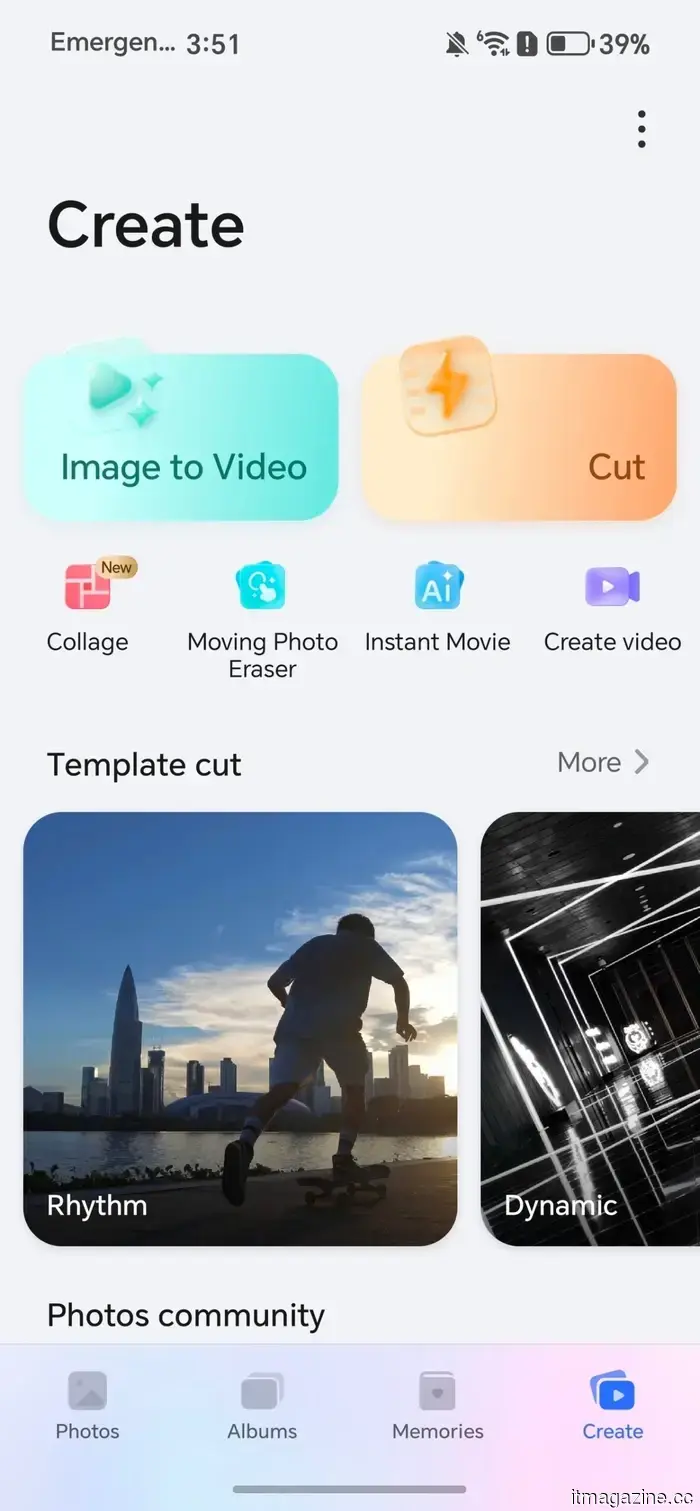
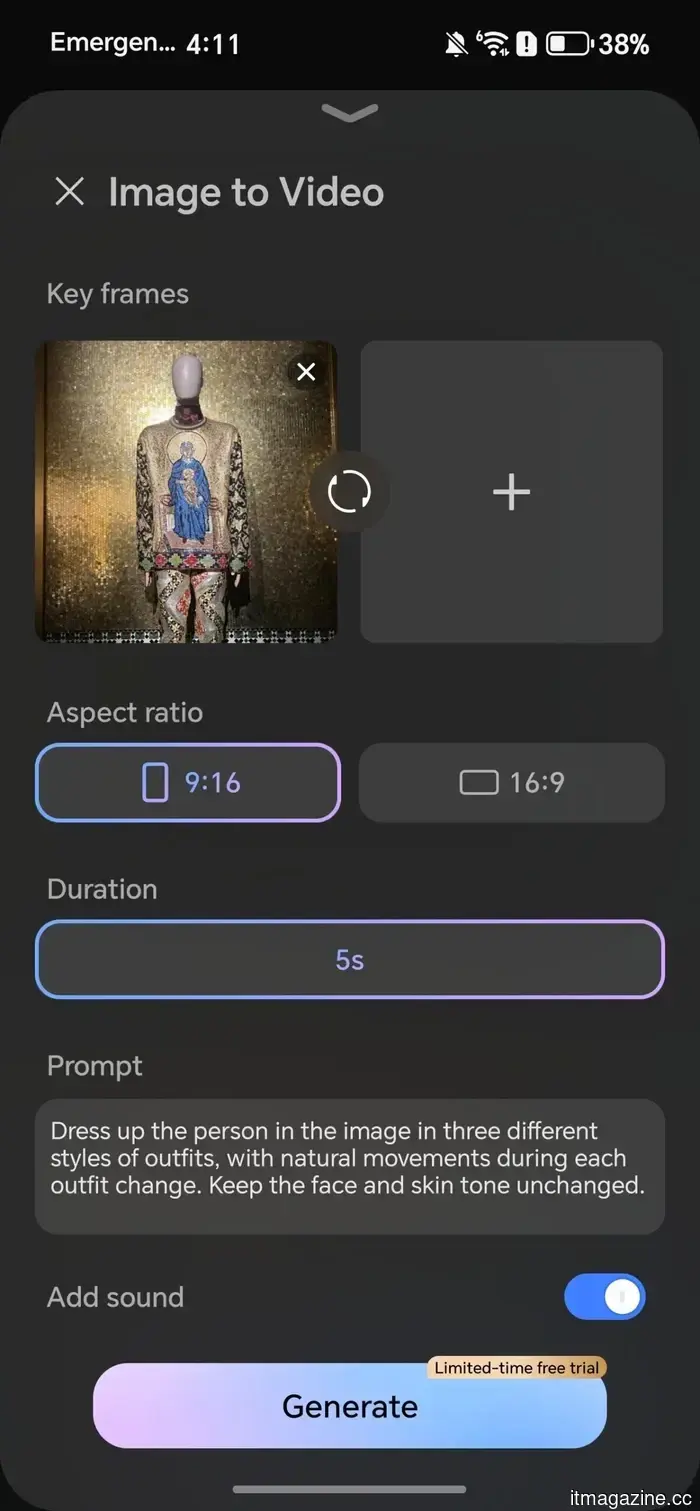
With the enhanced feature, you can now input up to three images along with your own text prompts to influence the outcome. You can find this feature within the Gallery app under the Create tab, or you can conveniently access it by using the dedicated AI button on the Honor 600 Pro, which is the route I prefer.
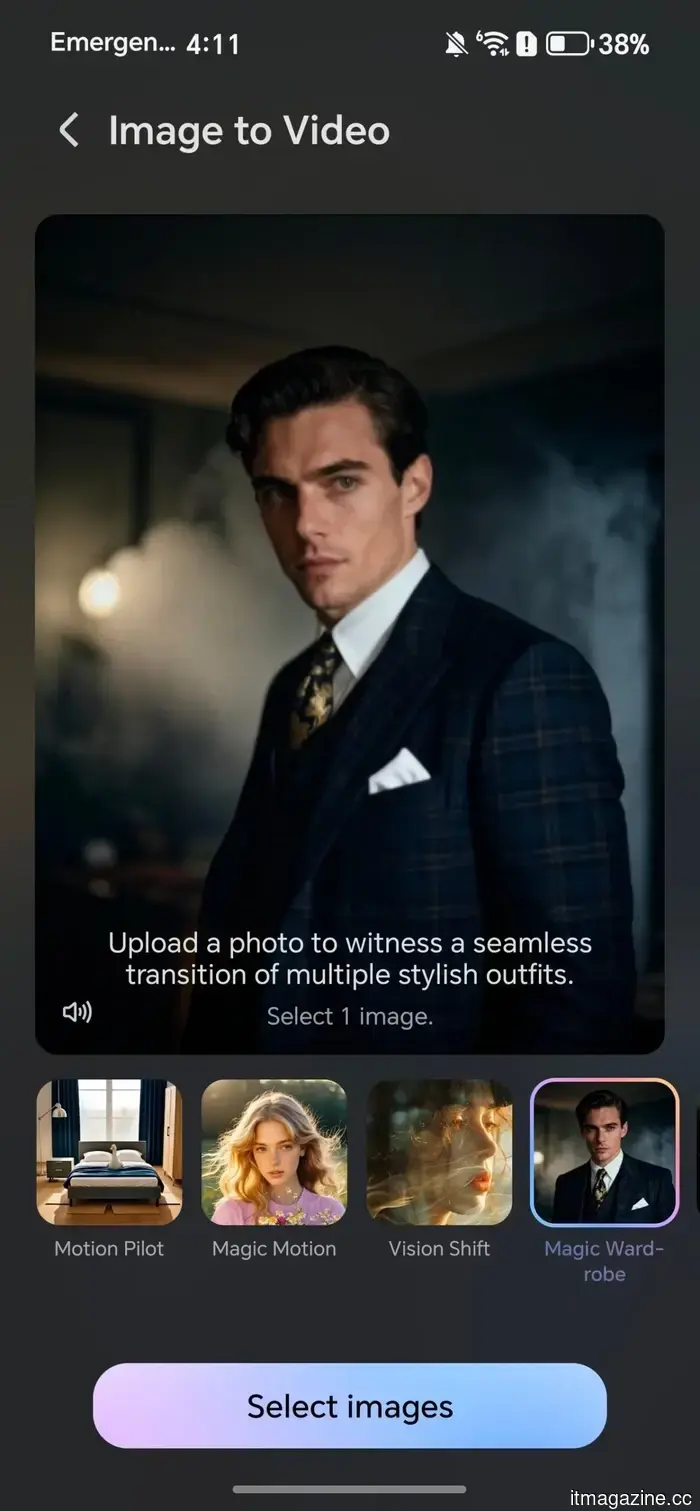
AI Image to Video 2.0 offers 19 pre-made templates, each featuring its unique prompt and style. These cinematic presets include camera techniques like "bullet time" and "Hitchcock zoom," along with motion effects, animation templates, and more emotionally-centered options for combining people into shared experiences. If none of these templates suit your needs, you can bypass them completely and create your own prompt for a personalized video clip.
But does it actually work?
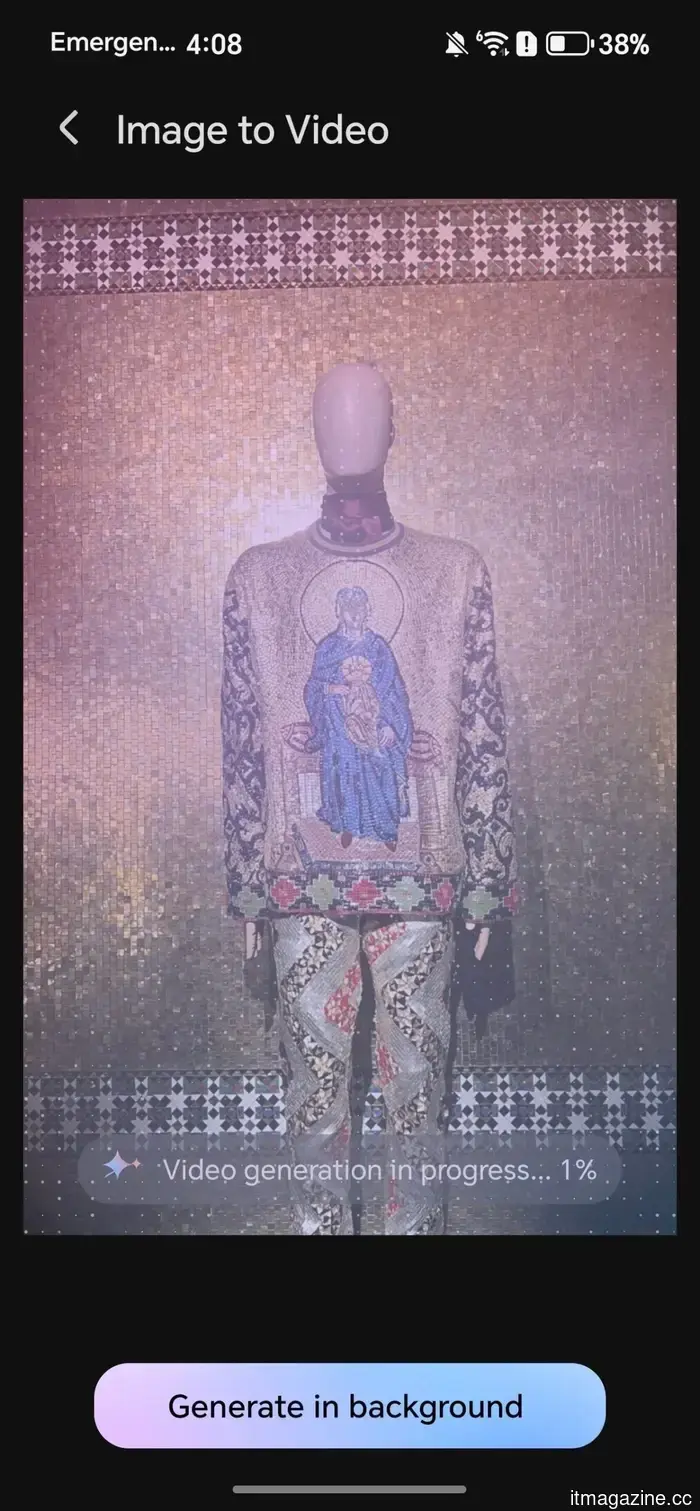
AI Image to Video 2.0 takes approximately five to seven minutes to generate clips, so don’t expect immediate results. However, the process can happen in the background, allowing you to continue using your phone, which I find to be a reasonable trade-off. I experimented with several templates and custom prompts, and here’s how it turned out.
The Drone Pullback template produced impressive results when I inputted a photo of myself on the beach. It created a convincing simulated drone pullback, accompanied by contextually fitting audio, without altering anything in the original image.
The Magic Wardrobe template also performed admirably. I input a photo of a mannequin wearing a striking outfit, and the AI not only changed the clothing multiple times but also animated the mannequin while keeping the background and shadows intact.
Animation Magic is my favorite from the selection. When applied to a painted landscape featuring mountains and birds, it animated the existing birds, added new ones in flight, introduced a gradual zoom that highlighted additional peaks in the background, and included a sun in the scene.
That being said, some templates functioned better than others. The Pet Roleplay template, for example, is amusing in concept but tends toward a stylized, almost cartoonish appearance. The likeness to the actual animal from the source image often diminishes, resulting in something that resembles a generic AI illustration rather than an animated interpretation of your specific pet.
The custom prompt mode is where the real innovation lies.
I used a pair of before-and-after photos of a succulent, with one being nearly bare and the other showcasing fresh leaves beginning to sprout, and asked it to create a video of the leaves growing. It succeeded! What was particularly fascinating was the addition of a gently rotating pot as the camera slowly zoomed out, imparting a cinematic feel to the whole clip.
While my experience was generally positive, there are two points worth considering before you decide to acquire the Honor 600 Pro to explore this feature. The Generate button currently displays a “Limited-time trial” label, indicating that fees will likely apply in the future, subject to regional variations.
Additionally, there’s a cap of 10 generations per day.
This limit is acceptable for casual usage, but might feel restrictive for heavy users. Given the resource intensity of AI video generation, receiving ten conversions feels relatively generous. As a reference, with my Google AI Pro subscription, I receive a video limit alert before I can create even half a dozen short clips using the Veo model.
A few rough edges remain.
The “Add Audio” feature generally functions well, but inconsistencies arose with human subjects. In some generated clips, subjects seemed to be speaking Chinese, despite the phone’s language being set to English. In a few instances
Other articles
 More advertisements are being introduced on Netflix, even though there are already 250 million subscribers paying to watch content that includes ads.
Netflix's ad-supported plan now attracts 250 million active viewers each month. If you're subscribed to the lower-cost option, your experience with ads on Netflix is set to change in some notable ways.
More advertisements are being introduced on Netflix, even though there are already 250 million subscribers paying to watch content that includes ads.
Netflix's ad-supported plan now attracts 250 million active viewers each month. If you're subscribed to the lower-cost option, your experience with ads on Netflix is set to change in some notable ways.
 Tarot card readers are incorporating ChatGPT into their divination practices, and I am completely taken aback by this shift towards AI.
Tarot card readers are utilizing ChatGPT to interpret their spreads, illustrating the transition of AI from aspects of productivity to areas involving grief, faith, and the search for meaning, where assured responses can diminish human uncertainty.
Tarot card readers are incorporating ChatGPT into their divination practices, and I am completely taken aback by this shift towards AI.
Tarot card readers are utilizing ChatGPT to interpret their spreads, illustrating the transition of AI from aspects of productivity to areas involving grief, faith, and the search for meaning, where assured responses can diminish human uncertainty.
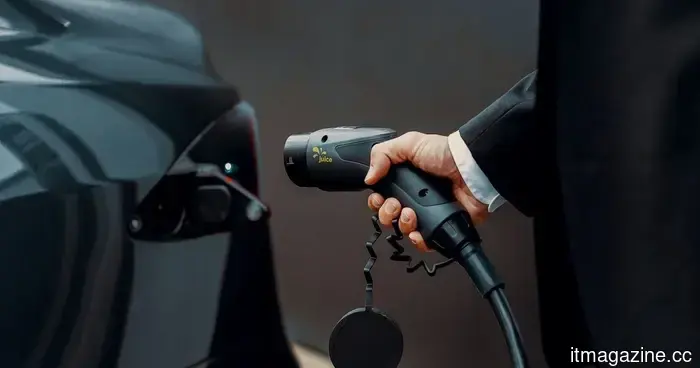 Research reveals that EV batteries only require a little AI enhancement to receive a significant 23% increase in their lifespan.
Researchers have created a charging system powered by AI that accelerates the charging of electric vehicles while simultaneously safeguarding battery health, which could lead to an increase in battery life of almost 23%.
Research reveals that EV batteries only require a little AI enhancement to receive a significant 23% increase in their lifespan.
Researchers have created a charging system powered by AI that accelerates the charging of electric vehicles while simultaneously safeguarding battery health, which could lead to an increase in battery life of almost 23%.
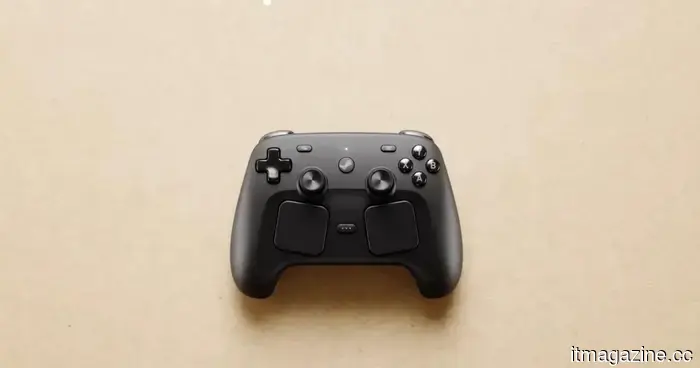 If you drop the Steam Controller, it will make a loud noise, and I’m unsure how to react to that.
Valve included a humorous Easter egg in the new Steam Controller, leading many to abandon their sold-out $99 controllers just to activate the famous Wilhelm scream.
If you drop the Steam Controller, it will make a loud noise, and I’m unsure how to react to that.
Valve included a humorous Easter egg in the new Steam Controller, leading many to abandon their sold-out $99 controllers just to activate the famous Wilhelm scream.
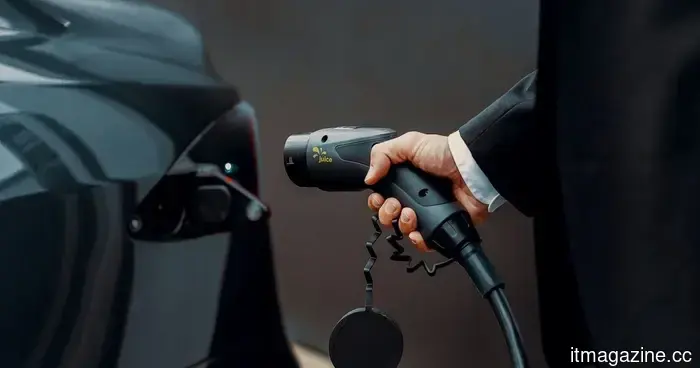 Research shows that EV batteries can receive a significant 23% increase in lifespan with just a little encouragement from AI.
Researchers have created an AI-driven charging system that accelerates electric vehicle charging while simultaneously safeguarding battery health, potentially increasing battery lifespan by almost 23%.
Research shows that EV batteries can receive a significant 23% increase in lifespan with just a little encouragement from AI.
Researchers have created an AI-driven charging system that accelerates electric vehicle charging while simultaneously safeguarding battery health, potentially increasing battery lifespan by almost 23%.
 Google may be working on a robust new Gemini AI model aimed at surpassing ChatGPT.
Google's upcoming Gemini model may close the AI gap, but the true challenge lies in its ability to capture developer routines, manage autonomous tasks, and make ChatGPT seem less robotic.
Google may be working on a robust new Gemini AI model aimed at surpassing ChatGPT.
Google's upcoming Gemini model may close the AI gap, but the true challenge lies in its ability to capture developer routines, manage autonomous tasks, and make ChatGPT seem less robotic.
I tried out the AI Image to Video 2.0 feature on the Honor 600 Pro, and it exceeded my expectations.
Honor's AI Image to Video 2.0 represents a considerable improvement compared to the version that debuted with the 400 series last year. I experimented with the templates and tested custom prompts, and here's what you should be aware of.