
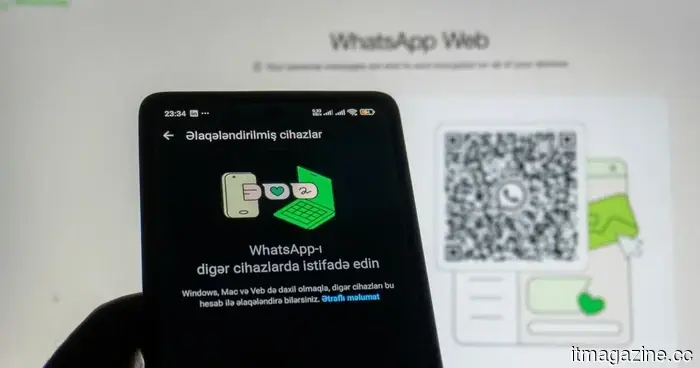
How to utilize WhatsApp Web
WhatsApp, a product of Meta, is often recognized primarily as a messaging application centered around mobile use, but its web version has significantly increased in utility over time. For those who spend a lot of their workday at a desk, responding to messages on a full keyboard is far easier than tapping out replies on a small phone screen. This is where WhatsApp Web becomes valuable.
The platform allows you to access your conversations via a laptop or desktop browser, offering a wider view of your chats and a more comfortable typing experience, file sharing, and participation in group discussions. It proves especially useful when your phone is charging across the room, packed away in a bag, or when you don't want to switch devices repeatedly.
WhatsApp Web has also seen enhancements in its functionality compared to earlier versions. It now includes features like video messages, voice messages that can self-destruct, the option to edit sent messages, and additional capabilities. While previous iterations required your phone to stay connected continuously, the introduction of multi-device support means WhatsApp Web can function even if your phone is temporarily offline, although the initial setup requires your phone.
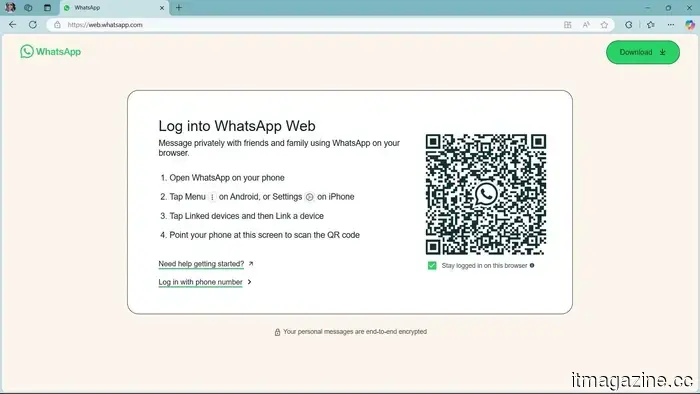
There is, however, a slight limitation. Since WhatsApp accounts are linked to phone numbers instead of usernames and passwords, signing into WhatsApp Web is not as straightforward as logging into typical websites. You must connect your browser to your account through the WhatsApp app on either your iOS or Android device, which involves scanning a QR code or utilizing a phone number for login.
The setup process is quite quick, and once logged in, the web interface closely resembles that of the mobile app. You can send messages, share media, review past chats, and adjust privacy settings without needing to adjust to a new layout. Here's how to get started.
**What You Need**
- WhatsApp mobile app
- iPhone or Android smartphone
- Latest version of Chrome, Firefox, Microsoft Edge, Opera, or Safari
**How to log in to WhatsApp Web from an iPhone**
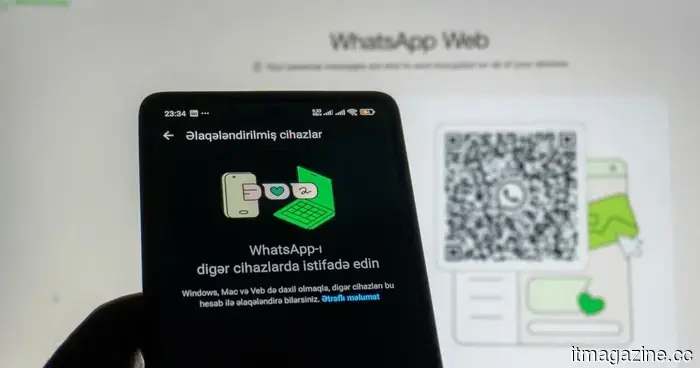
Getting started with WhatsApp Web using your iPhone is relatively easy. Navigate to WhatsApp Web using Chrome, Firefox, Opera, Safari, or Edge, and scan the QR code displayed on your computer with the WhatsApp app on your iPhone. WhatsApp Web will launch in the browser and remain active until you log out from your computer or phone.
Step 1: Open your browser and visit https://web.whatsapp.com.
Step 2: Open WhatsApp on your iPhone.
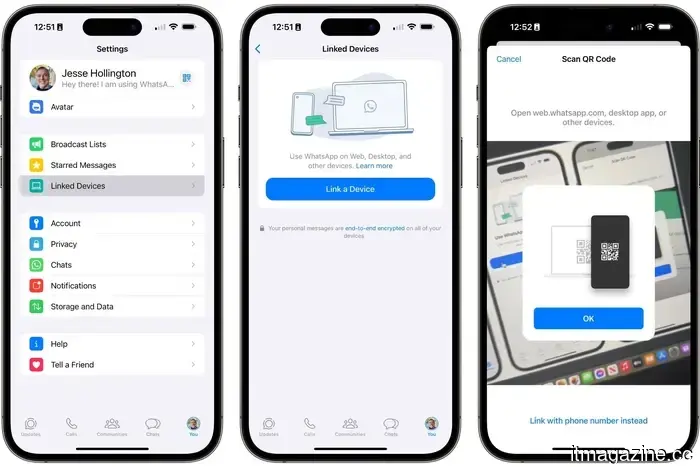
Step 3: Tap the Settings menu located in the bottom-right corner, then select Linked devices.
Step 4: Click the Link a device button and authenticate using Face ID or Touch ID if required. The camera will open in WhatsApp.
Step 5: Point your phone's camera at the QR code on your screen to link it. The WhatsApp page in your browser should refresh immediately, logging you in and displaying your active chats.
**How to log in to WhatsApp Web from an Android phone**
For Android, the procedure is similar and just as simple. After accessing the WhatsApp website on your computer, follow these steps:
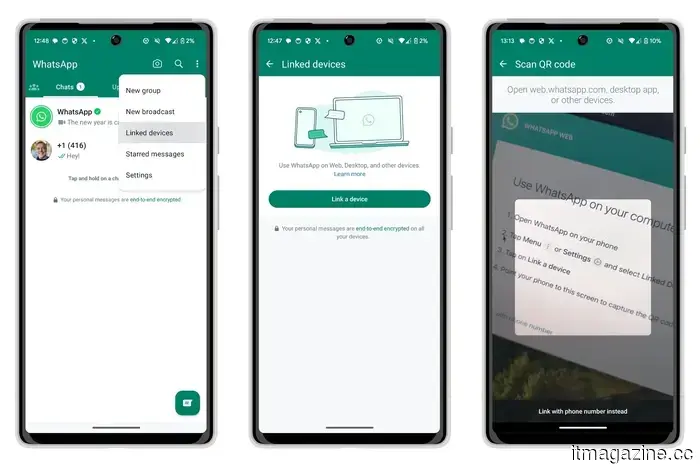
Step 1: Launch WhatsApp on your Android device and tap the three dots in the upper-right corner of the chat screen.
Step 2: Choose Linked devices, then tap Link a device. You may need to use your fingerprint or enter your device passcode.
Step 3: Scan the QR code presented on your computer screen with your phone.
Step 4: Your smartphone should now be linked to WhatsApp Web, and the webpage in your browser should refresh automatically to log you in.
**How to log in to WhatsApp Web without a QR code**
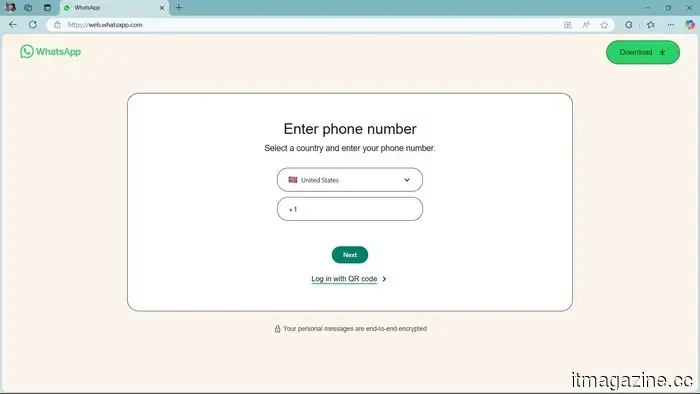
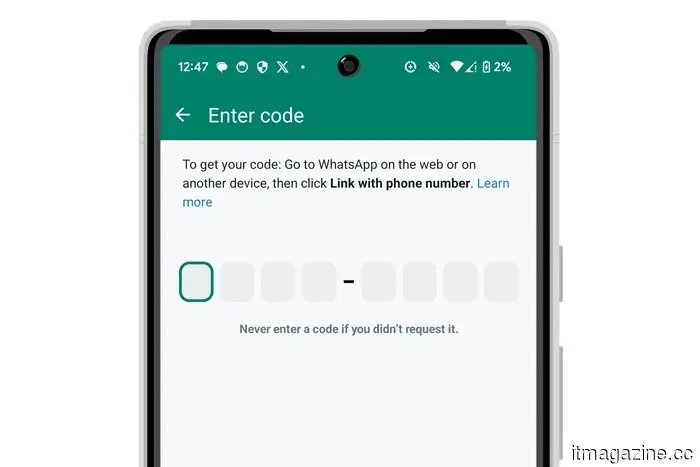
In addition to scanning the QR code with your smartphone, you can also link your account by entering your WhatsApp phone number, which will generate an eight-digit code for authentication. The steps are nearly identical for both iOS and Android.
Step 1: From the WhatsApp Web sign-in page, select Log in with phone number.
Step 2: On the following screen, enter your WhatsApp account phone number and click Next.
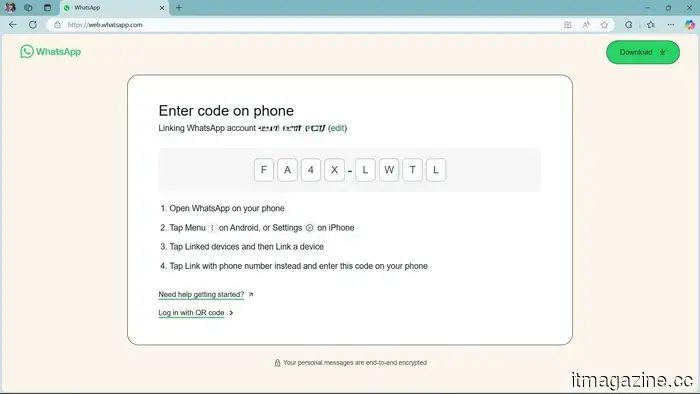
Step 3: An eight-digit code will be provided for you to enter into WhatsApp on your phone.
Step 4: Open WhatsApp, and navigate to Settings > Linked devices on an iPhone or use the three-dot menu to access Linked devices on an Android device.
Step 5: Tap Link a device.
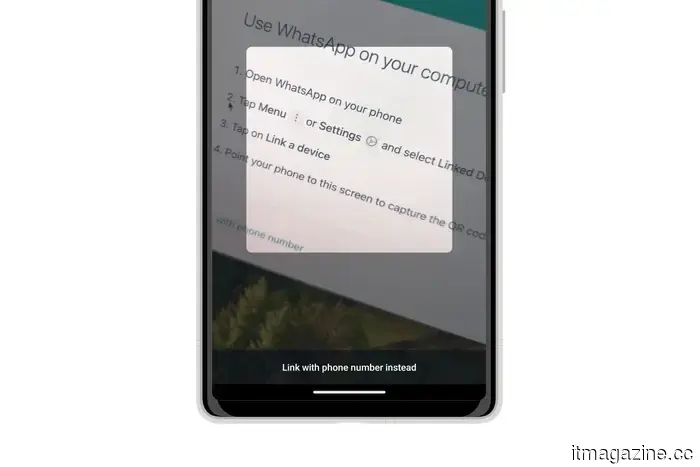
Step 6: On the QR code scanning screen, select Link with phone number instead and enter the eight-digit code when prompted.
Step 7: The WhatsApp page in your browser should refresh and successfully log you into your account.
**How to use WhatsApp Web**
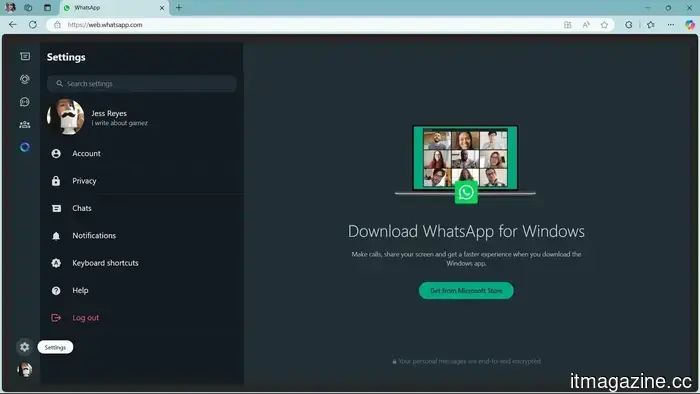
Once logged in, WhatsApp Web operates similarly to its mobile app. For those familiar with it on their phones, the interface will be quite recognizable.
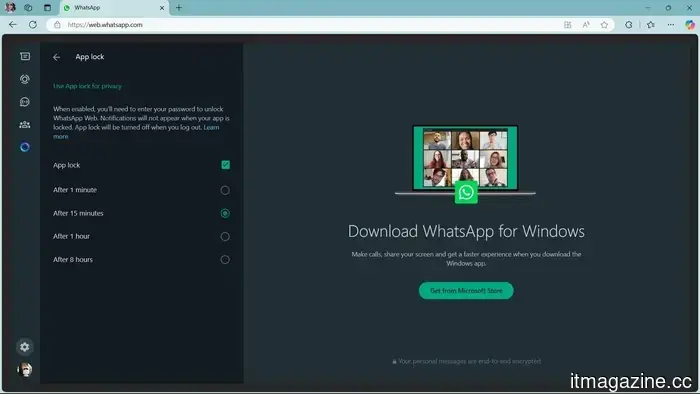
Step 1: To send a message from your desktop, select an existing chat or click on the
Other articles
 Researchers have discovered a concealed galaxy within the Milky Way, which they have named Loki.
A recent study indicates that the Milky Way absorbed an ancient dwarf galaxy billions of years ago, and its stellar remnants may still be integrated within our galaxy.
Researchers have discovered a concealed galaxy within the Milky Way, which they have named Loki.
A recent study indicates that the Milky Way absorbed an ancient dwarf galaxy billions of years ago, and its stellar remnants may still be integrated within our galaxy.
 Research reveals that online advertisements are revealing more about your private life than you anticipated.
Recent studies indicate that the advertisements displayed online contain sufficient information for AI to create a comprehensive personal profile, even without any clicks or data sharing from you.
Research reveals that online advertisements are revealing more about your private life than you anticipated.
Recent studies indicate that the advertisements displayed online contain sufficient information for AI to create a comprehensive personal profile, even without any clicks or data sharing from you.
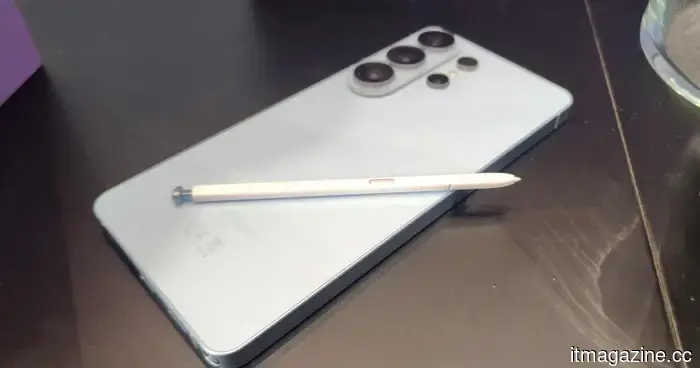 Samsung's upcoming Ultra smartphone may feature a large and adjustable main camera to surpass the iPhone 18 Pro.
Samsung's upcoming Ultra phone may feature a 200MP variable aperture camera, intensifying the competition for Apple as the iPhone 18 Pro gears up for significant enhancements in its camera and AI photography capabilities.
Samsung's upcoming Ultra smartphone may feature a large and adjustable main camera to surpass the iPhone 18 Pro.
Samsung's upcoming Ultra phone may feature a 200MP variable aperture camera, intensifying the competition for Apple as the iPhone 18 Pro gears up for significant enhancements in its camera and AI photography capabilities.
 Harvard has introduced an open-source wallet that saves biometric information directly on your smartphone rather than on servers.
Harvard's open-source Keyring wallet keeps biometric identity data on your phone rather than on corporate servers, allowing you to confirm your identity online without revealing your personal information.
Harvard has introduced an open-source wallet that saves biometric information directly on your smartphone rather than on servers.
Harvard's open-source Keyring wallet keeps biometric identity data on your phone rather than on corporate servers, allowing you to confirm your identity online without revealing your personal information.
 5 excellent Netflix series to enjoy on New Year’s Day and afterwards
Whether you're looking for something casual that continues to play or a series you can immerse yourself in, these five selections offer both, presenting choices that are simple to begin and enjoyable enough to follow throughout the day.
5 excellent Netflix series to enjoy on New Year’s Day and afterwards
Whether you're looking for something casual that continues to play or a series you can immerse yourself in, these five selections offer both, presenting choices that are simple to begin and enjoyable enough to follow throughout the day.
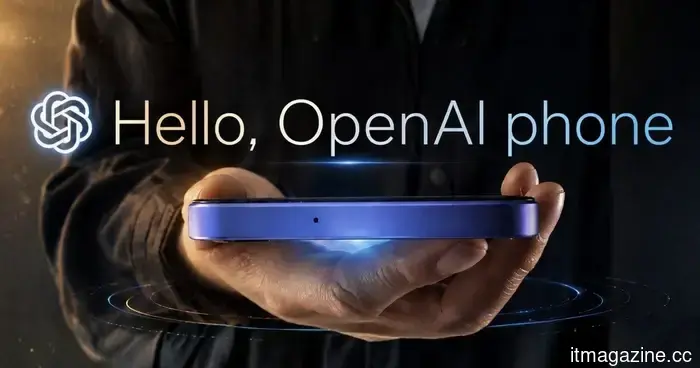 OpenAI may introduce its initial AI agent smartphone in 2027.
OpenAI might be working on an AI-centric smartphone aimed for release in 2027, concentrating on on-device intelligence, advanced processors, and next-generation memory to facilitate more intelligent and autonomous user interactions.
OpenAI may introduce its initial AI agent smartphone in 2027.
OpenAI might be working on an AI-centric smartphone aimed for release in 2027, concentrating on on-device intelligence, advanced processors, and next-generation memory to facilitate more intelligent and autonomous user interactions.
How to utilize WhatsApp Web
WhatsApp is a widely used app for messaging and calling, and it can also be accessed through your web browser. Here's how you can use it on a webpage.