
How to capture a screenshot on a Chromebook in 2026.
Capturing a screenshot on a Chromebook has become more straightforward than in the past. Newer models feature a dedicated Screenshot key, and all modern Chromebooks offer ChromeOS Screen Capture tools that allow for full, partial, and window screenshots. For devices with older keyboard layouts, you can still use the traditional Show windows shortcut.
Screenshots can also be taken in tablet mode, with an external keyboard, and you can modify the default save location for screenshots. Here’s how it works.
Quick guide:
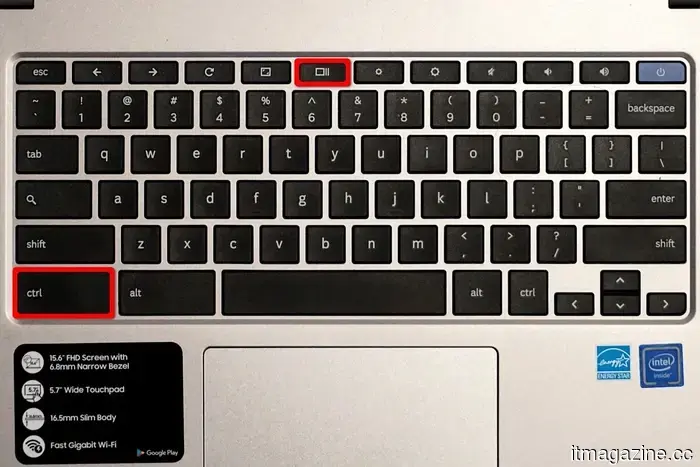
- Full screenshot: Press the Screenshot key, or use Ctrl + Show windows.
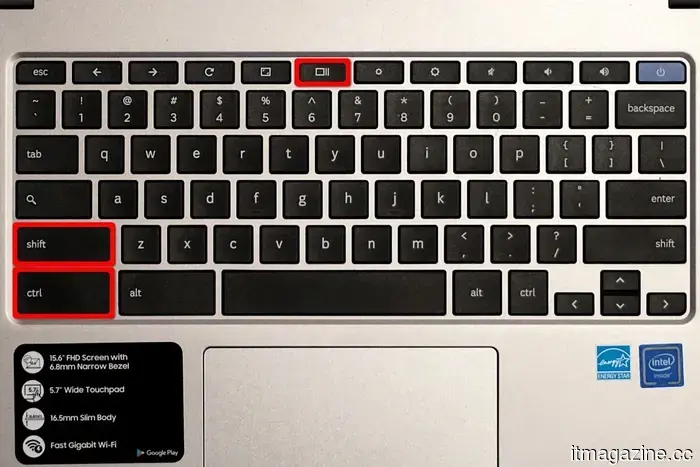
- Partial screenshot: Press Shift + Ctrl + Show windows.
- Window screenshot: Open Screen Capture and select Window.
- Tablet screenshot: Press Power + Volume down.
- External keyboard: Press Ctrl + F5 for a full screenshot, or Ctrl + Shift + F5 for a partial screenshot.
**How to take a screenshot on a Chromebook**
The simplest method to take a screenshot is by using the integrated Screen Capture tools.
1. If your Chromebook has a Screenshot key, press it.
2. If there is no Screenshot key, access Quick Settings and choose Screen capture, or press Shift + Ctrl + Show windows to open the same toolbar.
3. Decide whether to capture the entire screen, a selected area, or a specific window.
4. For a full-screen screenshot, select the full-screen option and click anywhere on the screen if prompted.
Your screenshot will automatically save, allowing you to open, copy, edit, or share it immediately. Alternatively, you can quickly capture the entire screen by pressing Ctrl + Show windows.
**How to take a partial screenshot on a Chromebook**
To capture just a portion of the screen, use the partial screenshot option.
1. Press Shift + Ctrl + Show windows to access Screen Capture, or press the Screenshot key and select the partial screenshot option.
2. Click and drag over the area you wish to capture.
3. Release to save the screenshot.
This option is ideal for capturing only what you need, avoiding the need for cropping later.
**How to take a window screenshot on a Chromebook**
ChromeOS allows you to take a screenshot of a single app window without capturing the rest of the screen.
1. Open the Screen Capture toolbar.
2. Select the Window option.
3. Choose the window you want to capture.
This is beneficial for creating cleaner images for guides, school projects, or messages without needing to crop your desktop later.
**Where Chromebook screenshots are saved**
By default, screenshots taken on a Chromebook are saved locally on your device.
Typically, you can find them in the Downloads folder within the Files app. Depending on your settings, they might also appear in Images.
If you frequently take screenshots, it’s wise to check the Screen Capture settings to see where new files will be saved, preventing the hassle of searching for them afterward.
**How to change where screenshots are saved**
To specify a different folder for saving screenshots:
1. Open Screen Capture using the Screenshot key or Shift + Ctrl + Show windows.
2. Access the capture settings.
3. Select the folder for future screenshots.
This is particularly useful if you often transfer screenshots to Google Drive or store them in a specific folder for projects.
**How to take a screenshot on a Chromebook tablet**
When using a Chromebook in tablet mode, the easiest method involves hardware buttons.
Press Power + Volume down simultaneously. The Chromebook will capture the full screen and save the image automatically, similar to how an Android phone takes screenshots, which makes sense as ChromeOS and Android have shared features for years.
**How to take a screenshot with a stylus on Chromebook**
If your Chromebook supports stylus input, you might be able to capture screenshots using pen tools.
1. Select Stylus or Pen.
2. Choose Capture screen for a full screenshot or Capture region for a partial screenshot.
3. If you select region capture, drag the stylus across the area of the screen you wish to save.
This option is helpful on 2-in-1 devices where using a keyboard shortcut is less convenient.
**How to take a screenshot with an external keyboard**
When using an external keyboard without Chromebook-specific top-row keys, the shortcuts change slightly.
Press Ctrl + F5 for a full screenshot, and Ctrl + Shift + F5 for a partial screenshot. This method is also applicable for ChromeOS devices like Chromeboxes, which may resemble standard PC keyboards.
**How to edit or share a screenshot on a Chromebook**
After taking a screenshot, you can open it in the Files app for quick edits or to share it with others.
1. Open the Files app and navigate to Downloads or Images.
2. Select the screenshot you’d like to edit.
3. Use the built-in image tools to crop, rotate, or adjust the screenshot.
4. Save the changes or utilize the sharing options to send the screenshot via email, cloud storage, or another application.
For many users, the built-in tools suffice. If you
Other articles
 China intends to prohibit US investments in its leading AI companies unless there is government approval.
China intends to mandate government approval for AI startups seeking to receive funding from the United States. The Trump administration is intensifying restrictions on the Chinese efforts to utilize US AI models.
China intends to prohibit US investments in its leading AI companies unless there is government approval.
China intends to mandate government approval for AI startups seeking to receive funding from the United States. The Trump administration is intensifying restrictions on the Chinese efforts to utilize US AI models.
 X is shutting down communities. However, you now have the option for custom timelines and group chats.
X is shutting down its Communities feature and substituting it with AI-enhanced custom timelines and larger group chats, redirecting its emphasis towards real-time and tailored interactions.
Turkey's parliament approves a ban on social media for those under 15 years old.
Turkey's parliament has enacted legislation prohibiting social media access for individuals under 15, alongside a related identity-verification requirement for all users.
X is shutting down communities. However, you now have the option for custom timelines and group chats.
X is shutting down its Communities feature and substituting it with AI-enhanced custom timelines and larger group chats, redirecting its emphasis towards real-time and tailored interactions.
Turkey's parliament approves a ban on social media for those under 15 years old.
Turkey's parliament has enacted legislation prohibiting social media access for individuals under 15, alongside a related identity-verification requirement for all users.
 Microsoft Gaming has ceased to exist, long live Xbox.
Microsoft has eliminated the “Microsoft Gaming” name, reverting to the Xbox brand, which indicates a renewed emphasis on player engagement, hardware, and a cohesive gaming ecosystem.
Microsoft Gaming has ceased to exist, long live Xbox.
Microsoft has eliminated the “Microsoft Gaming” name, reverting to the Xbox brand, which indicates a renewed emphasis on player engagement, hardware, and a cohesive gaming ecosystem.
 Intel's comeback is genuine: $13.6 billion in the first quarter.
In the first quarter of 2026, Intel reported a revenue of $13.6 billion, marking the sixth consecutive earnings surprise. Data Center and AI (DCAI) revenue increased by 22%, and the non-GAAP earnings per share was $0.29, exceeding the consensus estimate of 1 cent. Following this announcement, shares rose by 20% in after-hours trading.
Intel's comeback is genuine: $13.6 billion in the first quarter.
In the first quarter of 2026, Intel reported a revenue of $13.6 billion, marking the sixth consecutive earnings surprise. Data Center and AI (DCAI) revenue increased by 22%, and the non-GAAP earnings per share was $0.29, exceeding the consensus estimate of 1 cent. Following this announcement, shares rose by 20% in after-hours trading.
How to capture a screenshot on a Chromebook in 2026.
Want to learn how to capture a screenshot on a Chromebook? I assure you it's simpler than it looks, and we'll also provide some handy tools you can utilize.