

5 tips and tricks for your new Apple Watch
A smartwatch can significantly enhance your daily routine, making it an excellent gift choice for the holiday season. Among wearables, the Apple Watch stands out as one of the most sophisticated options available.
Loaded with advanced health and communication features, the Apple Watch often makes headlines for life-saving stories related to its use. However, these smartwatches offer much more than just heart rate monitoring, sleep tracking, and notification management.
There are numerous Apple Watch features designed to increase convenience in your life. If you’re acquiring a new Apple Watch or assisting someone else in setting one up, here are some useful tips and tricks to consider.
**Gestures**
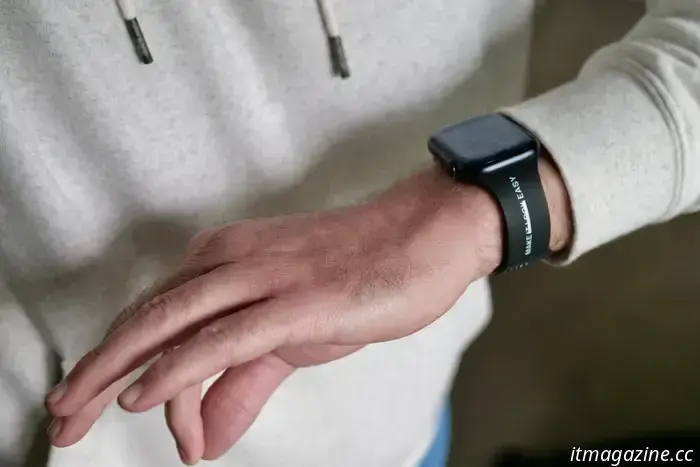
The primary way to interact with an Apple Watch is through tapping and swiping on the screen, but it also supports a range of wrist and finger-tap gestures. For instance, double-tapping your thumb and forefinger allows you to control the watch without touching the display.
You can play or pause music, navigate through the smart stack, answer calls, and even respond to text messages using these gestures. To enable this feature, go to: Settings > Gestures > Double Tap.
Moreover, wrist gestures are activated by default on the Apple Watch. You can simply flip your wrist over and back to dismiss notifications and return to the watch face. This is useful for managing calls, timers, and notifications when you can't physically touch the screen.
This gesture functionality is available on the Apple Watch SE 3, Apple Watch Series 9, Apple Watch Ultra 2, and later versions. Similarly, you can mute an incoming alert by covering the watch’s screen for three seconds, which can also be enabled in the Gestures section of the Settings app.
**Sleep Score**
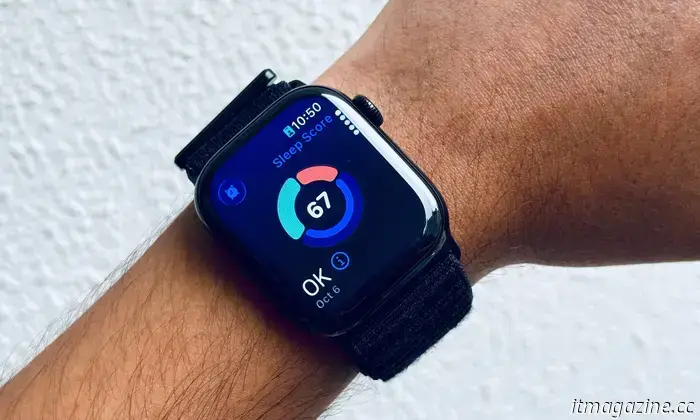
With the recent watchOS 26 update, Apple introduced a feature called Sleep Score, providing a simpler way to understand sleep quality without using complex scientific terms like Core and REM.
According to Apple, the Sleep Score is determined by estimates of sleep duration, consistency of sleep times in comparison to recent history, and the length of time spent awake during sleep. It also accounts for the time spent in different sleep stages.
The sleep quality score ranges from 0-100, categorized into five levels from very low to very high. To utilize this feature, you need to establish a sleep schedule and targets on your paired iPhone by navigating to:
Health app on iPhone > Set Up Sleep > Get Started. You can also configure and adjust this within the Sleep app on your Apple Watch, but first, enable “Track Sleep with Apple Watch” in the Watch app on your iPhone and on the Sleep page, opt to receive sleep score notifications.
**Vitals Tracking During Sleep**
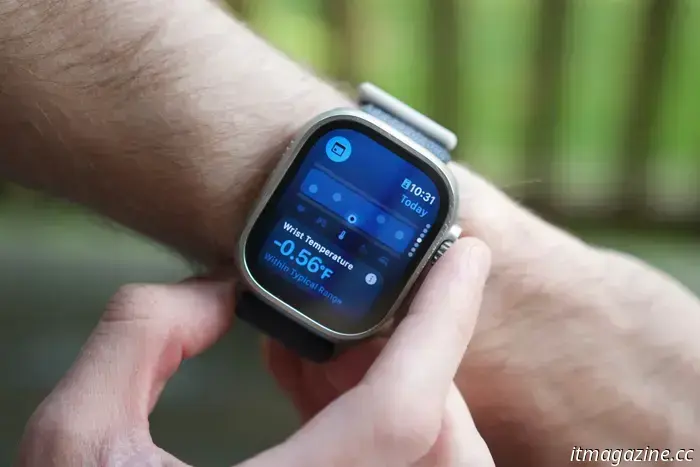
The Apple Watch supports numerous workouts and collects various biometrics during these activities. It can track heart rate, respiratory rate, wrist temperature, and blood oxygen levels, all of which are crucial for workout monitoring.
These metrics are also beneficial during sleep. “To make your Apple Watch data work for you, you’ll need to sleep with it,” stated Apple’s VP of Health, Dr. Sumbul Desai, noting it provides insights into your overnight health.
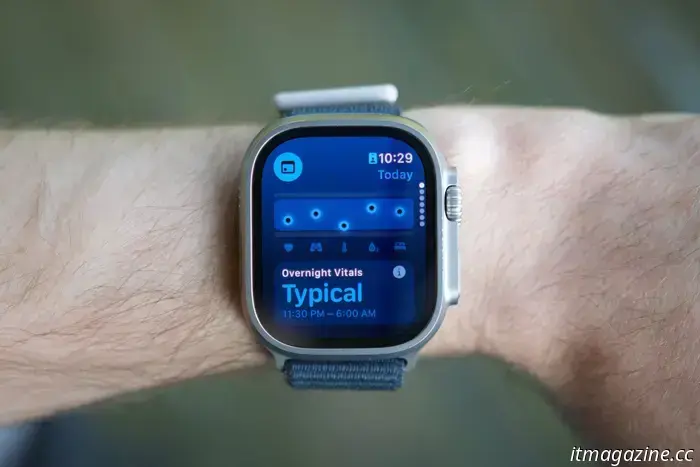
Factors like illness, medication, altitude, and alcohol consumption can affect heart rate, respiration, blood oxygen, temperature, and sleep quality. The overnight vitals tracking feature monitors these metrics, alerting you the next morning if anything deviates from your typical range.
You can view this data in the pre-installed Vitals app on your Apple Watch, which features four circular icons, three in blue and one in purple at the top. You can also check your overnight vitals in the Health app on your iPhone, but ensure you wear your Apple Watch for at least seven consecutive days to establish a "normal" range before receiving alerts about any sleep-related changes.
**Water Lock**
The Apple Watch is designed to withstand water exposure, enduring immersion down to 50 meters. However, water resistance is not permanent; it can degrade over time due to wear and repeated exposure.
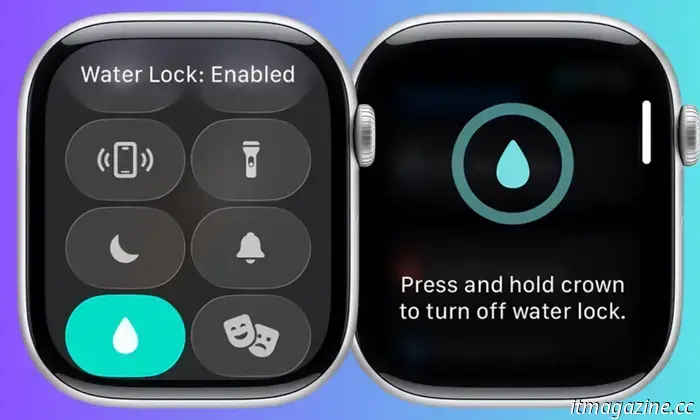
To safeguard against this, the Apple Watch includes a Water Lock feature that activates automatically during water-related workouts like swimming or surfing. When enabled, it disables touch responses on the screen and helps expel water from the speaker.
If you're washing something or involved in an activity that gets the watch wet, simply open the control center by pressing the side button and tapping the water droplet icon to activate it.
Once finished, press and hold or rotate the Digital Crown until you see the "Unlocked" message. The Apple Watch will emit sounds and vibrations to help remove any water from the speakers.
**Find a Misplaced iPhone**
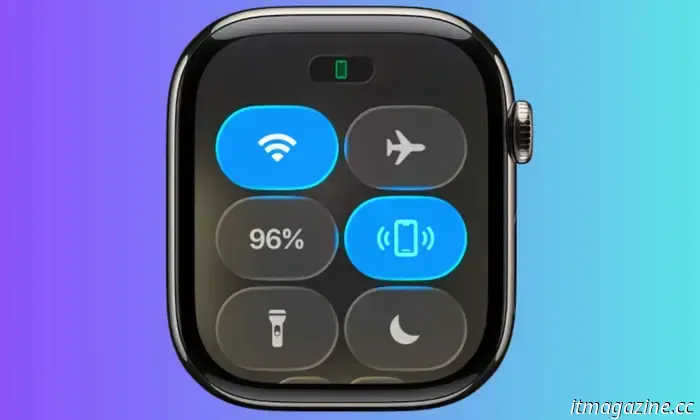
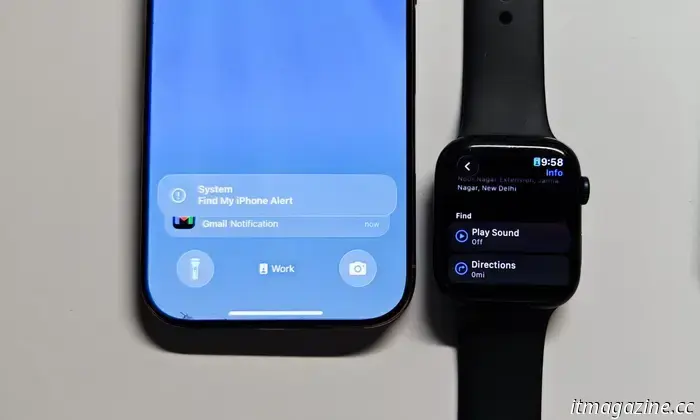
I often misplace my iPhone, and locating it can be challenging since I keep focus modes on to silence notifications. Fortunately, my Apple Watch can assist in finding a misplaced iPhone by making it sound an alarm and flashing the LED.
To do this, press the side button and tap the phone icon. If the iPhone is within Bluetooth range,
Other articles
 Lenovo's upcoming laptop will literally turn away from you.
Lenovo's 2026 update unveils ThinkPads powered by Panther Lake and the motorized Auto Twist laptop, which boasts AI-assisted rotation and high-resolution 10MP webcams to transform premium business productivity.
Lenovo's upcoming laptop will literally turn away from you.
Lenovo's 2026 update unveils ThinkPads powered by Panther Lake and the motorized Auto Twist laptop, which boasts AI-assisted rotation and high-resolution 10MP webcams to transform premium business productivity.
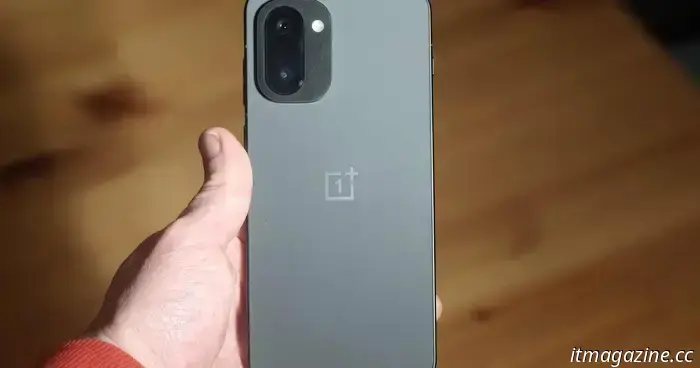 The forthcoming battery powerhouse phone from OnePlus has been revealed, and its appearance seems quite recognizable.
The OnePlus Turbo isn't focused on a striking design or advanced cameras. Instead, leaked photos indicate that OnePlus is emphasizing battery longevity, combining a recognizable appearance with an unusually large 9,000mAh battery.
The forthcoming battery powerhouse phone from OnePlus has been revealed, and its appearance seems quite recognizable.
The OnePlus Turbo isn't focused on a striking design or advanced cameras. Instead, leaked photos indicate that OnePlus is emphasizing battery longevity, combining a recognizable appearance with an unusually large 9,000mAh battery.
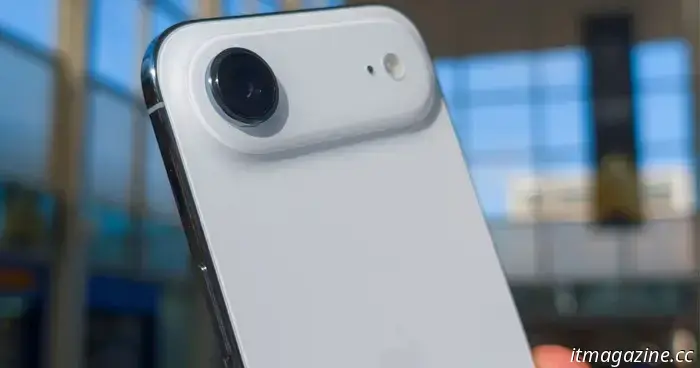 A new leak regarding the iPhone Air 2 has reignited optimism for a potential launch in 2026.
A recent leak indicates that Apple might not delay the launch of the iPhone Air 2 until 2027. Contrary to previous reports, there are now indications of a potential release in 2026, reigniting expectations for an earlier arrival of Apple’s ultra-thin iPhone.
A new leak regarding the iPhone Air 2 has reignited optimism for a potential launch in 2026.
A recent leak indicates that Apple might not delay the launch of the iPhone Air 2 until 2027. Contrary to previous reports, there are now indications of a potential release in 2026, reigniting expectations for an earlier arrival of Apple’s ultra-thin iPhone.
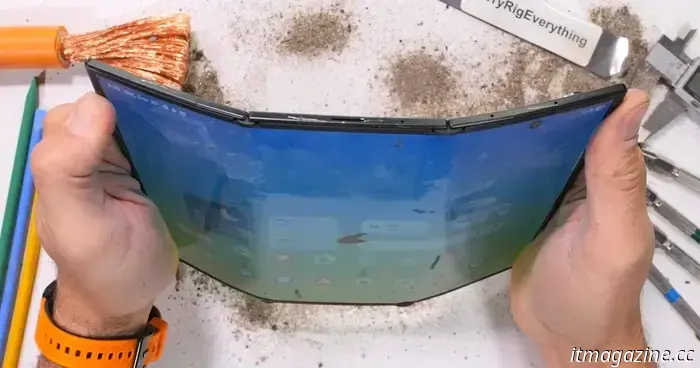 Observe Samsung's TriFold achieve an unfortunate milestone in this durability test.
Zack Nelson's Christmas present to his 9.7 million YouTube followers was a durability test of Samsung's TriFold smartphone. "Occasionally, a piece of tech arrives on my desk that nearly makes me feel guilty about what's going to happen... almost," says the creator behind JerryRigEverything at the beginning of the test, [...]
Observe Samsung's TriFold achieve an unfortunate milestone in this durability test.
Zack Nelson's Christmas present to his 9.7 million YouTube followers was a durability test of Samsung's TriFold smartphone. "Occasionally, a piece of tech arrives on my desk that nearly makes me feel guilty about what's going to happen... almost," says the creator behind JerryRigEverything at the beginning of the test, [...]
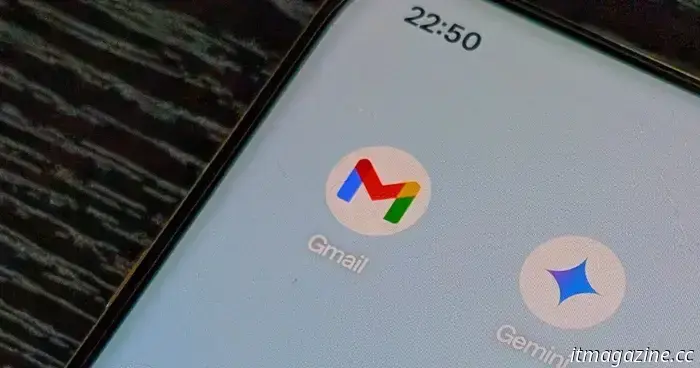 Google may finally allow you to modify the name associated with your Gmail address.
Google is testing a long-anticipated Gmail feature that may allow users to modify their email address name without having to create a new account or losing years' worth of data.
Google may finally allow you to modify the name associated with your Gmail address.
Google is testing a long-anticipated Gmail feature that may allow users to modify their email address name without having to create a new account or losing years' worth of data.
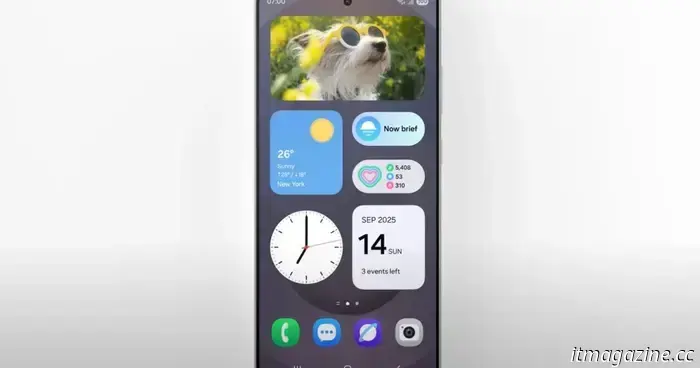 Samsung is introducing AI-generated images in the simple Calendar app.
Samsung is experimenting with AI-generated visuals for its Calendar app, beginning with images that adjust to reflect your events. The goal is to enhance the experience of even everyday scheduling, making it feel more intelligent and visually engaging.
Samsung is introducing AI-generated images in the simple Calendar app.
Samsung is experimenting with AI-generated visuals for its Calendar app, beginning with images that adjust to reflect your events. The goal is to enhance the experience of even everyday scheduling, making it feel more intelligent and visually engaging.
5 tips and tricks for your new Apple Watch
The Apple Watch is packed with features that can elevate your wearable experience by offering additional conveniences and wellness benefits.