
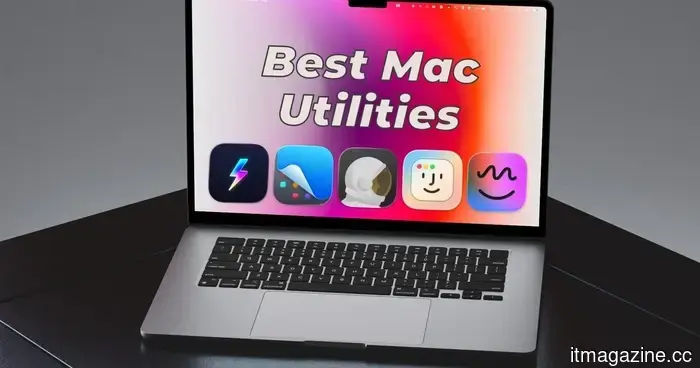
Here are five of the top Mac utilities I discovered in 2026, and you should definitely check them out as well.
I have been using a Mac for more than ten years, and throughout this time, I have come across several third-party utilities that I find indispensable. Some of these address long-standing macOS quirks, others add features that should have been included originally, and some simply enhance your overall macOS experience. Below are my top five Mac utilities that I rely on daily.
**Supercharge**
While macOS is excellent, it does have its idiosyncrasies, and Supercharge remedies a surprising number of them. This app includes over 70 tweaks that tackle small yet annoying issues that Apple has overlooked for years. Once you start using it, you'll question how you ever got by without it.
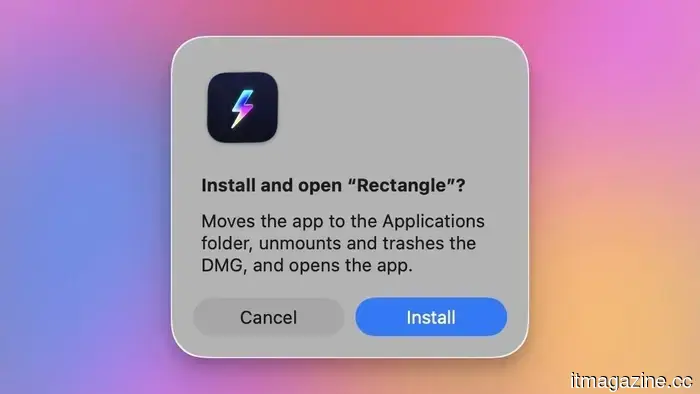
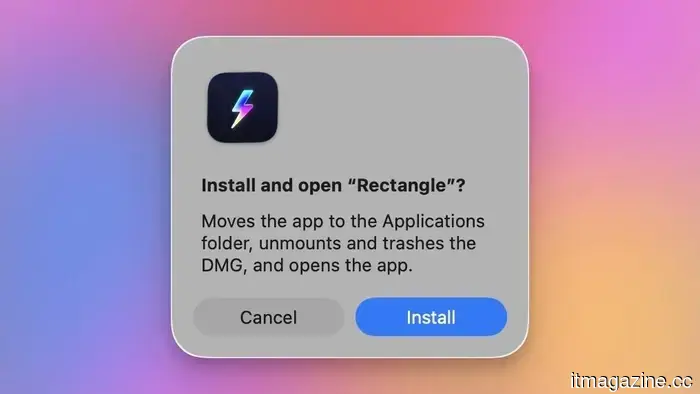
One of my favorite features is the one-click DMG installer. If you've ever installed an app that isn't in the Mac App Store, you know the routine: download the DMG file, double-click to open, drag the app to the Applications folder, then eject the disk image and delete the installer file. Supercharge simplifies this entire process into a single click. It installs the app, ejects the disk image, and sends the DMG to the trash automatically.
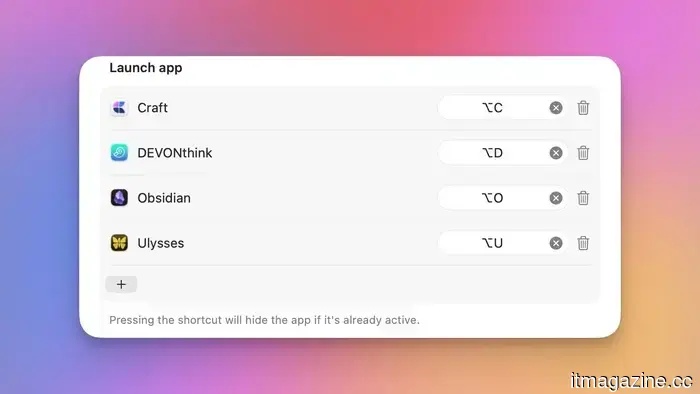
Another feature I constantly use is the app-specific keyboard shortcuts. Rather than opening Spotlight or sorting through the Dock, I have created shortcuts for all my frequently used apps, allowing me to launch them in seconds. Supercharge also enables you to use Command+X to cut and paste files, similar to Windows, which can trip up many new users.
My other two favorite tweaks are Cat Mode and Cleaning Mode. The former disables the keyboard while the latter turns off the display, letting you clean your Mac without causing any unintentional actions.
These are just a few of the tweaks that Supercharge offers. It’s among the best Mac utilities I’ve ever encountered, and I highly recommend it to all Mac users.
**Get Supercharge**
**CleanShot X**
The built-in screenshot tool on Mac covers the basics, but if your job requires frequent screenshots, you should consider investing in something more capable. CleanShot X is that superior option, and it’s the app I use daily when writing articles.
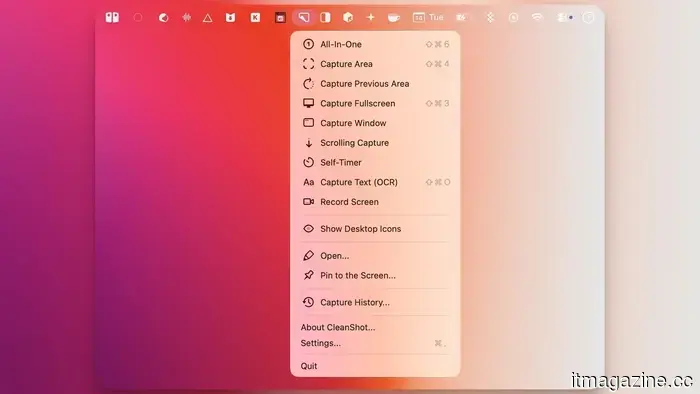
In addition to the standard full-screen and window captures, CleanShot X allows you to take scrolling screenshots of entire web pages or documents, set a timer before capturing, record your screen, and even extract text from any image through OCR.
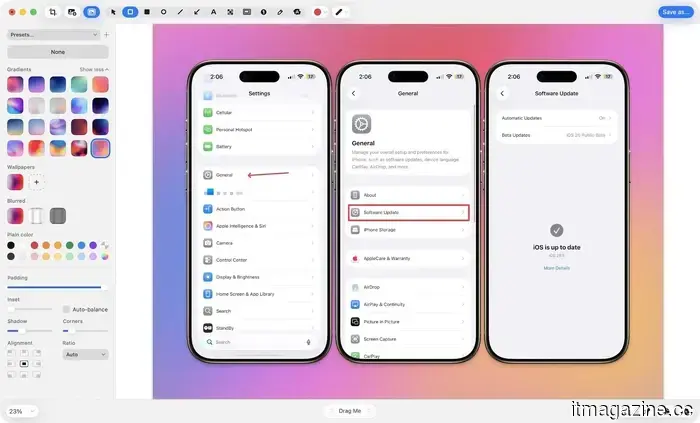
Capturing screenshots is fantastic, but where it truly excels is in its built-in editor. You can annotate screenshots, draw arrows, add colored backgrounds for a polished look, crop, resize, and blur out sensitive information.
A recent update introduced the ability to add backgrounds to your screenshots, enhancing their aesthetic appeal. You can incorporate solid colors, gradients, or even your current Mac wallpaper as a background. If you've read my articles before, you might have noticed this feature in action.
CleanShot X isn't the cheapest option on this list, but the time it saves and the quality it adds to my workflow make it worth every cent. If you frequently take screenshots for your work, this app pays for itself. You can purchase it directly from the developer's website or get it at no cost with a SetApp subscription.
**Get CleanShot X**
**Monocle**
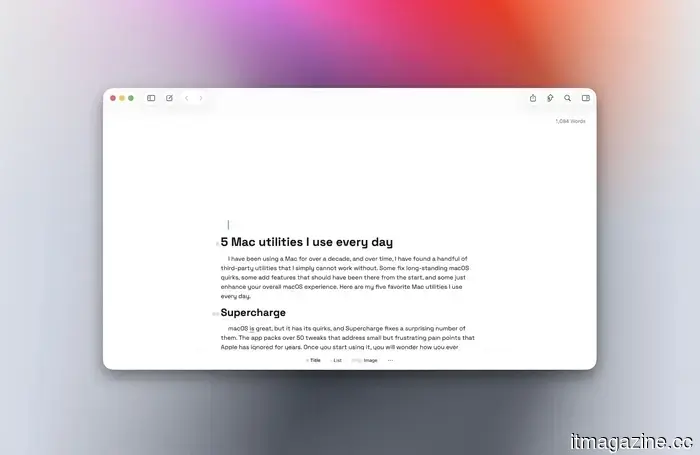
Here’s a problem that most productivity advice overlooks: visual clutter. When you have multiple windows open on your screen, your brain is continuously processing them all, even when you should be focusing on just one. Monocle addresses this issue simply.
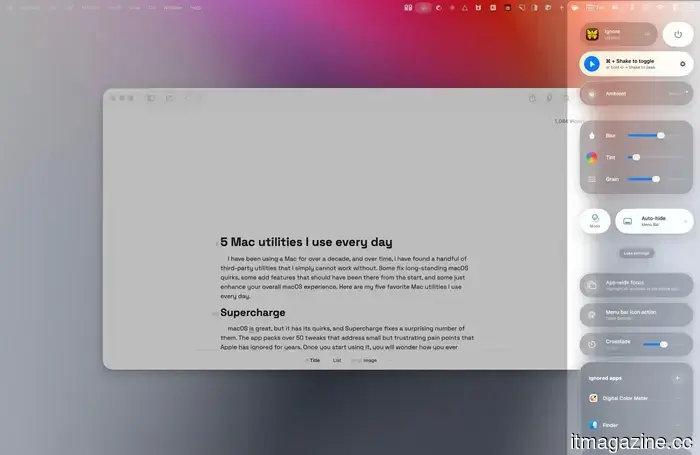
The app blurs everything on your screen except for the active window. As soon as you click into an app, everything else fades into the background. It may seem like a minor adjustment, but the impact on focus is immediately noticeable.
You can also customize the intensity of the blur, add a film grain effect if you prefer that look, and adjust the fade animation speed. It supports both light and dark themes and can match your system’s appearance.
If you often find distractions from other open windows while working, you should give it a try.
**Get Monocle**
**Hyperkey**
Hyperkey is likely the utility I use most on my Mac. I appreciate keyboard shortcuts but dislike the finger gymnastics involved in using them. Hyperkey resolves this dilemma by allowing you to map a combination of keyboard modifiers to a single key, which I use as the Caps Lock key.
When I press Caps Lock on my Mac, it inputs all four modifier keys simultaneously: Control (⌃), Option (⌥), Command (⌘), and Shift (⇧). This gives you access to an entirely new layer of keyboard shortcuts that won’t interfere with any existing system or application shortcuts.
You can assign these Hyper key combinations to whatever you wish. It’s free, lightweight, and operates quietly in the background without getting in the way. After incorporating Hyperkey shortcuts into your routine, returning to a keyboard without them feels significantly restrictive.
**Get Hyperkey**
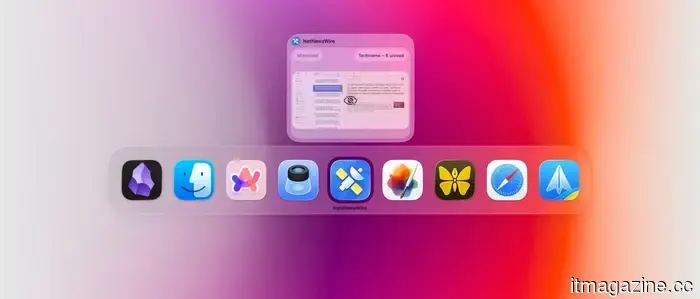
**DockDoor**

Other articles
 YouTube temporarily halts livestream advertisements during times of high engagement to maintain the atmosphere.
YouTube will automatically pause ads during livestreams when there is a surge in chat interactions and will offer Super Chat purchasers exclusive ad-free moments. Additionally, gifts are being introduced in six new markets.
YouTube temporarily halts livestream advertisements during times of high engagement to maintain the atmosphere.
YouTube will automatically pause ads during livestreams when there is a surge in chat interactions and will offer Super Chat purchasers exclusive ad-free moments. Additionally, gifts are being introduced in six new markets.
 Sony is developing an animated film adaptation of Bloodborne.
Sony Pictures announced an animated film adaptation of Bloodborne at CinemaCon 2026, with JackSepticEye as a co-producer, ensuring that the movie will reflect the game's gruesome essence.
Sony is developing an animated film adaptation of Bloodborne.
Sony Pictures announced an animated film adaptation of Bloodborne at CinemaCon 2026, with JackSepticEye as a co-producer, ensuring that the movie will reflect the game's gruesome essence.
 Here are the five best Mac utilities I discovered in 2026, and you should consider trying them as well.
macOS is excellent, but it does have its shortcomings. These five utilities address those gaps, and I find myself missing them every time I use a Mac without them.
Here are the five best Mac utilities I discovered in 2026, and you should consider trying them as well.
macOS is excellent, but it does have its shortcomings. These five utilities address those gaps, and I find myself missing them every time I use a Mac without them.
 Here are the five top Mac utilities I discovered in 2026, and you should definitely check them out as well.
macOS is fantastic, but it has its shortcomings. These five utilities address those gaps, and I find myself missing them every time I use a Mac without them.
Here are the five top Mac utilities I discovered in 2026, and you should definitely check them out as well.
macOS is fantastic, but it has its shortcomings. These five utilities address those gaps, and I find myself missing them every time I use a Mac without them.
 Here are the five top Mac utilities I discovered in 2026, and you should consider trying them as well.
macOS is wonderful, but it has its shortcomings. These five tools address those gaps, and I find myself missing them every time I use a Mac without them.
Here are the five top Mac utilities I discovered in 2026, and you should consider trying them as well.
macOS is wonderful, but it has its shortcomings. These five tools address those gaps, and I find myself missing them every time I use a Mac without them.
 Science Corp is getting ready for the initial placement of a brain sensor in humans, collaborating with a neurosurgeon from Yale.
Science Corp, founded by former Neuralink president Max Hodak, plans to implant a 520-electrode sensor into a human cortex during ongoing brain surgery, overseen by Yale's Murat Günel. The trials are expected to commence in 2027.
Science Corp is getting ready for the initial placement of a brain sensor in humans, collaborating with a neurosurgeon from Yale.
Science Corp, founded by former Neuralink president Max Hodak, plans to implant a 520-electrode sensor into a human cortex during ongoing brain surgery, overseen by Yale's Murat Günel. The trials are expected to commence in 2027.
Here are five of the top Mac utilities I discovered in 2026, and you should definitely check them out as well.
macOS is fantastic, but it does have its shortcomings. These five utilities address those issues, and I find their absence noticeable every time I use a Mac without them.