
I moved all my conversations from other AI applications to Gemini, and it functions perfectly.
You know that frustrating moment when AI assistants like ChatGPT, Gemini, or Claude suddenly lose track of the conversation and start to hallucinate as if they’re completely certain they’re correct? It’s both amusing and frustrating at the same time. Typically, I find myself switching between applications, hoping one of them gets it right. The real issue, though, is that I have to restart the conversation every single time. It often feels like I’m stuck in a cycle of explaining my life story to different AIs one after the other.
With Gemini, though, I can shift from other AI apps without needing to reset the conversation. Finally, the Google gods have granted us this feature. I tried it out expecting the usual issues, but it was surprisingly smooth and fast.
Thank you, Google.
Google
In the desktop version of Gemini, things have become significantly more intriguing. You can now import your chat history from other AI apps, meaning Gemini enters the conversation already aware of what’s happening. Whether it’s a challenge you’ve been addressing, a partially completed math explanation, or one of those unexpectedly profound life talks, you can now pick up right where you left off. And it doesn’t end with recent chats; you can also integrate broader background information, such as your preferences, habits, and anything that personalizes your interactions. This significantly reduces the most irritating aspect of using multiple AI tools: having to repeat yourself.
Here’s how to set it up in Gemini.
If you want Gemini to continue your conversations from other AI applications, the steps are quite straightforward once you know where to find them:
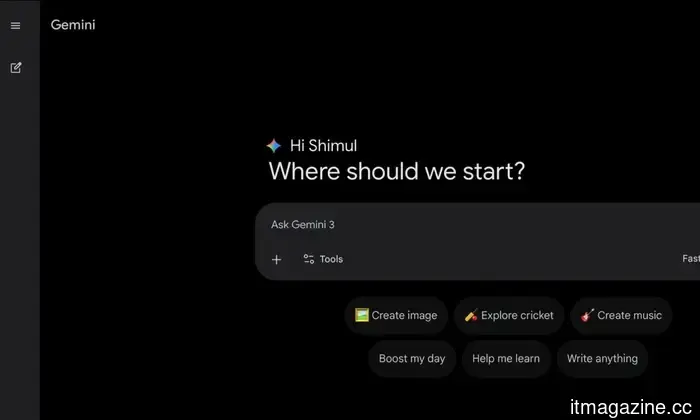
Open Gemini in your browser and ensure you’re logged in.
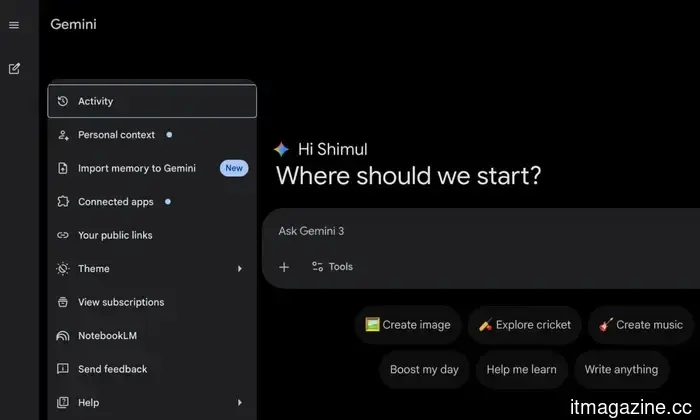
Locate the Settings option in the bottom-left corner.
From there, select Import memory to Gemini.
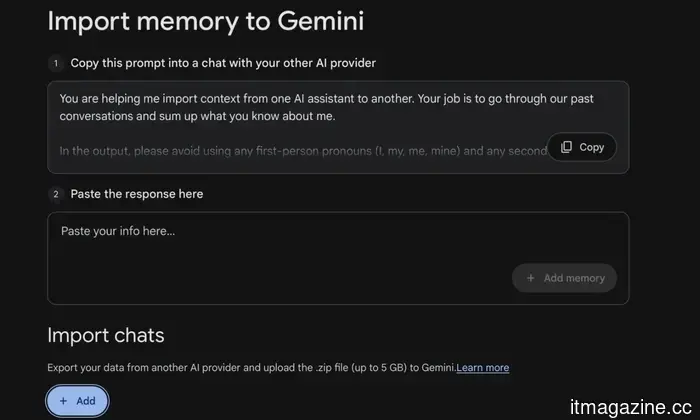
Once you’re in, Gemini will guide you through the rest. You’ll see a prompt in the first box—just copy that and paste it into the AI app you’ve been using. That app will generate a response based on your previous conversations. Next, paste that response back into the second box in Gemini. That’s all there is to it. Gemini uses this to grasp your previous context, so you avoid starting from scratch.
If you’d rather skip the copy-paste method, there’s another alternative. You can export your data directly from the other AI service and upload it to Gemini as a ZIP file. Just remember to keep the file size under 5GB. Once the process is complete, Gemini feels like it’s picking up an ongoing conversation, which enhances the overall experience.
What was my experience like?
In my case, this feature performed better than I anticipated. It’s not instant, though; importing your chats can take some time, particularly if you’ve had lengthy, detailed discussions. The more context you’re importing, the longer processing takes.
That said, I didn’t really mind the wait. Once everything is imported, you save yourself from having to repeat the same information, which is honestly the most frustrating part. So while it may test your patience for a few minutes, the benefit feels worthwhile in the long run. This signals my shift from ChatGPT to Gemini, and I don’t regret it at all.

Other articles
 Your Apple TV can now suggest shows and movies based on your viewing preferences.
tvOS 26.4 from Apple introduces four significant updates to enhance your Apple TV experience, featuring a personalized content browser, a Dolby audio improvement that audiophiles will value, and the removal of iTunes.
Your Apple TV can now suggest shows and movies based on your viewing preferences.
tvOS 26.4 from Apple introduces four significant updates to enhance your Apple TV experience, featuring a personalized content browser, a Dolby audio improvement that audiophiles will value, and the removal of iTunes.
 Siri may soon integrate third-party AI tools in a significant iOS update.
You can utilize several AI assistants on your iPhone.
Siri may soon integrate third-party AI tools in a significant iOS update.
You can utilize several AI assistants on your iPhone.
 Siri may soon offer support for third-party AI tools in a significant iOS update.
You can utilize several AI assistants on your iPhone.
Siri may soon offer support for third-party AI tools in a significant iOS update.
You can utilize several AI assistants on your iPhone.
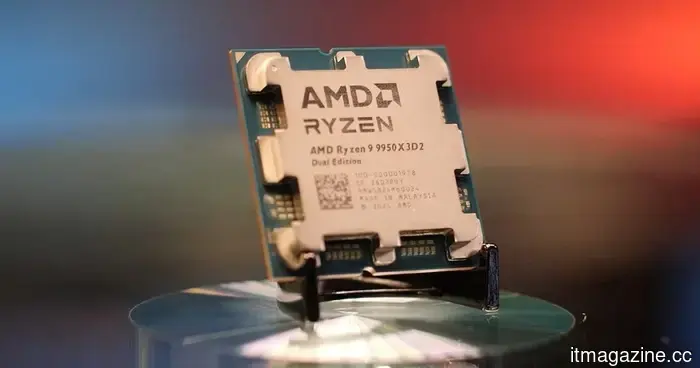 AMD's newest Ryzen 9 9950X3D2 takes X3D to new heights.
The AMD Ryzen 9 9950X3D2 features dual 3D V-Cache, offering a total cache of up to 208MB and includes 16 cores, designed for intense gaming and demanding tasks.
AMD's newest Ryzen 9 9950X3D2 takes X3D to new heights.
The AMD Ryzen 9 9950X3D2 features dual 3D V-Cache, offering a total cache of up to 208MB and includes 16 cores, designed for intense gaming and demanding tasks.
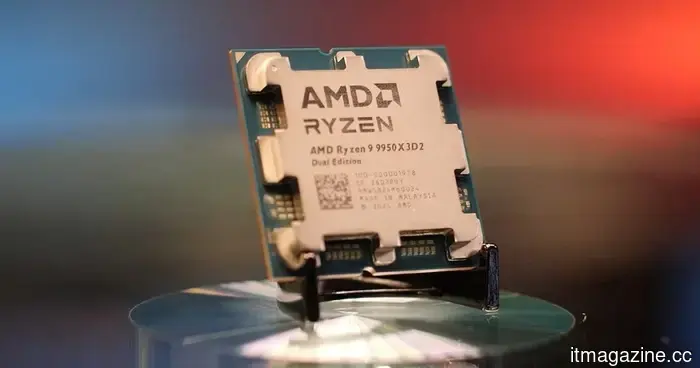 AMD’s newest Ryzen 9 9950X3D2 pushes the boundaries of X3D technology.
The AMD Ryzen 9 9950X3D2 features dual 3D V-Cache, offers a total of up to 208MB cache, and includes 16 cores, aimed at enthusiasts of extreme gaming and demanding workloads.
AMD’s newest Ryzen 9 9950X3D2 pushes the boundaries of X3D technology.
The AMD Ryzen 9 9950X3D2 features dual 3D V-Cache, offers a total of up to 208MB cache, and includes 16 cores, aimed at enthusiasts of extreme gaming and demanding workloads.
 Google globally launches Search Live with voice and camera AI capabilities.
Google has launched Search Live worldwide, introducing AI-enabled voice and camera search to more than 200 countries and various languages.
Google globally launches Search Live with voice and camera AI capabilities.
Google has launched Search Live worldwide, introducing AI-enabled voice and camera search to more than 200 countries and various languages.
I moved all my conversations from other AI applications to Gemini, and it functions perfectly.
Gemini is transforming the landscape by utilizing insights from your previous conversations.