
.jpg)
Apple TV Not Functioning? 12 Common Issues and Expert-Confirmed Solutions (2026)
**Expert Note:** Prior to exploring the detailed guide that follows, I suggest performing a “System Restart” (Settings > System > Restart) or disconnecting the power cord for a minimum of 30 seconds. If that doesn’t resolve the issue, please refer to the specific problems and solutions outlined below. In my experience, a system restart has resolved 90% of the difficulties I encountered with my Apple TV. I have tested these solutions on my personal Apple TV running tvOS 17.4.
**Quick Troubleshooting Menu**
- Remote Unresponsive or Laggy
- Wi-Fi Connectivity & Buffering
- Video Flickering or Black Screen
- Audio Out of Sync
- App Crashing or Freezing
---
1. **Siri Remote is Unresponsive or Jumping**
Whether you have the silver USB-C remote or the older black touchpad model, connectivity issues are quite common, particularly if your Apple TV is placed behind furniture or walls.
**The Fixes:**
- The “secret” Reboot: Press and hold the TV/Control Center button and the Volume Down button together for 5 seconds until the status light on the Apple TV blinks. This will restart the remote and automatically re-pair it.
- Charge check: Unlike older models, the Siri Remote doesn’t provide a “Low Battery” alert until it is almost completely drained. Charge the remote for 30 minutes using USB-C/Lightning.
- Distance & Obstructions: Ensure a clear line of sight. Although the remote uses Bluetooth, interference from 2.4GHz devices, like soundbars, can result in “ghost touches.” I haven’t faced this issue personally, but my brother has encountered it while using a soundbar in his living room.
---
**Frequent Buffering or “Network Unavailable”**
Even on high-speed internet, the Apple TV's internal Wi-Fi antenna may struggle when it is near other electronic devices.
**The Fixes:**
- The 5GHz Rule: If your router has dual bands, place the Apple TV on the 5GHz band, provided it is close enough to the access point or router for a strong signal, as the 2.4GHz band can sometimes become congested and cause the Apple Spinning Wheel of Death.
- Forget and Rejoin: Navigate to Settings > Network > Wi-Fi, forget the network, and then re-add it. This clears the stale IP assignment and obtains a new IP address.
- Check Signal Strength: Go to Settings > General > About. If your signal strength shows 2 bars or fewer, you may require a mesh extender or an Ethernet connection.
---
**Video Flickering, Tinted Screen, or No Image**
This issue typically arises from an “HDMI Handshake” error, where communication fails between the TV and the Apple TV.
**The Fixes:**
- Check the Cable: Use a “Certified Premium High Speed” HDMI cable.
- Match Content Settings: Go to Settings > Video and Audio > Match Content. Enable Match Dynamic Range and Match Frame Rate. This will help prevent the “black flash” that occurs when switching from HDR to SDR, and most receivers or video switches should manage the handshake effectively.
- The HDMI Reset: Disconnect both ends of the HDMI cable and reconnect them securely. You can also try switching the ends of the cable.
---
**Audio is Out of Sync (Lip-Sync Issue)**
Wireless audio devices (like AirPods or HomePods) can often lag behind the video, especially when screencasting from your iPhone.
**The Fix:** – Wireless Audio Sync: This option is a hidden feature in Apple’s settings. Go to Settings > Video and Audio > Wireless Audio Sync. Your iPhone will utilize its microphone to listen to your TV and perfectly calibrate the audio timing.
---
**Specific Apps like Netflix and YouTube Keep Crashing**
When a specific app fails while others operate normally, it’s likely that the app’s cache is corrupted.
**The Fixes:**
- Force Close: Double-click the TV/Control Center button to access the App Switcher. Swipe up on the problematic app to close it completely.
- Reinstall: Locate the app on your Home Screen, press and hold the center clickpad until it jiggles, then press Play/Pause and select Delete. Download the app again from the App Store.
---
**When to Contact Apple Support**
If the status light is flashing continuously after a restart or if you see the “Restore” screen (an image of an iPhone next to an Apple TV), the firmware is likely compromised.
- For the Apple TV 4K: You must reach out to Apple Support as it lacks a USB port for manual restoration.
- For Older HD Models: You can connect it to a Mac via USB-C and restore it using Finder.
---
**Frequently Asked Questions (FAQ):**
Q: Why is my Apple TV status light blinking rapidly?
A
.jpg)
.jpg)
.jpg)
.jpg)
Other articles
.jpg) Apple TV Not Functioning? 12 Frequent Issues and Expert-Approved Solutions (2026)
The Apple TV is an excellent streaming device, but it can occasionally experience glitches. Here’s a guide to some of the typical Apple TV problems and how to resolve them.
Apple TV Not Functioning? 12 Frequent Issues and Expert-Approved Solutions (2026)
The Apple TV is an excellent streaming device, but it can occasionally experience glitches. Here’s a guide to some of the typical Apple TV problems and how to resolve them.
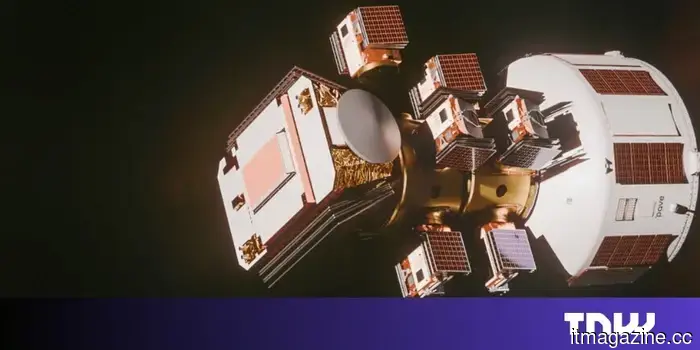 PAVE Space secures $40 million to develop orbital transfer vehicles.
PAVE Space, a startup based in Switzerland, has secured $40 million in funding to develop orbital transfer vehicles capable of relocating satellites to any orbit within a 24-hour timeframe.
PAVE Space secures $40 million to develop orbital transfer vehicles.
PAVE Space, a startup based in Switzerland, has secured $40 million in funding to develop orbital transfer vehicles capable of relocating satellites to any orbit within a 24-hour timeframe.
 HP updates its EliteBook series and launches new AI workstations.
HP has introduced new EliteBooks and Z workstations that prioritize AI-driven performance, greater mobility, and strengthened enterprise security features.
HP updates its EliteBook series and launches new AI workstations.
HP has introduced new EliteBooks and Z workstations that prioritize AI-driven performance, greater mobility, and strengthened enterprise security features.
 Origin secures $30 million in Series A+ funding.
Origin has secured $30 million in a Series A+ funding round led by Notion Capital to enhance its AI platform, which provides multinationals with insights into their benefits expenditures.
Origin secures $30 million in Series A+ funding.
Origin has secured $30 million in a Series A+ funding round led by Notion Capital to enhance its AI platform, which provides multinationals with insights into their benefits expenditures.
.jpg) Apple TV Not Functioning? 12 Frequent Issues and Expert-Approved Solutions (2026)
The Apple TV is an excellent streaming device, but it can occasionally experience glitches. Here’s a guide to address some of the most frequent issues with the Apple TV and how to resolve them.
Apple TV Not Functioning? 12 Frequent Issues and Expert-Approved Solutions (2026)
The Apple TV is an excellent streaming device, but it can occasionally experience glitches. Here’s a guide to address some of the most frequent issues with the Apple TV and how to resolve them.
 WWDC 2026: Our expectations for Apple’s event this June
WWDC 2026 appears to be Apple's most subdued keynote in years, and possibly its most significant. Here’s what we anticipate on June 8.
WWDC 2026: Our expectations for Apple’s event this June
WWDC 2026 appears to be Apple's most subdued keynote in years, and possibly its most significant. Here’s what we anticipate on June 8.
Apple TV Not Functioning? 12 Common Issues and Expert-Confirmed Solutions (2026)
The Apple TV is an excellent streaming device, but it can occasionally experience glitches. Here’s a guide to some of the frequent Apple TV problems and their solutions.