
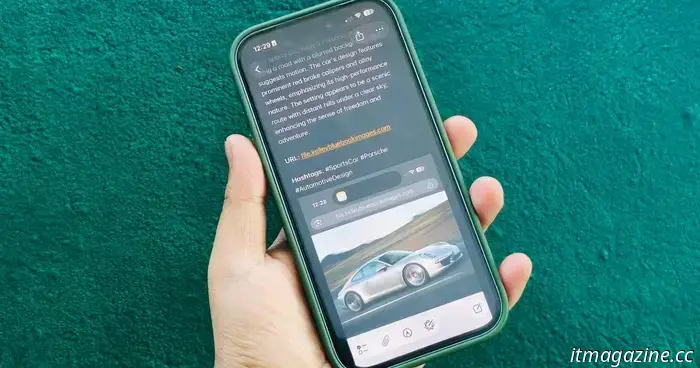
I transformed the Notes app on my iPhone into a memory bank powered by ChatGPT.
Saving memories can be quite a chore. URLs are either bookmarked or pasted into a special app. Additionally, we often snap photos of posters or take numerous screenshots, which end up cluttering the Photos app.
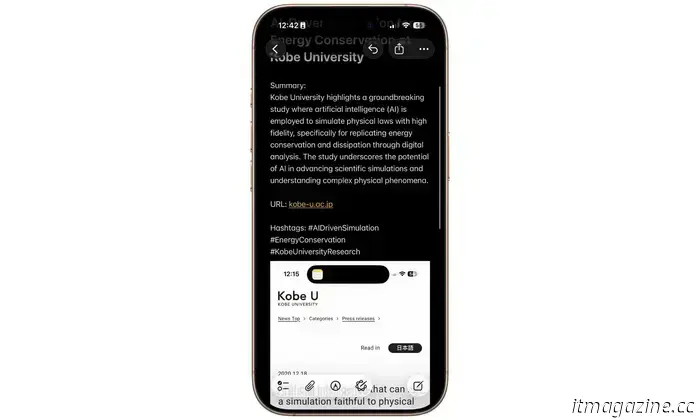
Imagine having a system where you could simply press the iPhone’s Action Button. It would take a screenshot, summarize the content on the screen, add hashtags for easy searches, and automatically store all this information in an app of your choice.
Sounds amazing, right? Unfortunately, the iPhone doesn’t have this capability. Devices like the OnePlus 15, however, do. This leaves you with a cumbersome task of saving, moving, and organizing your cherished memories.
Finding what's significant is not always straightforward.
I currently have over two thousand screenshots saved on my iPhone, mostly containing content I wanted to revisit. These include random articles, funny memes, course materials, job listings, YouTube music videos, and more. I wish to preserve this information and come back to it later.
However, that’s easier said than done. The Photos app's search feature is not sophisticated enough. Recently, I saved a screenshot of an excellent photo series showcasing the local dance traditions of Shillong, with hopes of visiting soon.
While saving that information and during the weeks that followed, I took numerous new screenshots for work-related tasks. When I finally had some time to explore the nearby village, I realized I couldn't locate the original screenshot.
I created this on my iPhone.
I couldn’t bear to scroll through a long gallery, and the search function failed to assist with context-based text queries. I felt disappointed and somewhat infuriated. Although my iPhone 17 Pro can run AI models locally, it lacks a system to help save essential items with some analytical tagging.
On the OnePlus 15, there's a feature called Mind Space. By simply pressing a button, a screenshot of your phone’s display is captured. The built-in AI then analyzes the content, summarizes it, saves the URL, and even generates one-step tasks.
All these memories are neatly organized with a headline and a preview of the screenshot, saved as a dedicated card within an app. It’s akin to an AI-powered memory vault, which is now also integrated with Gemini. Unfortunately, the iPhone lacks this kind of convenience, despite incorporating ChatGPT into its core features.
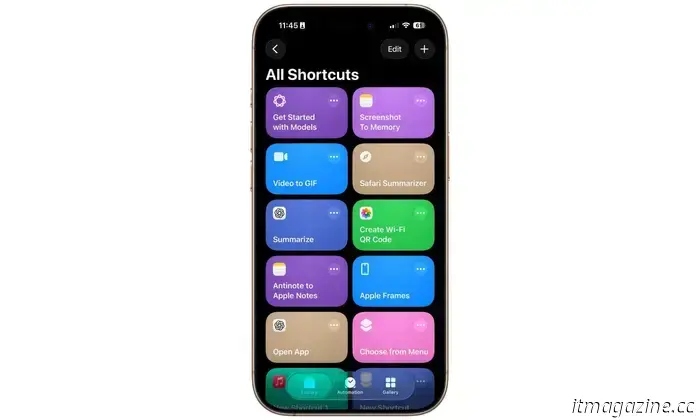
Fortunately, the Shortcuts app provided some relief. Although it took a few minutes and a bit of experimentation, I managed to replicate the functionality of Mind Space found on OnePlus phones and a similar system on Nothing devices.
How did I accomplish this?
My goal was to establish a streamlined task flow that looked like this:
Button press > Screenshot capture > Analyze content > Generate summary, save URL, create tags > Store in Notes.
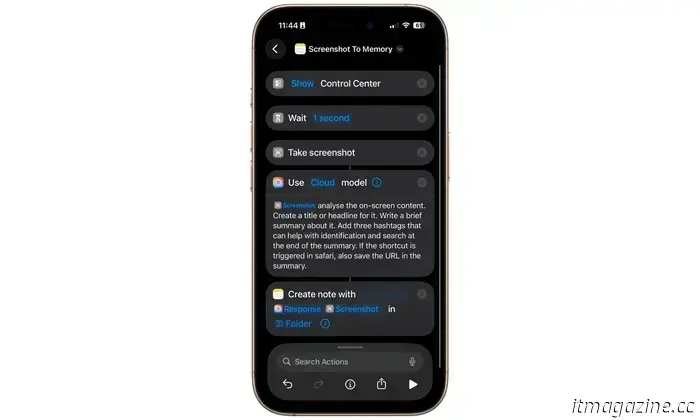
To set this up, I navigated to the Shortcuts app on my iPhone and constructed a framework of actions. After determining the precise sequence of commands, I searched for the “Use” function and selected the AI “Model” for content analysis and text generation.
When choosing the model, you can opt for Apple’s Cloud, On-Device AI, or ChatGPT. For optimal speed, the on-device option is preferable. I opted for ChatGPT, however, as it has been upgraded to the more advanced GPT 5.1 model, which offers improved reasoning abilities.
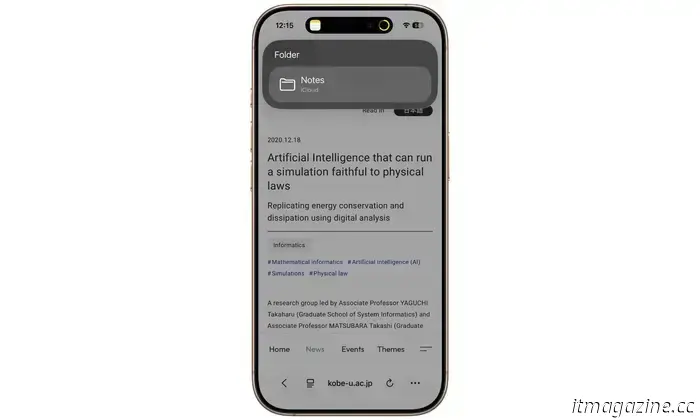
Next, I articulated the requirements in the “Use Model” field using natural language. Finally, I designated the built-in Notes app as the storage location for these memories, although you can select any other app you prefer.
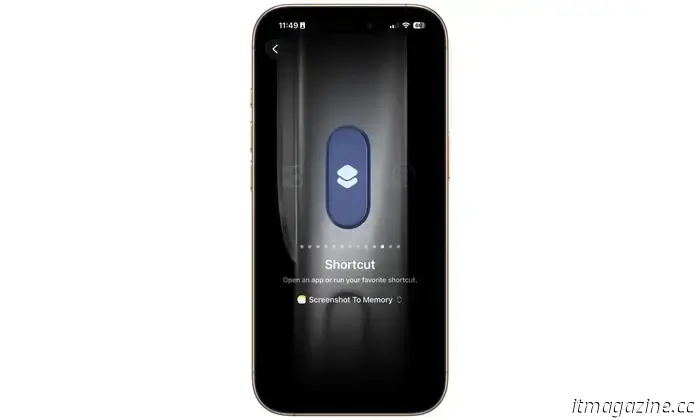
Once the shortcut was finalized and named, I proceeded to the physical action aspect. Since I rarely use the action button on my iPhone, I accessed the Settings app and configured it to trigger my chosen shortcut.
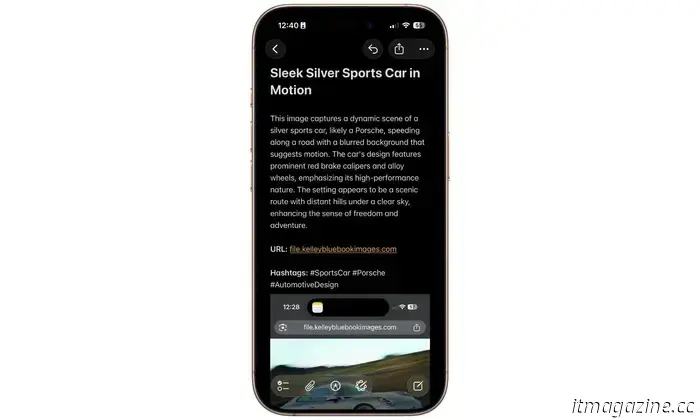
That was it. Now, whenever I need to save a piece of information, I simply long-press the action button, and the on-screen content (along with a summary and URL) is saved in the Notes app. This all occurs in the background without needing to switch between apps.
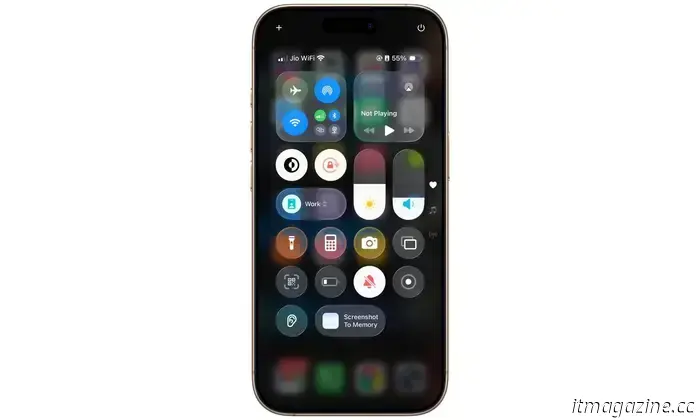
What if you already use the Action Button for another function? There's a workaround for that, too. You can place the same shortcut in the Control Center and activate it from there, but a small adjustment is required.
Specifically, you need to create a one- or two-second delay between tapping the shortcut button in the Control Center and returning to the app where you want to take a screenshot. This delay is vital.
If the shortcut triggers and takes a screenshot instantly, the saved image will be that of the Control Center. However, with a delay, you can swipe up the Control Center and return to the app/page you wish to capture. Alternatively, you can trigger the shortcut using Siri with a voice command on your iPhone.
In summary, thanks to on-device AI capabilities, you can now avoid the hassle of saving random screenshots and misplacing them in a crowded gallery. More importantly, you can

Other articles
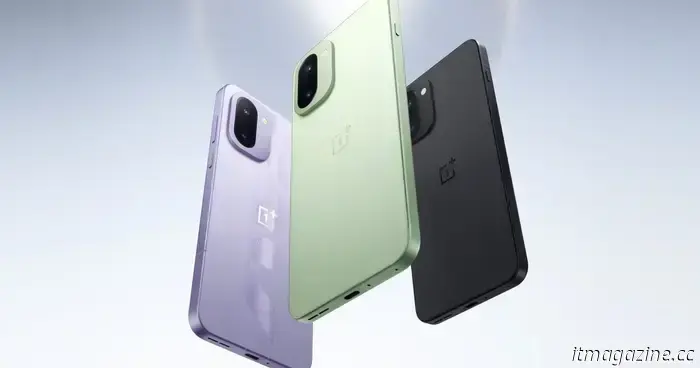 The OnePlus Ace 6T launches with the Snapdragon 8 Gen 5, and it resembles the 15R quite a bit.
The OnePlus Ace 6T makes its entrance with top-tier performance, impressive durability, and a large battery capacity, indicating what Indian consumers can anticipate from the forthcoming OnePlus 15R release.
The OnePlus Ace 6T launches with the Snapdragon 8 Gen 5, and it resembles the 15R quite a bit.
The OnePlus Ace 6T makes its entrance with top-tier performance, impressive durability, and a large battery capacity, indicating what Indian consumers can anticipate from the forthcoming OnePlus 15R release.
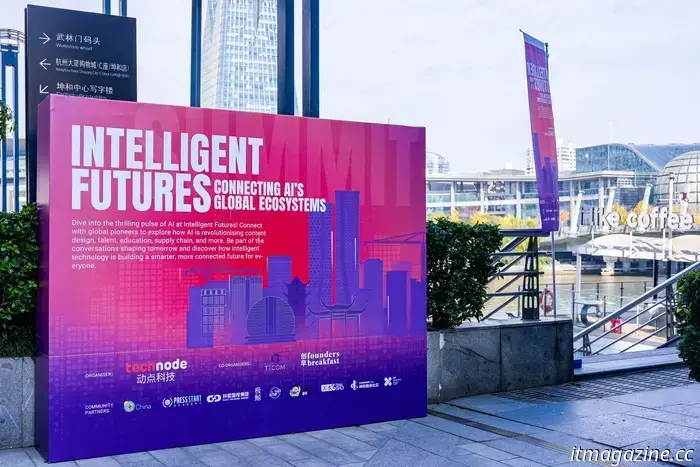 AI is shaping new content strategies and enhancing localization, yet cultural comprehension still relies on people.
The Intelligent Futures: AI's Global Ecosystems event, arranged by TechNode and co-hosted by TECOM and Founders Breakfast, took place in Hangzhou on
AI is shaping new content strategies and enhancing localization, yet cultural comprehension still relies on people.
The Intelligent Futures: AI's Global Ecosystems event, arranged by TechNode and co-hosted by TECOM and Founders Breakfast, took place in Hangzhou on
I transformed the Notes app on my iPhone into a memory bank powered by ChatGPT.
There's a more intelligent method to store crucial pieces of information, and the iPhone already provides the essential framework to accomplish this with the help of some AI.