

I tested the AI-driven Extend photo feature in iOS 27, and it exceeded my expectations.
I wasn't one of the early adopters of the iOS 27 developer beta, but after installing it, I quickly began to appreciate Apple's updates. The Photos app has particularly undergone a significant transformation, featuring an enhanced Clean Up tool, Spatial Reframing, and the new Extend feature, which I was most excited to experiment with.
After testing it on my iPhone 17, here’s a summary of my experience with the tool so far. Spoiler alert: it represents one of the most notable enhancements to Apple’s previously limited range of AI features. I've used the feature on a variety of images, including a selfie taken at a dam in northern India, food photos on a table, and shots captured both indoors and outdoors.
**How to use the new Extend tool?**
To access the Extend feature, open the desired image in the Photos app, tap the hamburger menu at the bottom of the screen, select Tools, and then tap Extend (indicated by an arrow below). You can then pinch to zoom out, modify the crop, and adjust the frame to extend the image in any direction or aspect ratio.
I appreciate that the Extend feature is integrated into the Crop tool. This integration makes it feel more intuitive, especially since many iPhone users are already accustomed to cropping images. While in the Crop tool, you can pinch to zoom out or adjust the frame as desired, and the Extend option will appear at the bottom. In my experience, generating a new image takes approximately 10 to 15 seconds.
**It's a bit rough around the edges**
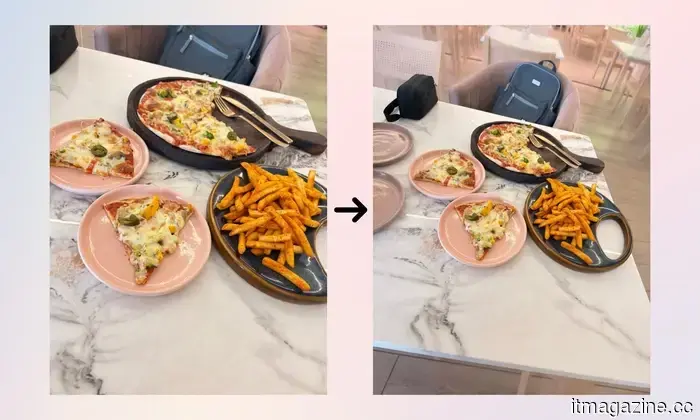
Depending on how much of the frame you request it to generate, it may produce several variations of the same picture, as demonstrated with my mango pastry photo. I've added an orange gradient to indicate the areas of the image that were expanded.
For instance, in the first output, the pastry on the opposite side of the table and the person in the background were nonexistent in the original shot. The final image shows part of another plate on the left that wasn't in the initial picture. While extensions of existing objects appear well-rendered (like the plastic spoon), you might notice some discrepancies with the additions made by Apple’s AI.
Take this picture as an illustration. I focused the image in the center of the frame so the Extend AI could function across the entire image, and the outcome was revealing. Notice the tables and chairs at the top of the frame: they appear rather blurry and somewhat surreal. Frankly, I find the gray and black bags unappealing as well. Additionally, the AI-created plates on the left have a slightly different hue.
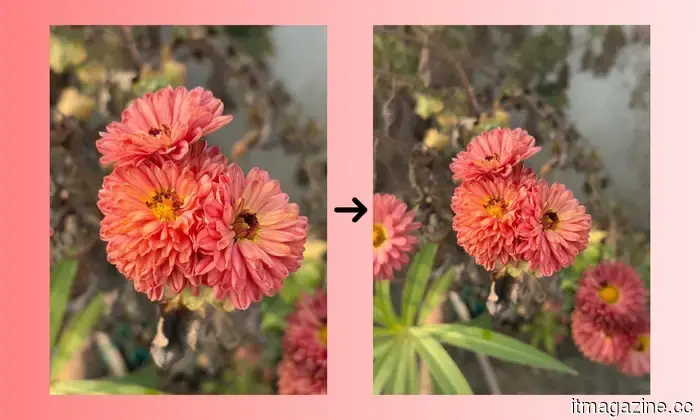
Another instance highlights how uncanny and artificial a picture can appear. The extension from all sides likely explains why the shrubs at the top, the flower on the left, the elongated leaves at the bottom, and the added flowers on the right look a bit peculiar. Of the four people I shared this image with, only one believed it was real, while three quickly recognized the signs of manipulation.
Some outcomes, however, exceeded my expectations.
I encountered a few images where the tool refused expansion in certain directions. Some of these photos included human figures in the direction of potential expansion, suggesting it might be an intentional limitation, but I couldn't discern the reasoning for others. Furthermore, the feature requires a stable internet connection and might not function well with slow wireless networks.
That said, aside from those exceptions, I have numerous examples where Extend performed remarkably well. For instance, consider the image of my friend from her birthday in May.
I captured this with a Nikon mirrorless camera, and the quality of the generative expansion here is impressive; even she couldn't tell the difference. While the shrubs in the lower left do lose their detail in the extended area, everything else appears satisfactory.
The silhouette at the base of the tree and the foreground plants are generated very convincingly. However, the leaves at the top slightly betray the effect.
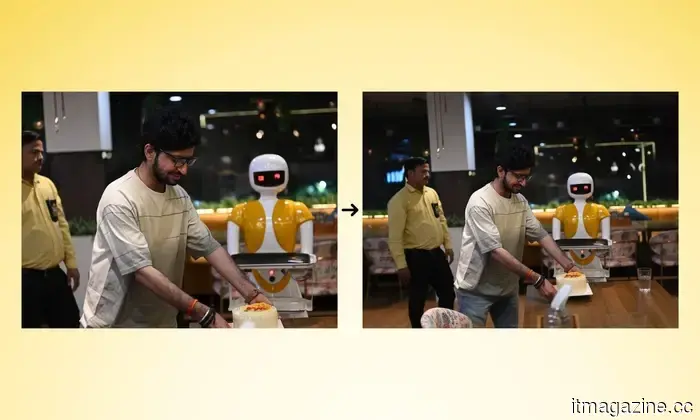
This edit is equally notable. The AI has rendered the background figure with just the right level of detail (he was already blurred due to the lens’s shallow depth of field), making him look realistic, with the reflections in the mirror on the right appearing natural as well.
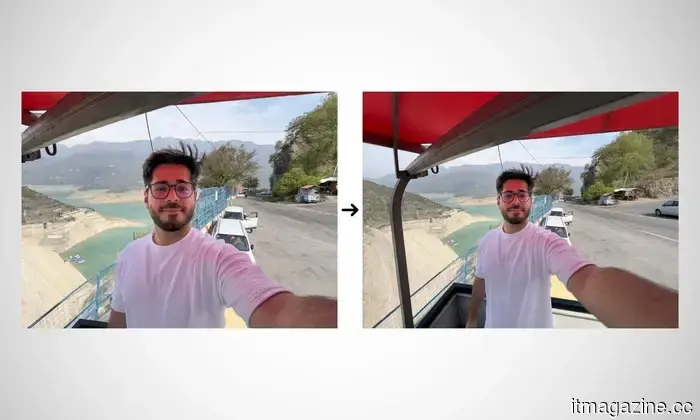
One of my favorite images created with the Extend feature showcases how it seamlessly fills in the texture from the waterbed (to the left) to the mountains in the background and the canopy stand. It did place a car on the right and made my arm look a bit odd, but overall, it’s suitable for a social media post.
Similarly, in another image, those who weren't present cannot discern if the gift box at the bottom or the lamp in front of the wall hanging on the left is real. The door to the right and the partially visible chair behind me were actually absent. If you look closely at the ceiling, you can see how Apple’s AI has slightly curved it to mimic a fish-eye or wide-angle lens effect.
This is one of the cleanest edits I achieved with Extend.







Other articles
 I purchased Kodak's trendy keychain camera, and the less-than-great photos add to its appeal.
The Kodak Charmera is small, lacks impressive technical features, and is entirely superfluous; however, its low-fidelity images and intriguing appeal make it difficult to ignore.
I purchased Kodak's trendy keychain camera, and the less-than-great photos add to its appeal.
The Kodak Charmera is small, lacks impressive technical features, and is entirely superfluous; however, its low-fidelity images and intriguing appeal make it difficult to ignore.
 Baidu's semiconductor division, Kunlunxin, is aiming for a $50 billion IPO in Hong Kong and has requested investors to purchase its chips.
According to The Information, Kunlunxin requested IPO investors to also agree to buy its AI chips. In the first half of 2026, Hong Kong generated nearly $44 billion from share sales.
Baidu's semiconductor division, Kunlunxin, is aiming for a $50 billion IPO in Hong Kong and has requested investors to purchase its chips.
According to The Information, Kunlunxin requested IPO investors to also agree to buy its AI chips. In the first half of 2026, Hong Kong generated nearly $44 billion from share sales.
 Doctors created an AI stress companion that detects body signals from your smartwatch and earbuds.
Researchers have developed an AI assistant that utilizes data from smartwatches, smartphones, and earbuds to identify shifts in emotional state and provide more tailored mental health support.
Doctors created an AI stress companion that detects body signals from your smartwatch and earbuds.
Researchers have developed an AI assistant that utilizes data from smartwatches, smartphones, and earbuds to identify shifts in emotional state and provide more tailored mental health support.
 Love and Deepspace’s newly introduced romanceable character is facing significant backlash, even after an apology from Paper Games.
The 3D romance game Love and Deepspace by Paper Games is facing its most significant controversy since its release, following the unveiling of its
Love and Deepspace’s newly introduced romanceable character is facing significant backlash, even after an apology from Paper Games.
The 3D romance game Love and Deepspace by Paper Games is facing its most significant controversy since its release, following the unveiling of its
 Locating Android apps on the Google Play Store has become significantly simpler with the introduction of Gemini.
Google has introduced the Google Play connected app for Gemini, enabling users to find apps, make specific purchases, and acquire Play gift cards through AI.
Locating Android apps on the Google Play Store has become significantly simpler with the introduction of Gemini.
Google has introduced the Google Play connected app for Gemini, enabling users to find apps, make specific purchases, and acquire Play gift cards through AI.
 Apple's tax on RAM upgrades for Macs, which has always been high, has now reached an unreasonable level.
Mac purchasers are facing increased RAM upgrade costs on certain configurations, with prices now doubled, despite Apple's upgrade fees already being significantly higher than standard market prices.
Apple's tax on RAM upgrades for Macs, which has always been high, has now reached an unreasonable level.
Mac purchasers are facing increased RAM upgrade costs on certain configurations, with prices now doubled, despite Apple's upgrade fees already being significantly higher than standard market prices.
I tested the AI-driven Extend photo feature in iOS 27, and it exceeded my expectations.
Apple's latest Extend tool in iOS 27 Photos is among the most ambitious AI-driven photo features the company has released.