
Apple Preview is perhaps the most undervalued application on Mac. Here are seven features you might not be aware of that it offers.
Most Mac users consider Apple Preview solely as an application for viewing images, PDFs, and other documents. If you relate to this, you're missing out, as Preview has quietly evolved into one of the most versatile applications on macOS, and it comes at no cost.
I use the app every day for tasks like editing images, marking up and signing PDFs, redacting information, and much more. Let me share seven features of Apple Preview that you might not be aware of.
You can rearrange, merge, and extract pages from PDFs
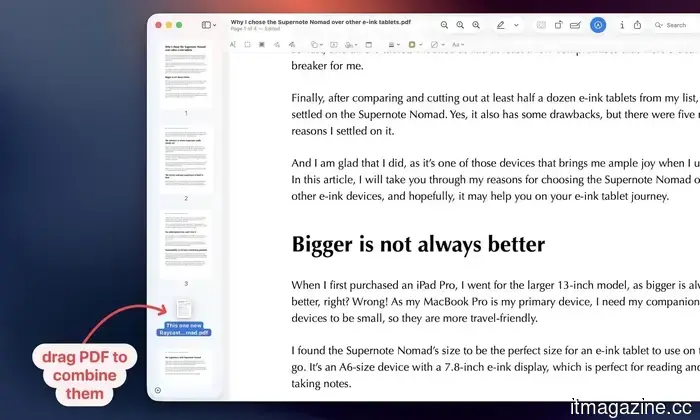
If you frequently work with PDFs, this feature will save you a lot of time. Preview allows you to easily rearrange pages within PDFs, combine multiple PDFs into a single document, and even extract specific pages from a PDF.
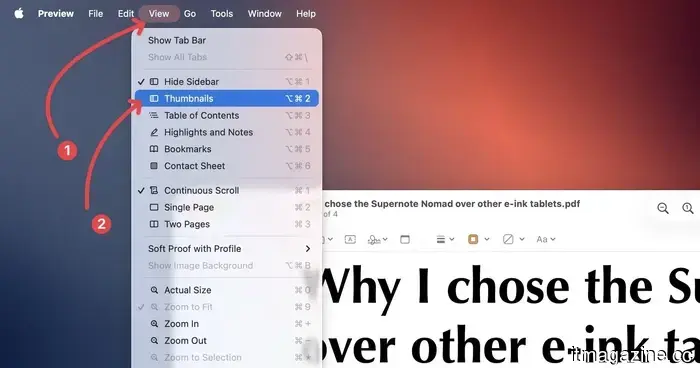
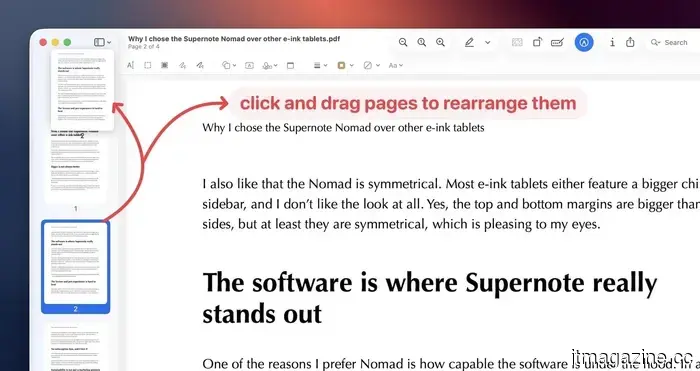
To do any of these, first, you need to enable the thumbnail view. Open a PDF file in Preview and go to View → Thumbnails or use the keyboard shortcut ⌥⌘2 to display the sidebar. From there, you can click and drag pages to reorder them as you wish.
You can also drag a selected page from the sidebar directly to your desktop, and it will create a new PDF with that page. No additional software is required.
Additionally, you can drag pages from one PDF or even an entire PDF into another to merge them seamlessly.
Prevent unauthorized access to your PDFs
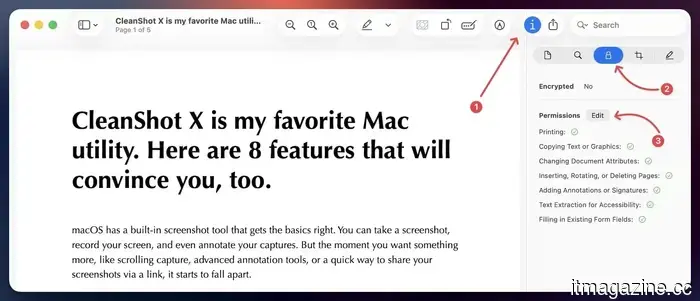
If you're sharing a sensitive PDF and want to restrict access, you can lock it using Preview, so only those with the password can open it.
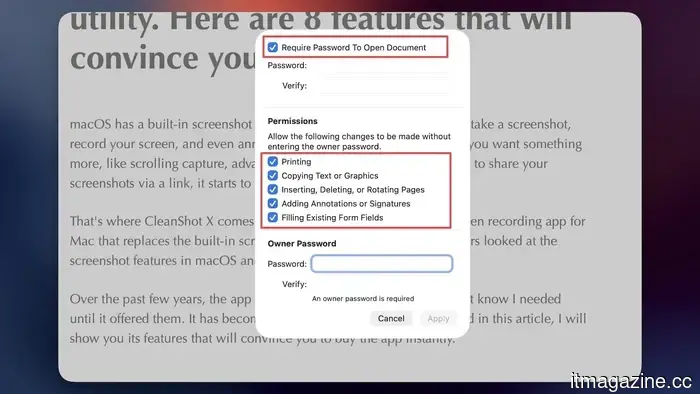
To do this, open your PDF, click the info button in the toolbar, locate the security lock icon under Permissions, and click the Edit button.
Now, check the option to require a password to open the document, set your password, and save the changes. You can also specify what others may do without the password, like allowing printing but restricting all other actions.
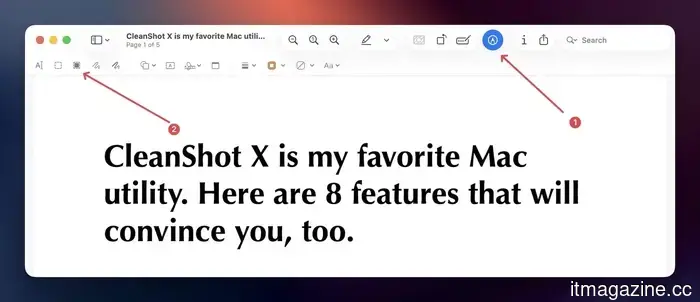
Another way to conceal information is through redaction. This permanently hides the information so it cannot be read. Keep in mind that once you save a redacted document, you won't be able to recover the information, so make sure to keep a copy of the original document beforehand.
To redact a document, open the Markup toolbar and select the Redact tool. You can then highlight text or select a specific area to redact.
Read PDFs at night without straining your eyes
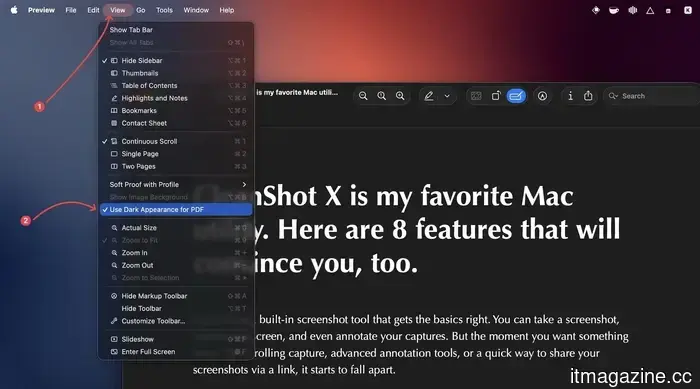
This is a recent and highly useful feature. If you use your Mac in dark mode, Preview now includes an option to match that mode for your PDFs. Go to View → Use Dark Appearance for PDF, and the glaring white background changes to a dark one, making it much easier on your eyes. Note that this option only appears when your Mac is set to dark mode.
Remove image backgrounds without needing third-party software
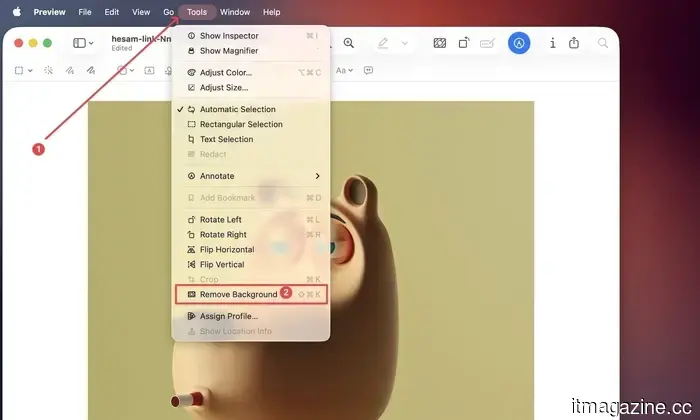
Preview has various image editing features. Among them, my favorite is the ability to remove the background from an image. You don’t need tools like Affinity or Photoshop for this.
Preview can achieve it. Open an image, select Tools → Remove Background, or use the keyboard shortcut ⌘⇧K. As shown in the preceding image, Preview effectively removes the background while isolating the subject.
Open any image from your clipboard
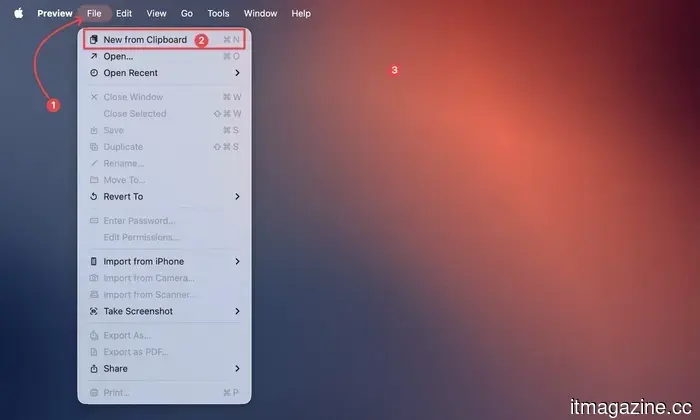
Here’s a handy trick I often use. If you copy an image to your clipboard, you don’t need to paste it into a photo editing application to save it. Simply open Preview and go to File → New from Clipboard or use the keyboard shortcut ⌘N. Your copied image will appear instantly, ready for editing, resizing, or exporting.
Mark up screenshots and PDFs like an expert
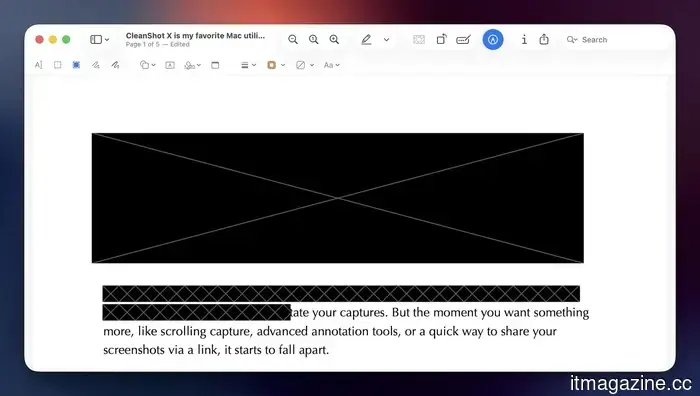
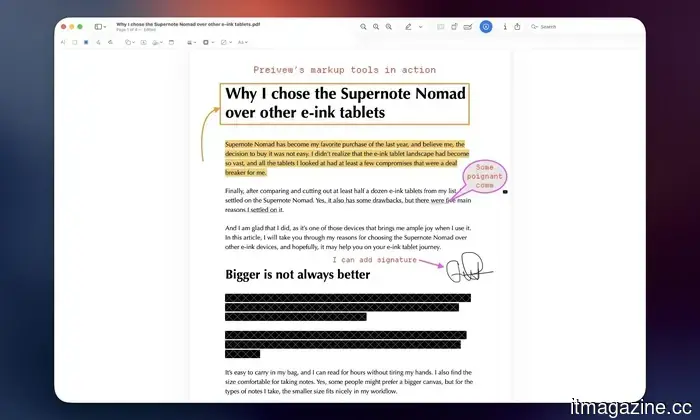
The markup toolbar in Preview is truly excellent for quick edits. You can draw circles or rectangles to highlight details, add text, draw arrows, and even include your signature.
While CleanShot X covers all my screenshot annotation needs, I use Preview to mark up my PDFs. For anyone not dealing with numerous screenshots daily, Preview's built-in features will suffice.
Bonus tip: extract high-quality app icons
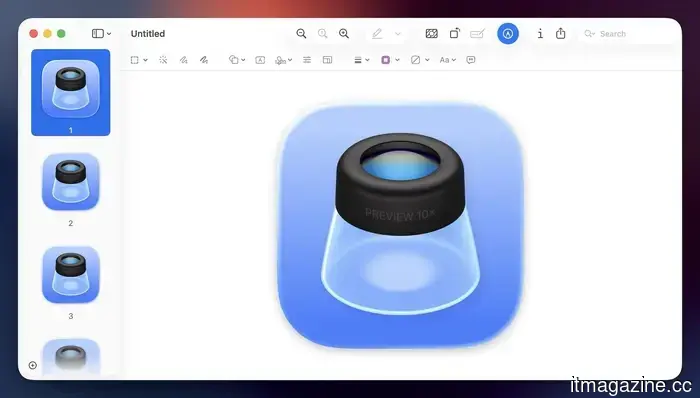
I’m not sure who else might need this feature, but I find it quite useful, so I’m sharing it as a bonus. Sometimes, I require app icons to create images, like the one at the beginning of this article.
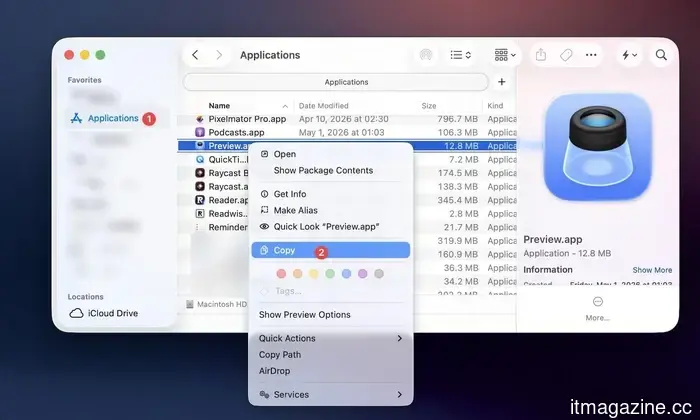
If you have the app installed on your Mac, there's no need to search for the icon online. Simply go to the Applications folder in Finder, select the app, and copy it.
Then, open Preview and use the “New from Clipboard” option or the keyboard shortcut ⌘N to open the app icon as an image in Preview. You can then save it to your desktop using the ⌘S shortcut.
Apple Preview is more than just a viewer
In conclusion, Apple Preview is genuinely powerful and readily available on your Mac for free. Whether you're managing PDFs, editing images, or ensuring a comfortable late-night reading experience, Preview has you covered. Give it a fair chance, and it may just become an essential part of

Other articles
 From humidity to energy: Researchers demonstrate how kitchen objects can generate power for wearables and smart home gadgets.
A novel biodegradable gadget composed of gelatin, table salt, and activated charcoal has the ability to produce electricity from the moisture in the air, paving the way for innovative battery-free wearable technology.
From humidity to energy: Researchers demonstrate how kitchen objects can generate power for wearables and smart home gadgets.
A novel biodegradable gadget composed of gelatin, table salt, and activated charcoal has the ability to produce electricity from the moisture in the air, paving the way for innovative battery-free wearable technology.
 India's SolarSquare is securing $60 million with a valuation of $500 million. The company has energized 50,000 households.
B Capital and Lightspeed are jointly leading the Series C round, which has resulted in the startup's valuation doubling within 18 months. India has become the third-largest solar producer globally.
India's SolarSquare is securing $60 million with a valuation of $500 million. The company has energized 50,000 households.
B Capital and Lightspeed are jointly leading the Series C round, which has resulted in the startup's valuation doubling within 18 months. India has become the third-largest solar producer globally.
 The Apple Watch is now 11 years old and is losing its edge. Competitors without screens are taking the lead in the upcoming phase.
Whoop, Oura, and Google's Fitbit Air are transforming wearables through AI coaching and passive tracking, while Apple's Health app seems to be in a state of limbo.
The Apple Watch is now 11 years old and is losing its edge. Competitors without screens are taking the lead in the upcoming phase.
Whoop, Oura, and Google's Fitbit Air are transforming wearables through AI coaching and passive tracking, while Apple's Health app seems to be in a state of limbo.
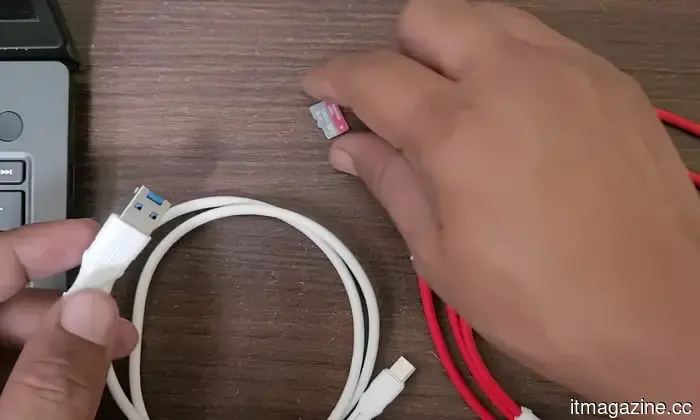 This "ordinary" USB cable has a hidden desire to function as a hacking tool.
A new Kickstarter initiative named Hacknect conceals a Wi-Fi-enabled hacking and automation platform within what seems to be a regular USB cable.
This "ordinary" USB cable has a hidden desire to function as a hacking tool.
A new Kickstarter initiative named Hacknect conceals a Wi-Fi-enabled hacking and automation platform within what seems to be a regular USB cable.
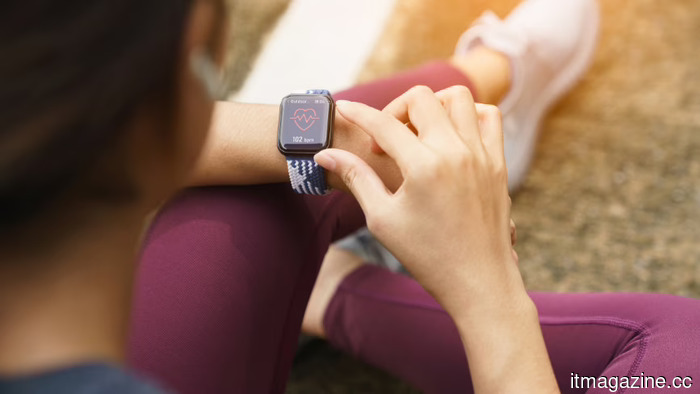 The Apple Watch is now 11 years old and is beginning to lose its impact. Competitors without screens are gaining traction in the upcoming phase.
Whoop, Oura, and Google's Fitbit Air are transforming wearables through AI coaching and passive tracking. In contrast, Apple's Health app still seems to be in a state of limbo.
The Apple Watch is now 11 years old and is beginning to lose its impact. Competitors without screens are gaining traction in the upcoming phase.
Whoop, Oura, and Google's Fitbit Air are transforming wearables through AI coaching and passive tracking. In contrast, Apple's Health app still seems to be in a state of limbo.
 3 MacBook games that are more impactful than many films and don’t require gaming skills.
If you own a MacBook and have never considered yourself a gamer, these three narrative-driven games are simple to dive into, emotionally impactful, and unexpectedly memorable.
3 MacBook games that are more impactful than many films and don’t require gaming skills.
If you own a MacBook and have never considered yourself a gamer, these three narrative-driven games are simple to dive into, emotionally impactful, and unexpectedly memorable.
Apple Preview is perhaps the most undervalued application on Mac. Here are seven features you might not be aware of that it offers.
Apple Preview has subtly evolved into one of the most robust applications on your Mac. From modifying PDFs to eliminating image backgrounds, here are 7 features it offers that may surprise you.